
SpreadsheetWeb blog
The Google Sheets Formulas That Do Not Survive the Trip to Excel
Download a Google Sheet as Excel and some formulas show #NAME? error, while others do not survive at all. Here is the cause, with files.
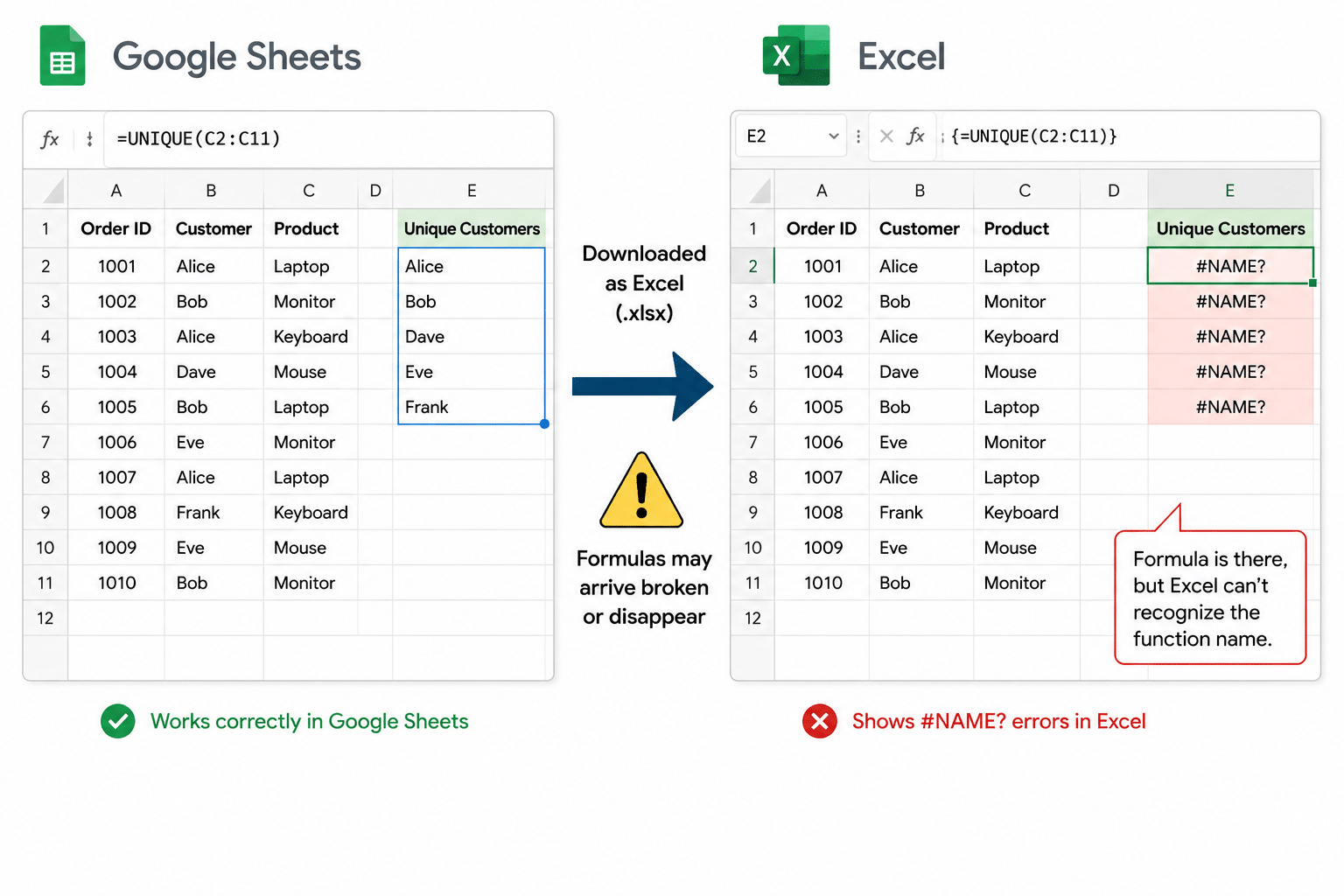
Download a Google Sheet as an Excel file, open it, and you may find #NAME? errors where your formulas used to be. The natural assumption is that your version of Excel is too old to recognize the function.
Usually it isn't. The cause is something else, and it leads to two quite different outcomes depending on which function you happened to use.
Some formulas arrive broken but intact. You can read them in the formula bar, the data underneath is fine, and recovering them is simple once you know how. Others do not arrive at all: the file will not open until Excel repairs it, and the repair leaves the formula's last calculated values behind as static numbers.
The difference is worth knowing, because only one of those is recoverable, and the one that isn't gives you less warning.
This article covers what happens to formulas that Google exports under their real names. Formulas that arrive wrapped in DUMMYFUNCTION fail a different way, and that is a separate story.
A note on timing. Everything here describes how Google Sheets exports to
.xlsxas of July 2026. Google develops the export continuously and does not publish a changelog for it, so this is a snapshot rather than a permanent state of affairs. The behavior below could be improved, or changed in some other way, at any point after this was written. If you are reading this some time later, run the two sample files yourself before assuming any of it still holds. The method for checking is at the end, and it takes about a minute.
Check it yourself
Every claim below comes from two small workbooks. Both are public, and both take a minute to verify.
- UNIQUE: in Google Sheets and downloaded as Excel
- SORT: in Google Sheets and downloaded as Excel
Same ten rows of order data in both. One formula each. In Google Sheets they are unremarkable:
=UNIQUE(C2:C11)
=SORT(A2:E11, 4, FALSE)
Open the two downloads in Excel and they behave nothing alike.
The root cause: one missing prefix
An .xlsx file is a zip archive, and the formulas are stored as plain text inside it. Unzip either download, open xl/worksheets/sheet1.xml, and you can read exactly what Google wrote.
Here is the same function, same data, written by each program:
Excel wrote:    <f t="array" ref="B2:B3">_xlfn.UNIQUE(A7:A9)</f>
Google wrote:   <f t="array" ref="G5:G8">UNIQUE(C2:C11)</f>
Excel's file format requires functions introduced after 2007 to be stored with an _xlfn. prefix. It is a storage convention, not something you ever type, and Excel strips it away when it loads the file. That prefix is how Excel recognizes a modern function.
Google omits it. Every affected function in both downloads is written bare, with no prefix at all:
<f t="array" ref="G5:G8">UNIQUE(C2:C11)</f>
<f t="array" ref="G5:K14">SORT(A2:E11, 4, FALSE)</f>
<f>FORMULATEXT(G5)</f>
UNIQUE needs _xlfn.UNIQUE. SORT needs _xlfn._xlws.SORT. FORMULATEXT, which dates to Excel 2013 and has nothing to do with arrays, needs _xlfn.FORMULATEXT. None of them have it.
Key finding. The
#NAME?error has nothing to do with your version of Excel. Google's export omits the prefix that Excel's own file format requires, so Excel cannot resolve the function name when it loads the file. The same file will fail the same way in any version.
What happens to UNIQUE: broken, but honest
Open the UNIQUE download. The block shows #NAME? in every cell. But click into the top-left cell and the formula is right there in the formula bar:
{=UNIQUE(C2:C11)}Readable, correct, wrapped in the curly braces Excel uses for legacy array formulas. Your logic survived the trip. Excel just cannot resolve the name.
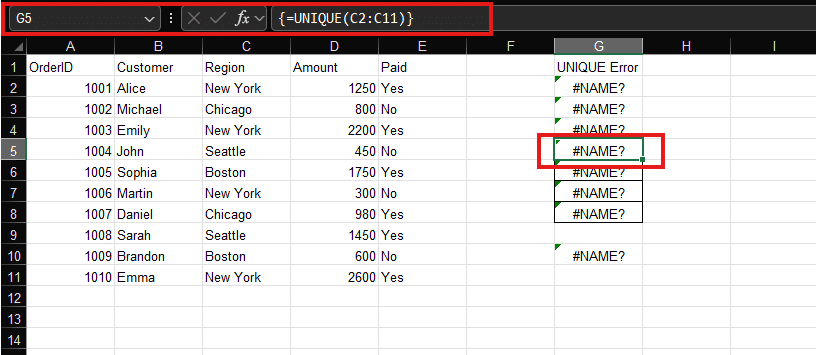
This is the good outcome. It is loud, it is visible, and nothing has been lost.
Look further down that screenshot and there is a fifth #NAME?, at G18, sitting apart from the block. That one is not an array at all. It holds a single-cell helper formula:
=FORMULATEXT(G5)
FORMULATEXT dates to Excel 2013 and has nothing to do with arrays or spilling. It is broken for exactly the same reason: it was written bare, without its _xlfn. prefix. So the problem is not confined to modern array functions. It reaches any function newer than 2007, including plain scalar ones.
There is a small irony in which cell it landed on. FORMULATEXT exists to show you what a formula says. Here, the one cell that could have told you what the original formula was is broken by the same defect it would have described.
The fix everyone recommends works only sometimes
Search for this problem and you will find the same advice everywhere: click into the cell, remove the curly braces, press Enter, and it calculates. It is on support forums. It is in Microsoft's own community answers.
On G18 it works exactly as advertised. Click in, press Enter, and the cell resolves and displays the formula text. Nothing else required.
Now try it on the UNIQUE block. Excel refuses:
You can't change part of an array.
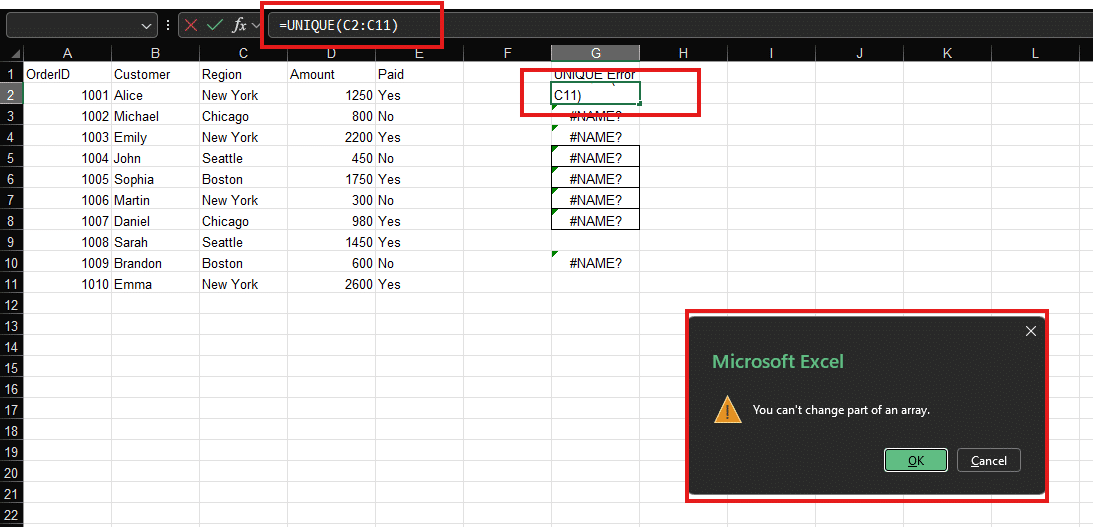
Both cells are in the same file. Both are bare-name formulas showing #NAME?. The difference is that G18 occupies one cell, while G5:G8 is a single array object that Excel will not let you edit one cell of. So the advice holds for scalar formulas and fails for anything that spills, which is most of what people export.
You can see the formula. You cannot apply it.
What actually works for the array: select the whole spill range, delete it, then type the formula into the top-left cell alone and press Enter. Excel resolves the function natively and spills it fresh.
Then check the result against the original sheet, because a formula recalculated by Excel is now running under Excel's rules, which are not always the rules that produced the numbers you were looking at.
What happens to SORT: removed during repair
Now open the SORT download. Before you see the sheet, you get this:
We found a problem with some content in 'Download from Google Sheet - SORT.xlsx'. Do you want us to try to recover as much as we can? If you trust the source of this workbook, click Yes.
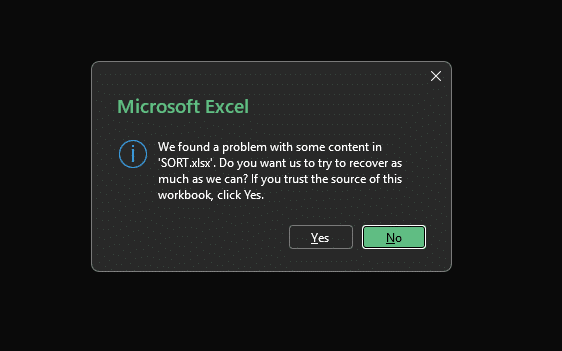
This is Excel's standard file-repair prompt, and it is doing what it is meant to do. It has been handed a record it cannot validate, so rather than fail outright it offers to open everything else. Given a malformed file, that is a reasonable response, and in most cases it is the one you want.
The wrinkle is that the prompt is general-purpose. It says "some content" because it covers charts, styles, and anything else that might be unreadable, so it cannot tell you specifically that a formula is at stake. And the reference to trusting the source reads as a security question, which is the frame most of us bring to a dialog worded that way. When the file came from your own sheet, the answer feels obvious.
Click No and the file does not open. There is no read-only or preview option at this stage, so in practice the choice is between opening the file without the formula and not opening it at all.
Click Yes and Excel reports what it did:
Removed Records: Formula from /xl/worksheets/sheet1.xml part
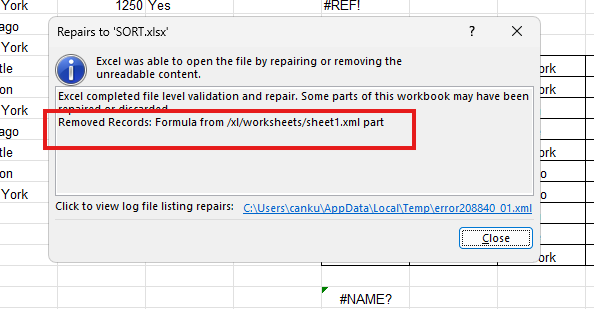
The linked log file adds nothing. It repeats that one sentence and stops. No cell reference, no function name, no count of what was lost.
And here is the state of the sheet afterward. The formula bar on the top-left cell of the block:
300Not a formula. A number. The SORT formula that produced fifty cells of sorted output is gone, and fifty hardcoded literals sit in its place. Nothing marks them. Nothing distinguishes them from data you typed by hand.
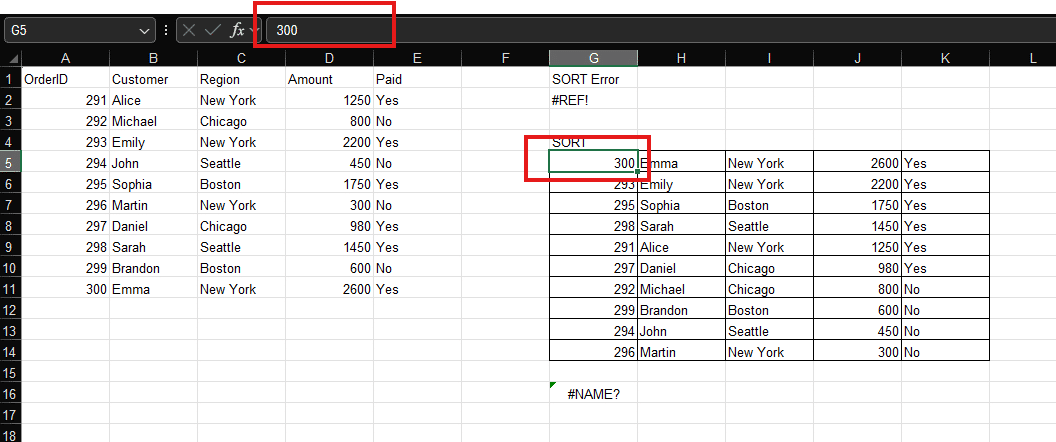
You can verify the deletion in the bytes. Before repair:
<f t="array" ref="G5:K14">SORT(A2:E11, 4, FALSE)</f>After: no formula element at all. Just values.
Excel does report the removal, and the report is accurate. There was exactly one formula record in the file, and Excel removed exactly one. The limitation is that the notice arrives after the repair rather than before it, and it identifies the location by the internal part name rather than by sheet or cell. On a workbook with a single sheet that is easy enough to follow. On a large model it gives you less to work with, and there is no listing of which formula was affected.
So which formulas get deleted?
This is the question that matters, and the answer is stranger than we expected.
We ran the same experiment across shapes, sizes, and argument types:
| Formula | Columns | Cells | Result |
|---|---|---|---|
UNIQUE(C2:C11) |
1 | 4 | Opens, #NAME?, formula intact |
UNIQUE(A2:A11) |
1 | 10 | Opens, #NAME?, formula intact |
UNIQUE(A2:E11) |
5 | 50 | Opens, #NAME?, formula intact |
UNIQUE(A2:E11, TRUE) |
5 | 50 | Opens, #NAME?, formula intact |
SORT(A2:E11, 4, FALSE) |
5 | 50 | Repair prompt, formula deleted |
SORT(D2:D11) |
1 | 10 | Repair prompt, formula deleted |
UNIQUE survives everything. One column or five. Four cells or fifty. With or without an extra argument. Always #NAME?, always recoverable.
SORT dies every time. Fifty cells or ten. Three arguments or one. Always deleted.
It is not the size of the array. It is not the shape. It is not the arguments. What decides the outcome is the function name itself.
A likely explanation, offered as a hypothesis
Excel stores these two functions in different namespaces:
_xlfn.UNIQUE          one part
_xlfn._xlws.SORT      two parts
That extra _xlws exists because SORT collides with something Excel already has: the Sort feature on the Data ribbon. Microsoft needed to keep the function name apart from the existing one, so it lives in a separate worksheet-function namespace.
Which would mean that when Excel reads a bare UNIQUE, it finds a name it does not recognize and treats it as an unresolved name, returning #NAME?. When it reads a bare SORT, it hits a name that already carries meaning in its grammar, cannot reconcile the two, and the record fails validation. From there the repair path takes over.
We cannot confirm this from the file alone, so treat it as a hypothesis rather than a finding. What is not in doubt is the behavior itself, which is reproducible in the two files linked above.
The practical version: you cannot predict which of your formulas survive by looking at your data or the size of your results. You have to check the file.
What to do
Check before you send. If you are exporting a Google Sheet for someone on Excel, open the download yourself first. If the repair prompt appears, a formula will not survive the repair, and the person you send it to has no way to know that from the prompt alone.
Keep the original. Once a repair has run, there is no record of what was removed. The Google Sheet is your only copy of the logic.
Treat #NAME? as good news. It means the formula is intact in the formula bar. If it occupies a single cell, click in and press Enter and you are done. If it spills, select the whole range, clear it, retype the formula into the top-left cell, and let Excel spill it natively.
Treat a missing prompt as no guarantee. A file can open cleanly and still contain formulas that no longer calculate. That is the DUMMYFUNCTION problem, and it is quieter than this one.
Rebuild anything load-bearing. A formula recovered from a converted file is being evaluated under Excel's rules now, and those are not always the rules that produced the numbers you saw in Google Sheets.
How this was tested
The formulas above were read directly from each file's XML rather than from a formula bar, because an .xlsx stores every formula as plain text in xl/worksheets/sheetN.xml. That removes any question about which version of Excel rendered what, or whether a cell was showing a live result or a stale cached one. The workbooks linked at the top are the exact files examined, so every step here is reproducible.
These findings have a shelf life. They describe the Google Sheets export as it behaved in July 2026, and neither company documents this part of the conversion. Google could add the missing prefixes in a future update, at which point the #NAME? errors and the repair prompt would both go away and this article would become a description of a problem that used to exist. That would be a good outcome, and we would rather it happened than not.
So treat the dates here as load-bearing. If you are reading this later, the honest test is the one above: export a sheet, rename the download to .zip, open xl/worksheets/sheet1.xml, and look for _xlfn. in front of your function names. If it is there, this has been fixed. If it is not, the article still applies.
Avoid the trip that breaks them. Rather than moving a Google Sheet into Excel’s world, SpreadsheetWeb publishes it as a web app that keeps computing with Google Sheets rules — no #NAME? surprises. How the engine stays true to the source, or turn your Sheet into an app.