
SpreadsheetWeb blog
Excel vs Google Sheets Formula Compatibility: The Complete Guide
Excel and Google Sheets share hundreds of functions but do not always compute them the same way. This guide maps every kind of difference, from silently wrong answers to mismatched errors to what happens when a file actually moves between the apps.
Excel and Google Sheets feel interchangeable. They share hundreds of function names, the same =FUNCTION(arguments) syntax, and the same basic grid. Most of the time a formula written in one works in the other, which is exactly why the exceptions are so easy to miss. The two apps differ in three distinct ways, and they differ again in what happens when a file physically moves from one to the other. This guide maps all of it and links to the deeper articles on each part.
Why "compatible" does not mean "identical"
Every difference here has the same root cause. A formula's meaning is defined by the application that runs it, but the formula text does not record which application that was. Excel and Google Sheets deliberately share function names so people can move between them, yet behind those shared names the two teams made different design decisions. As long as a spreadsheet stays in its home app, none of that matters. The trouble starts when the file moves, because nothing inside it says "compute me the Excel way" or "compute me the Google way."
Part 1: The native differences
These are the differences you see when you type the same formula directly into each app. Three are worth knowing by name, because they are common and they fail quietly: the formula runs in both apps, neither shows an error, and the answers simply differ.
FILTER returns different rows. The third argument means opposite things. In Excel, =FILTER(array, include, [if_empty]), it is the value to show when nothing matches, and Excel ignores it when there are matches. In Google Sheets, =FILTER(range, condition1, [condition2, ...]), it is a second condition combined with the first. So the same FILTER can return more rows in Excel than in Google Sheets, with no error either way.
SORT sorts in the opposite direction. Excel encodes sort direction as 1 for ascending or -1 for descending. Google Sheets expects a boolean, TRUE or FALSE. A formula like =SORT(range, 2, -1) sorts descending in Excel, but Google Sheets reads -1 as truthy and sorts ascending. Same formula, reversed result.
UNIQUE keeps a different number of rows. Excel treats UNIQUE as case-insensitive, so Apple and apple collapse to one. Google Sheets treats it as case-sensitive, so they stay separate. A deduplicated list quietly grows or shrinks depending on the app.
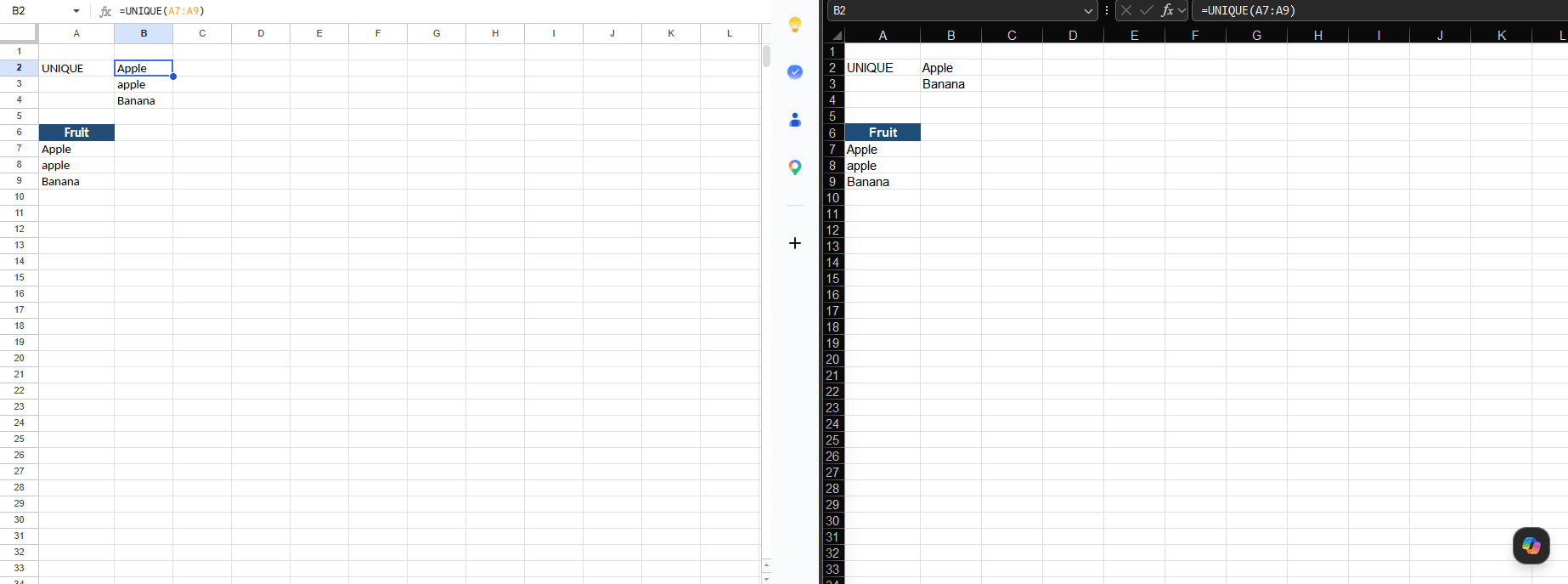
The full worked examples for all three, with side-by-side screenshots, are in this article: Same formula, different answer
Part 2: What actually happens when a file moves
When an Excel .xlsx is opened in Google Sheets, the result is not simply "Sheets recalculates everything its own way." The outcome depends on the specific function, because of how each one is stored inside the file, and it is rarely the clean native divergence above.
There are two ways a file lands in Sheets. Opening the .xlsx from Drive uses Office editing mode, where the file keeps its Excel format and shows an .XLSX badge. Choosing "Save as Google Sheets," or having Drive auto-convert uploads, fully converts it to a native Sheet. The two paths behave differently, and so do different functions:
FILTER and SORT break, then can be mis-fixed into a silent error. These are stored under an Excel compatibility namespace and appear in Sheets wrapped, for example =ARRAY_CONSTRAIN(ARRAYFORMULA(_xlws.FILTER(...)), 3, 2). In editing mode they are preserved. But once the file converts to a native Sheet, they return #NAME?, because Google's engine does not recognize _xlws.FILTER or _xlws.SORT. The trap is what a capable user does next: they strip the unfamiliar wrappers back to a clean =FILTER(...), the error clears, and the cell now silently computes with Google's rules, returning a different answer than the Excel original. A loud error becomes an invisible wrong answer.
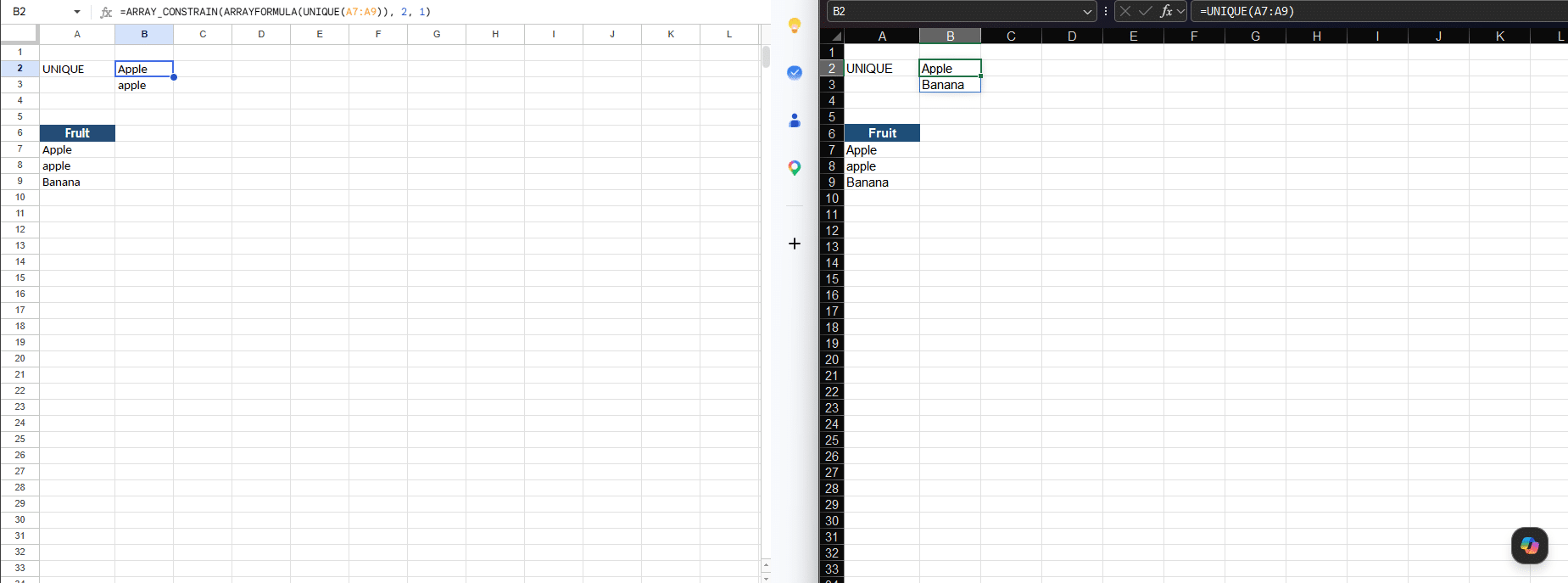
UNIQUE survives but gets clipped into a corrupted result. It is stored as an ordinary function, so it does not error. But it arrives wrapped as =ARRAY_CONSTRAIN(ARRAYFORMULA(UNIQUE(...)), 2, 1), and that ARRAY_CONSTRAIN was sized to Excel's original, smaller result. Google recomputes UNIQUE case-sensitively and finds more rows, but the wrapper clips the output back to Excel's row count. On an Apple, apple, Banana list, Excel returned two rows (Apple, Banana); Google's case-sensitive result is three (Apple, apple, Banana); clipping that to two leaves "Apple, apple" and drops Banana. The displayed answer matches neither app: it keeps a case-duplicate and loses a genuinely unique value, with no error.
When a function you could type by hand still breaks on import
There is a subtler version of this worth knowing, because it surprises even experienced users. Whether a formula survives conversion depends on whether Google's file importer translates the function, and that is a narrower thing than whether Google's engine supports the function at all. Some newer array functions, including TOCOL, CHOOSECOLS, and WRAPROWS, work perfectly when you type them directly into Google Sheets, yet are not translated by the importer. So an Excel file that uses them arrives with the formula frozen in its original form, and the cell errors, even though you could write the same function by hand in the same sheet.
For example, =TOCOL(Table2[[Name]:[Type]]) written in Excel arrives in the converted Google Sheet looking like this, and returns #ERROR!:
=ARRAY_CONSTRAIN(ARRAYFORMULA(_xlfn.TOCOL(Table2[[Name]:[Type]])), 28, 1)
The _xlfn. prefix is the tell: the function was left in its stored Excel form instead of being translated to Google's own TOCOL, and the Excel Table reference was left untouched alongside it.
The error you see depends on the arguments. If the frozen formula references plain cells, it shows #NAME?. If it references an Excel Table, the table syntax cannot be parsed either, and it shows #ERROR! instead.
This is where it pays to see the contrast. Structured table references do convert correctly on their own, but only inside a function the importer actually translates. XLOOKUP is one it translates, and a table reference inside it survives cleanly. An Excel =XLOOKUP(Name, Table1[[#All],[Name]], Table1[[#All],[#]]) converts to a working native formula with the table references rewritten to ordinary ranges:
=ARRAY_CONSTRAIN(ARRAYFORMULA(XLOOKUP(Name, $C$4:$C$18, $B$4:$B$18)), 1, 1)
Notice there is no _xlfn. prefix and no table syntax left: the function was translated, and Table1[[#All],[Name]]` became `$C$4:$C$18. That is the same kind of structured reference that broke inside TOCOL, surviving here because the surrounding function was one the importer understood. So the deciding factor is the function, not the table reference. The takeaway is that "I can type this function in Sheets" does not guarantee "this function will survive a file from Excel."
The lesson is that you cannot predict the outcome from the function name, and a file round-trip is not a reliable way to see these differences. A formula may be preserved, may break loudly, or may silently corrupt.
The full evidence, with screenshots of each case, is in the deep-dive: What Really Happens to Your Formulas When You Move a Spreadsheet Between Excel and Google Sheets.
Part 3: Functions that exist in only one app
The most visible category. If a formula uses a function the other app does not have, you get a #NAME? error you cannot miss. Google Sheets has many functions Excel lacks, including QUERY, GOOGLEFINANCE, IMPORTRANGE, and the REGEX family, and Excel has some Google Sheets has not implemented. This category is the least dangerous precisely because it is loud.
Part 4: Errors diverge too
The same edge case can produce a different error in each app, and sometimes that difference slips past your error handling. A FILTER with no matches returns #CALC! in Excel but #N/A in Google Sheets, and a blocked dynamic array returns #SPILL! in Excel but #REF! in Google Sheets. This matters most when a model traps a specific error type: a plain IFERROR wrapper is safe in both apps, but an IFNA wrapper, which catches only #N/A, cleans up the no-match case in Sheets and lets it through as a raw #CALC! in Excel.
Quick reference
| Function | Native difference | When an .xlsx opens in Sheets |
|---|---|---|
| FILTER | Third argument is "if empty" in Excel, a second condition in Google, so the row count differs | Wrapped as _xlws.FILTER; preserved in editing mode, #NAME? on conversion; a manual fix flips it to Google's rules silently |
| SORT | Direction is 1/-1 in Excel, TRUE/FALSE in Google, so the order reverses |
Wrapped as _xlws.SORT; same pattern as FILTER |
| UNIQUE | Case-insensitive in Excel, case-sensitive in Google, so the row count differs | Computes, but ARRAY_CONSTRAIN clips it to Excel's row count, producing a result that matches neither app |
| QUERY, GOOGLEFINANCE, IMPORTRANGE | Google-only, no Excel equivalent | #NAME? |
| FILTER with no matches | #CALC! (Excel) vs #N/A (Google) |
Error code differs |
| Blocked dynamic array | #SPILL! (Excel) vs #REF! (Google) |
Error code differs |
A caution on predicting divergences
It is tempting to look for a theme, like "Google is stricter about case," and assume it applies across functions. It does not. Google's UNIQUE is case-sensitive, but its XLOOKUP and VLOOKUP are case-insensitive, exactly like Excel's. So a case-varying XLOOKUP returns the same answer in both apps, while UNIQUE diverges. The differences are decided function by function, which means the only reliable way to know how a given formula behaves is to test that formula in both apps, not to reason from a pattern.
Why this is a real business problem
Consider a manufacturer that runs entirely on Microsoft Office and emails its Excel price list, full of FILTER, SORT, and UNIQUE summaries, to a few hundred distributors each quarter. The distributors on Excel see what was intended. The distributors on Google Workspace open the same file in Sheets, and the outcome is not uniform: a deduplicated count built on UNIQUE silently comes back corrupted, while FILTER and SORT either break with #NAME? or get "repaired" into a different answer. Either way, a partner ends up working from numbers the manufacturer never sent, and nobody notices until it has cost something. The file traveled fine. The meaning of its formulas did not.
How to protect your spreadsheets
- Pick a single source of truth. Decide which app the model lives in, and treat any copy opened in the other app as something that may not match.
- Test the formulas that matter on every move. Re-check FILTER, SORT, UNIQUE, any deduplicated counts, and any error-trapping that targets a specific error type.
- Do not trust a file round-trip to reveal differences. Opening or converting an
.xlsxmay preserve a formula, break it, or silently corrupt it. To compare behavior, rebuild the formula natively in each app. - Translate deliberately when you migrate for good. Rewrite divergent formulas to the target app's dialect rather than assuming they carry over.
- Use a calculation engine that is aware of a file's origin. An engine that computes each file the way its source app would removes the guesswork instead of forcing every file through one dialect.
That last point is now a product. SpreadsheetWeb’s source-aware engine computes each file the way its own app would, so a Google Sheet stays a Google Sheet. See how the source-aware engine works, or turn a Google Sheet into a web app.
Explore the series
- Same formula, different answer: the FILTER, SORT, and UNIQUE traps
- What Really Happens to Your Formulas When You Move a Spreadsheet Between Excel and Google Sheets
- The Google Sheets Formulas That Silently Stop Calculating in Excel
- The Google Sheets Formulas That Do Not Survive the Trip to Excel
- Excel vs. Google Sheets: The Complete Guide to Formula Differences (2026 Edition)