
SpreadsheetWeb blog
The Google Sheets Formulas That Silently Stop Calculating in Excel
Download a Google Sheet as Excel and some formulas arrive as permanent constants that never recalculate. They show no error. Here is how to find them.
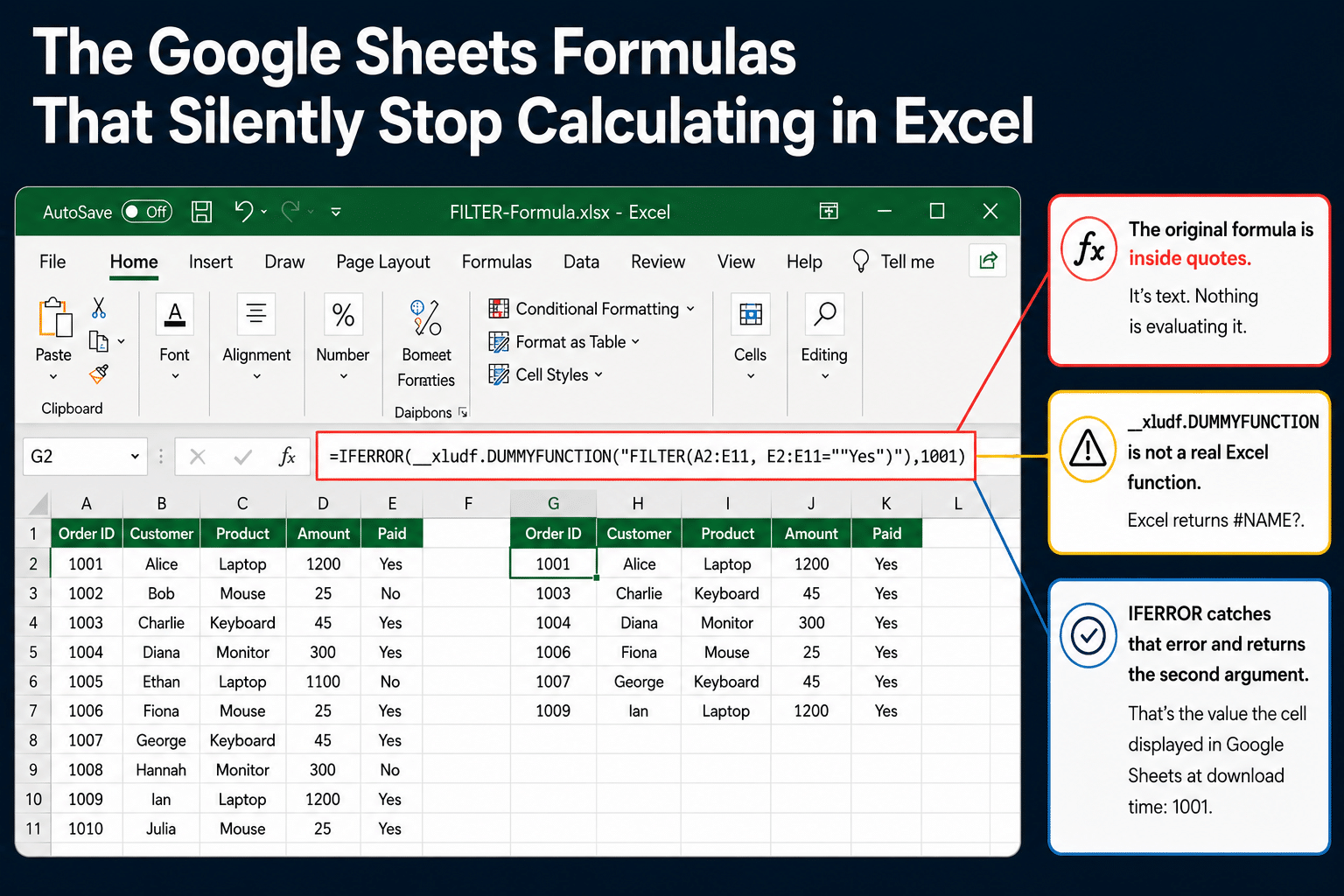
When you download a Google Sheet as an Excel file, some formulas arrive broken and show #NAME?. Those are the lucky ones. You can see them.
The dangerous cells show no error at all. They display a perfectly reasonable number. They contain something that looks like a formula. And they will return that same number forever, no matter what you change, because they are not formulas anymore.
A note on scope: this article is about one specific thing that happens to formulas on export. Other conversion problems exist and are covered separately.
The example, and how to check it yourself
Everything below comes from one small workbook you can open right now. It contains two FILTER formulas over the same ten rows of order data. One uses a plain cell range. The other uses a table.
- The original: FILTER formula sample in Google Sheets
- The same sheet, downloaded from Google as Excel: FILTER-Formula.xlsx
In Google Sheets, the two formulas are unremarkable:
=FILTER(A2:E11, E2:E11="Yes")
=FILTER(Table1, Table1[Paid]="Yes")
Both return the six paid orders. Now open the downloaded Excel file.
What you are looking at
Click into the first cell of either result block and the formula bar reads something like this:
=IFERROR(__xludf.DUMMYFUNCTION("FILTER(A2:E11, E2:E11=""Yes"")"),1001)
Read it slowly, because every part of it matters.
Your original formula, FILTER(A2:E11, E2:E11="Yes"), is still there, but it is inside quotation marks. It is a text string. Nothing is evaluating it.
__xludf.DUMMYFUNCTION is a placeholder. It is not a real Excel function and never will be. Excel cannot resolve it, so it raises a #NAME? error.
IFERROR catches that error and returns the second argument instead. That second argument, 1001, is the value the cell displayed in Google Sheets at the moment you clicked download.
So the cell shows 1001. Not because it calculated anything, but because Google wrote the answer down before it left.
The table version behaves identically:
=IFERROR(__xludf.DUMMYFUNCTION("FILTER(Table1, Table1[Paid]=""Yes"")"),1001)
Note the irony: Table1 itself survives the export as a genuine Excel table. The table is fine. The formula that reads it is not.

Three properties that make this dangerous
It will never show an error. The IFERROR exists precisely to prevent one. Recalculate as often as you like; the wrapper catches the #NAME? every time and hands back the same literal.
It will never update. There is no formula left to evaluate. The cell is a constant wearing a formula's clothes.
It has no dependencies. A2:E11 and E2:E11 are characters inside a text string, not cell references. Excel does not see them. Change a value in D7 and Excel does not even mark this cell as needing recalculation, because as far as Excel is concerned, this cell depends on nothing at all.
The key point. A
DUMMYFUNCTIONcell is a permanent constant that impersonates a formula. It never errors, never updates, and has no precedents. It returns whatever Google Sheets last calculated, from now on.
The whole result block is frozen, and only one cell remembers why
The two FILTER formulas produced six rows of five columns each. In the exported file, that is not two formulas. It is sixty separate constants.
Only the first cell of each block preserves your formula. Every other cell in the block looks like this:
=IFERROR(__xludf.DUMMYFUNCTION("""COMPUTED_VALUE"""),"Alice")
"COMPUTED_VALUE". That is all. Twenty-nine cells per block that contain no record of what produced them, just a frozen value and a placeholder where the logic used to be.
The shape is frozen too. If the underlying data changed so the live formula would now return eight rows, you would still see six. There is nothing to expand.
Why this is worse than a broken formula
Put one of these cells in the middle of a model.
It computes a factor. Maybe a discount rate, a regional total, a headcount assumption. Everything downstream of it recalculates normally. Everything upstream is editable and responsive. The model feels alive. Numbers move when you change inputs.
And one factor in the middle has been returning the same value since the day the file was exported.
ISFORMULA on that cell returns TRUE. The formula bar shows text that reads like a formula. There is no error indicator, no green triangle, no warning. Nothing in the interface distinguishes it from a working formula except one thing: Trace Precedents draws no arrows. And nobody traces precedents on a cell that looks correct.
You could work with that model for a year and never know. The only symptom is that a number you never questioned was wrong, and it was wrong in a way that quietly propagated into every result you produced from it.
This is the inversion worth remembering. The formulas Google could not translate into Excel become silent frozen constants that look fine. The formulas it could translate tend to break loudly and visibly. The cells that failed hardest are the safe ones.
Which formulas does this happen to?
In the sample file, FILTER was converted to DUMMYFUNCTION, with the range form and the table form treated exactly the same way. Google-only functions such as ARRAY_CONSTRAIN, which have no Excel equivalent at all, are wrapped this way too. That much makes sense.
What does not make sense is that FILTER is not a Google-only function. Excel has FILTER. And other functions in the same files were exported as real Excel function names rather than being wrapped, including at least one whose behavior genuinely differs between the two apps. So the obvious theory, that Google wraps the functions it cannot safely translate, does not survive contact with the evidence.
There may be a principle here. We could not find it, and we would rather say so than invent one. Practically, this means you cannot predict which of your formulas will survive by reading the function names. You have to check.
(Functions that were exported as real names have their own, quite different problems. Those are a separate story.)
How to find them
This takes about ten seconds and you should do it on any Excel file that came out of Google Sheets.
- Press Ctrl+F.
- Click Options.
- Set Look in to Formulas.
- Search for
DUMMYFUNCTION.
Every hit is a cell that will never recalculate again. In the sample file, that search returns sixty of them.

To confirm what you have found, select one of the hits and choose Formulas, then Trace Precedents. A working formula draws arrows to the cells it depends on. These cells draw nothing, because they depend on nothing.
If you want to inspect a file without opening it in Excel, an .xlsx is a zip archive. Unzip it, open xl/worksheets/sheet1.xml in a text editor, and search for DUMMYFUNCTION. The stored formulas are plain text.

How to fix them
There is no repair. Pressing Enter re-enters DUMMYFUNCTION. Removing the IFERROR leaves you with a #NAME? error, which is at least honest but no more useful.
For the first cell of a block, the original formula is sitting inside the quotation marks. Copy it out, clear the cell, and retype it as a real Excel formula. For the other cells, there is nothing to copy: "COMPUTED_VALUE" tells you only that a value was once computed there.
Then check the result against the original Google Sheet, because a formula rewritten for Excel is now evaluated under Excel's rules, and those are not always the rules that produced the number you were looking at.
If a workbook is going to live in Excel, rebuild the affected formulas deliberately rather than trusting the export. And if you are the one sending the file, run the DUMMYFUNCTION search before you send it.
How this was tested
The formulas above were read directly out of the exported file's XML rather than from a formula bar, because an .xlsx stores each formula as plain text in xl/worksheets/sheetN.xml. That removes any question of which Excel version rendered what, or whether a cell was showing a live result or a stale one. The sample file linked at the top is the exact file examined, so you can repeat every step of this yourself.
Neither vendor documents any of this, and it can change without notice, so re-test anything you depend on.
Keep your formulas in the app that understands them. SpreadsheetWeb turns a Google Sheet into a shareable web app without converting it to Excel, so nothing silently stops calculating. See the source-aware engine · Publish your Sheet as an app.