
SpreadsheetWeb blog
Working with Grid Controls in SpreadsheetWeb: Input, Output, and Form-Based
Learn how grid controls work in SpreadsheetWeb: input, output, and form-based grids, inline vs form entry, filtering and sorting, and pivot-style dynamic grids.
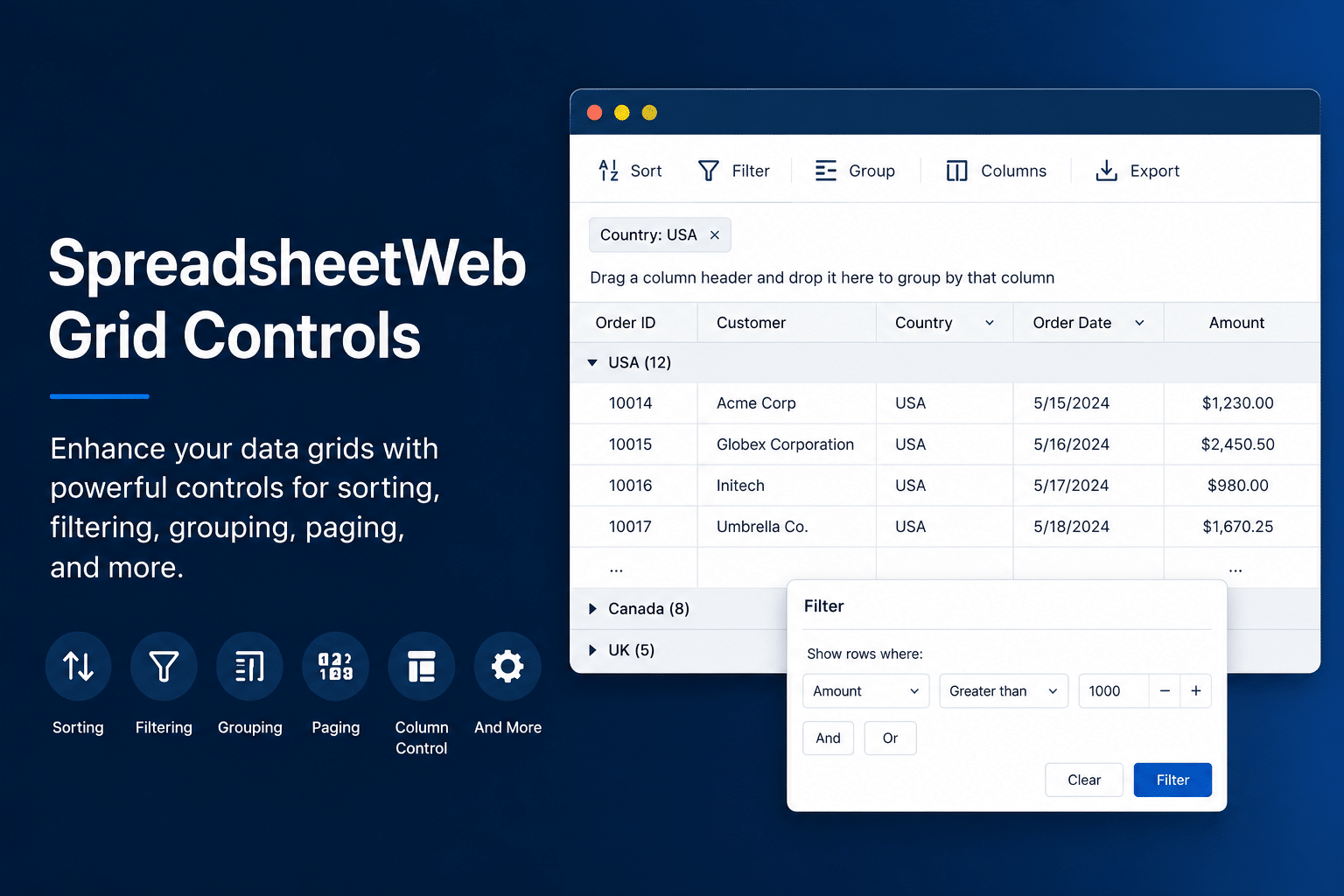
Most business logic in Excel does not live in single cells. It lives in tables: line items, schedules, rosters, rate cards, and results that span many rows and columns. When you turn an Excel model into a web application with SpreadsheetWeb, grid controls are how those tables come along for the ride. They let users enter, edit, and view tabular data in the browser while your spreadsheet keeps doing the calculating behind the scenes.
This post walks through the grid setups you will reach for most: input grids and their two editing styles, output grids, and how data moves in and out of a grid through copy, paste, and CSV. By the end you should know which grid to use, when to choose inline versus form-based entry, and where to point users so the experience feels natural on any device.
Grids and Table Named Ranges: The Foundation
Every grid control in SpreadsheetWeb is bound to a Table Named Range, or TNR. A TNR is simply a two-dimensional named range in your Excel model, one that has both a width and a height greater than a single cell. When you bind a grid to that range, the control displays an area that matches the rows and columns of the underlying table, and any edits or calculations flow back through the named range into your model.
This is the key mental model: the grid is a window onto a table in your spreadsheet. Whether users are typing values, reviewing results, or both, the data always lines up with the structure you defined in Excel. Single inputs like a textbox bind to single cells, lists bind to one-dimensional ranges, and grids bind to these two-dimensional table ranges. Get the TNR right, and the grid behaves predictably.
Input Grids
An input grid is a control that lets users select and edit a range of items that correspond to a Table Named Range. It renders with the same number of rows and columns as the target range, and it is the workhorse for any screen where people need to put data into your application.
Input grids come with a set of practical controls. You can decide which columns are visible, and visibility can even be driven dynamically by a Boolean named range so a column appears or hides based on a value in the model. You can attach validation so the values users enter meet your rules. Dynamic headers let the column titles update at runtime, pulled from formulas in your workbook, which is handy when labels depend on user selections. Headers in the first row of your range can be recognized automatically, which also helps when the system auto-generates the grid columns.
Grids also help users work with larger tables through built-in filter, sort, and search. Mark a column as searchable and the grid renders a search box in the upper-right corner that narrows the table to matching rows. Sorting handles alphanumeric data intelligently, so values like street addresses order naturally rather than character by character. And per-column filters let users drill into exactly the records they care about, which keeps a long table usable.

A good demo to see input grid behavior in isolation is the Input Grid Validation application, which is built to showcase exactly this control:
Inline vs. Form-Based: Choosing an Input Method
Input grids support more than one way of entering data, and the choice matters for usability. The Type of Input Method property gives you two main styles to weigh: inline and form-based.
Inline editing works like a spreadsheet. Users click a cell, or move into it with the cursor keys, and type the value they want. Every row is visible at once, and people can paste blocks of data straight in. Form-based editing flips the interaction. Instead of editing in the grid itself, users work one record at a time through a modal form. Buttons above the grid drive the flow: New opens a form to add a record, Edit changes a selected row, and Delete removes one. SpreadsheetWeb builds that form automatically from your grid columns and detects the right input type for each field, so a date column becomes a calendar and a yes-or-no column becomes a checkbox.
Here is a side-by-side view of how the two compare.
| Factor | Inline grid | Form-based grid |
|---|---|---|
| How users edit | Click a cell and type, navigating with cursor keys, much like Excel | Select a row and open a modal form, entering one record at a time |
| Best screen target | Desktop, where there is room to show all columns at once | Mobile and narrow screens, since the form stacks fields vertically |
| Table width | Works best with a small number of columns that fit on screen | Handles wide tables comfortably, because columns become form fields |
| Data entry speed | Fast for power users entering or pasting many rows quickly | More deliberate, one record at a time, but harder to get wrong |
| Guidance and structure | Minimal, users work freely across the grid | Guided, with auto-generated controls and per-field input types |
| Paste from Excel | Strong fit, users can paste blocks of data directly | Not the natural pattern, since entry is record by record |
| Starting empty | Shows existing rows from the table | Form-Based Start Empty begins blank and fills as users add rows |
When inline is the right call
Reach for inline editing when your users are comfortable with spreadsheets, they are working on a desktop with room to spare, and they need to enter or paste dense data across a handful of columns. The spreadsheet-like feel is an advantage here, not a liability, because it matches what those users already do in Excel every day.
When form-based is the better choice
Form-based grids shine in a number of specific situations.
Wide tables with many columns. When a single record carries a lot of fields, an inline grid forces horizontal scrolling and cramped cells. A form turns those columns into a clean vertical layout, so users see every field without scrolling sideways.
Mobile and tablet entry. On a phone, inline cells shrink and become fiddly to tap. The form gives each field a properly sized input, which is why this pattern suits field workers, inspectors, and anyone entering data away from a desk.
Guided entry for non-technical users. A form is more familiar and less intimidating than a grid for people who do not live in spreadsheets. Because the controls are generated from your columns with the correct input type for each, users get a calendar for dates and a dropdown for list values instead of a blank cell, which cuts down on errors.
Records that need validation. When each entry has to be checked before it is accepted, the form gives you a natural moment to validate a complete record on save rather than reacting to scattered cell edits. Onboarding a new employee, where a missing field should block the record, is a good example.
Building a list from scratch. The Form-Based Start Empty variant loads a blank grid and adds rows only as users enter them through the New button. This fits event registrations, expense submissions, and order line items, where people are creating records one at a time rather than editing a pre-filled table.
Cleaner one-at-a-time workflows. When the mental model is add a record, review it, save it, and repeat, the explicit New, Edit, and Delete buttons match how users think and lower the chance of accidentally editing the wrong row.
A documented example of the form-based approach is the Project Management Application. Its Tasks page uses a form-based grid, where each task is entered one record at a time through a modal form and tied to a separate database table. It is a clear illustration of the wide-record, guided, build-from-scratch case in a real application.
Output Grids
An output grid is the read-only counterpart to an input grid. It pulls a range of values from your model and presents them for viewing, which makes it the right choice for results, summaries, schedules, and reports. Users cannot edit an output grid; its job is to display what your calculations produce.
Output grids have a few features worth knowing. They support dynamic arrays, so the grid can adjust its number of rows and columns automatically based on a formula that returns a spilled range. They offer per-cell formatting and alignment, so a currency column and a date column can each display correctly. And they have a responsive option that collapses columns which exceed the screen width underneath each record, which keeps results readable on mobile devices. That responsive collapsing is recommended for output grids specifically, since output is display-only and will not trigger the resizing and recalculation issues it can cause on input grids.
Because output grids resize themselves to match a dynamic array, they make a strong substitute for an Excel pivot table inside a web application. You can point the grid at a named range that sits on the top-left cell of a GROUPBY or PIVOTBY formula, and at runtime the grid expands to match exactly the rows and columns that formula returns. Unlike a traditional pivot table, which has to be refreshed manually, this summary recalculates the moment the underlying data changes, so a grouped report stays current as users add or edit records. This is ideal for summary reports, grouped data, and pivot-style breakdowns that vary in size depending on user input.
A working demo of this pattern is the Property Management pivot application, which uses an output grid to mimic an Excel pivot table directly in the browser. It takes advantage of Excel's powerful PIVOTBY formula, so the grid produces a grouped, pivot-style summary that resizes and recalculates automatically as the data behind it changes. For the background on building these formula-driven pivots and bringing them to the web, see the SpreadsheetWeb article on replacing pivot tables with dynamic array functions in web-based reporting applications.
Schedule-style calculators and dashboards are where output grids show up most clearly. The Depreciation Calculator and Debt Payoff Calculator both produce multi-row schedules, which is the classic output grid use case, and the Sales Dashboard shows output grids alongside other reporting visuals.
Moving Data In and Out of Grids
One of the quiet advantages of grids is that data does not have to be typed in one value at a time. SpreadsheetWeb supports moving data between a grid and the outside world in a few ways.
Pasting data in. Users can copy a block of cells from Excel or another spreadsheet and paste it directly into a grid in the published application, using the same Ctrl+V they already know. This is the fastest way to bring an existing dataset into your app, and it pairs naturally with inline grids.
Importing from a CSV file. Beyond copy and paste, SpreadsheetWeb lets users load data from a CSV file into an application through a File Upload control. You add the control to your interface, and at runtime users select a CSV file and import its contents into the application, which is handy when people are working from an exported file rather than a spreadsheet they can copy from. SpreadsheetWeb walks through the setup in a short tutorial here.
Copying data out. Enabling the Copy to Clipboard option adds a Copy button above the grid that sends the entire table to the clipboard, ready to paste into another document or program.
Exporting to CSV. Enabling the Export to CSV option adds a CSV button above the grid, letting users download the full contents of the table as a CSV file, with all current data carried over to the export.
Putting it together: the grid's own buttons handle copying the table out and exporting it to CSV, pasting brings spreadsheet data straight into the grid, and a File Upload control covers importing from a CSV file. Between them, users can seed a grid quickly, pull results back out with a single click, and hand off a clean CSV for reporting or downstream systems, all without retyping data.
Conclusion
Grid controls are how SpreadsheetWeb brings the tables at the heart of your Excel models into a real web application. Use input grids to collect data, and within them choose inline editing for fast, spreadsheet-style entry on the desktop or form-based editing for wide records, mobile screens, and guided workflows. Use output grids to present calculated results and schedules in a clean, read-only, mobile-friendly format. And lean on copy, paste, and CSV export to move data in and out without forcing anyone to retype it.
Pick the grid that matches the job, match the input method to your audience and their devices, and your application will feel less like a spreadsheet bolted onto a browser and more like a tool built for the people using it.