
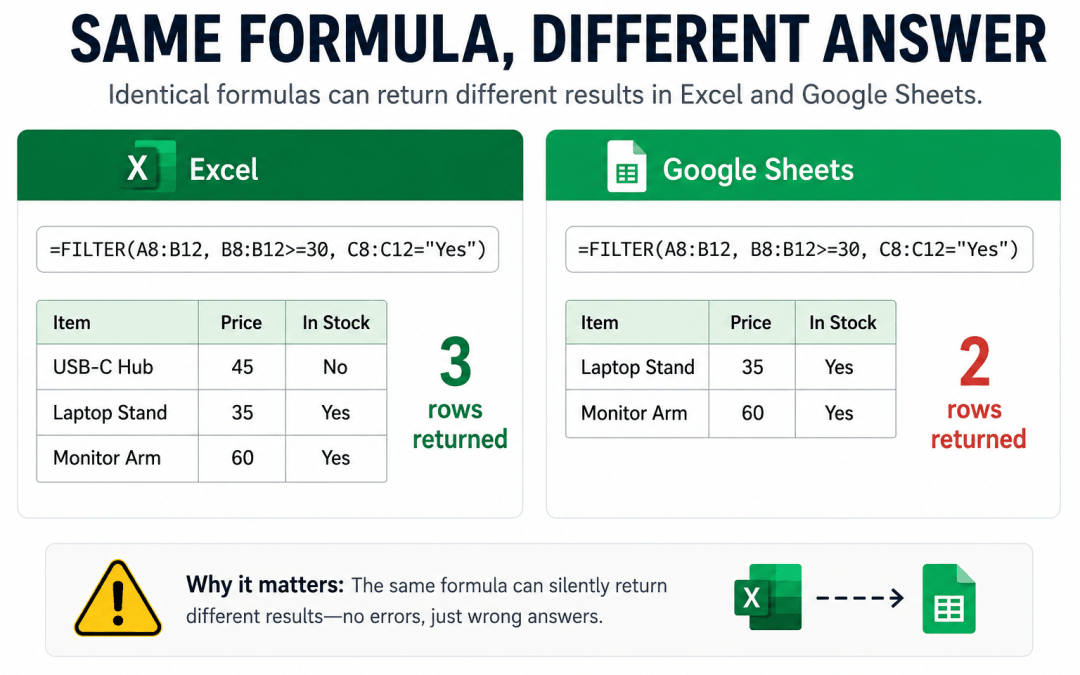
Most differences between Excel and Google Sheets are easy to catch. If a formula does not exist in the other app, you get a loud #NAME? error and you go fix it. The dangerous differences are the quiet ones: a formula that runs cleanly in both apps, throws no error in either, and simply returns a different answer depending on which app opened the file.
These are the traps that survive a copy-paste, an import, or a rebuild and then sit undetected in a model until a total looks wrong. Below are three of the most common, each using a formula that is valid in both apps. In every case the formula text is identical, both apps compute a result, and the results disagree. These three are illustrations, not a complete list, and there is a note at the end on where else this happens.
A real-world version of this problem
Picture a manufacturer that runs entirely on Microsoft Office. Their team builds the company price list in Excel: a product catalog with prices and availability, plus a few summary tables driven by formulas like FILTER, SORT, and UNIQUE. Every quarter they email the .xlsx to a few hundred distributors as the official pricing.
Most of those distributors open the file in Excel and see exactly what the manufacturer intended. But some distributors run on Google Workspace, so they open the very same .xlsx in Google Sheets. What happens next is not uniform, and that is the trap. Some formulas keep working, some break with a visible error, and at least one quietly recomputes to a different answer with nothing on screen to flag it.
The most dangerous case is the quiet one. A deduplicated product count built with UNIQUE comes back different, because Google Sheets treats UNIQUE as case-sensitive where Excel does not, so two entries that Excel merged into one now count as two. No error appears. The distributor reads a count off a sheet that no longer matches the one the manufacturer sent, and may quote, order, or plan against it without ever realizing the figure changed. The file traveled fine. The meaning of one of its formulas did not.
The sections below cover the underlying formula differences, and a later section explains exactly what happens to each one when an Excel file is opened or converted in Google Sheets, because the answer differs by formula.
1. FILTER returns different rows
FILTER shares a name across both apps but not a signature. The third argument means opposite things.
- Excel:
=FILTER(array, include, [if_empty]). The third argument is the value to show only when nothing matches. When there are matches, Excel ignores it. - Google Sheets:
=FILTER(range, condition1, [condition2, ...]). The third argument is a second condition, combined with the first using AND.
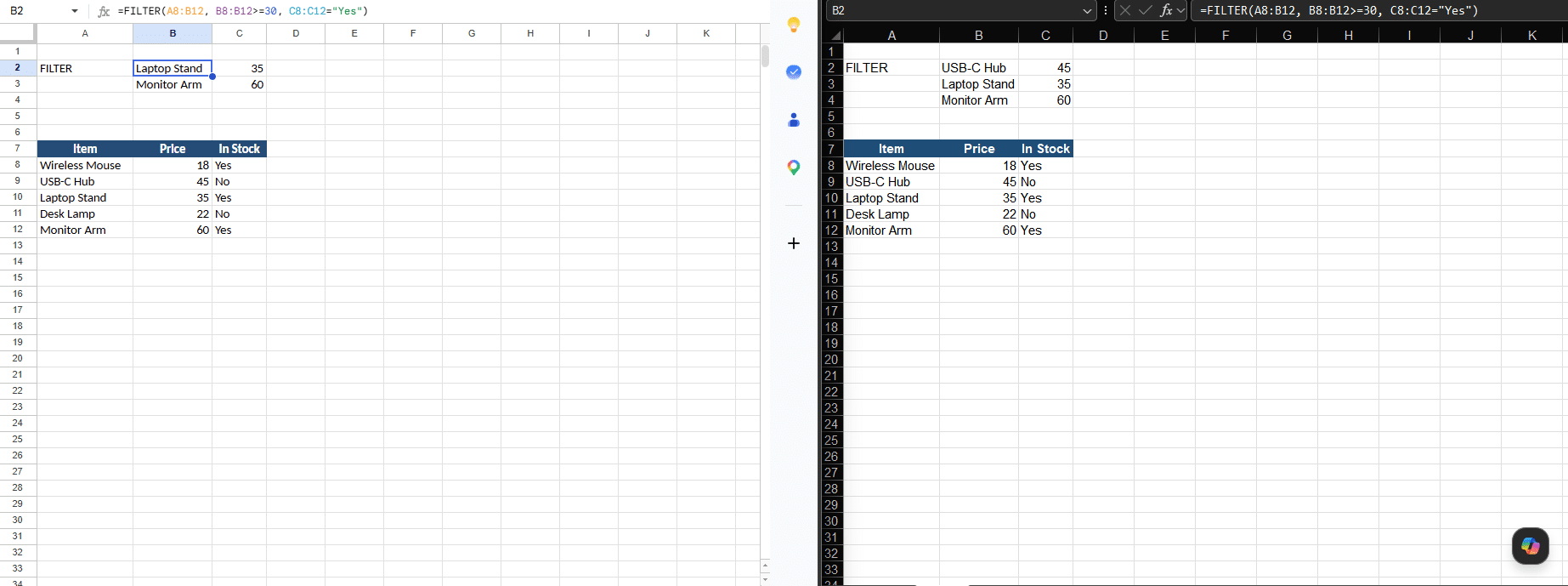
Here is a small product catalog, with headers in row 7 and the five products in rows 8 to 12. Items in column A, price in column B, an in-stock flag (Yes or No) in column C.
| Item | Price | In Stock |
|---|---|---|
| Wireless Mouse | 18 | Yes |
| USB-C Hub | 45 | No |
| Laptop Stand | 35 | Yes |
| Desk Lamp | 22 | No |
| Monitor Arm | 60 | Yes |
The same formula in both apps, asking for products priced 30 or more:
=FILTER(A8:B12, B8:B12>=30, C8:C12="Yes")
In Excel this returns three rows: USB-C Hub, Laptop Stand, and Monitor Arm. Excel reads C8:C12="Yes" as the if-empty value and, because there are matches, ignores it. The filter runs on price alone.
In Google Sheets the same formula returns two rows: Laptop Stand and Monitor Arm. Sheets reads C8:C12="Yes" as a second condition, so it requires price 30 or more AND in stock. The USB-C Hub clears the price test but is out of stock, so it disappears.
Same data, same formula, no error in either app, and the out-of-stock item silently appears or vanishes depending on the platform.
2. SORT sorts in the opposite direction
SORT diverges in how it encodes sort direction.
- Excel:
=SORT(array, [sort_index], [sort_order], [by_col]), wheresort_orderis1for ascending or-1for descending. - Google Sheets:
=SORT(range, sort_column, is_ascending, ...), where the third argument is a boolean,TRUEfor ascending orFALSEfor descending.
Here is a product list, with headers in row 13 and nine items in rows 14 to 22:
| Item | Price |
|---|---|
| Notebook | 120 |
| Desk Chair | 450 |
| Pen Set | 35 |
| Monitor | 620 |
| Keyboard | 80 |
| USB-C Hub | 210 |
| Desk Lamp | 150 |
| Laptop Stand | 300 |
| Mouse | 95 |
Take this formula, intended to sort the list by its second column (price), descending:
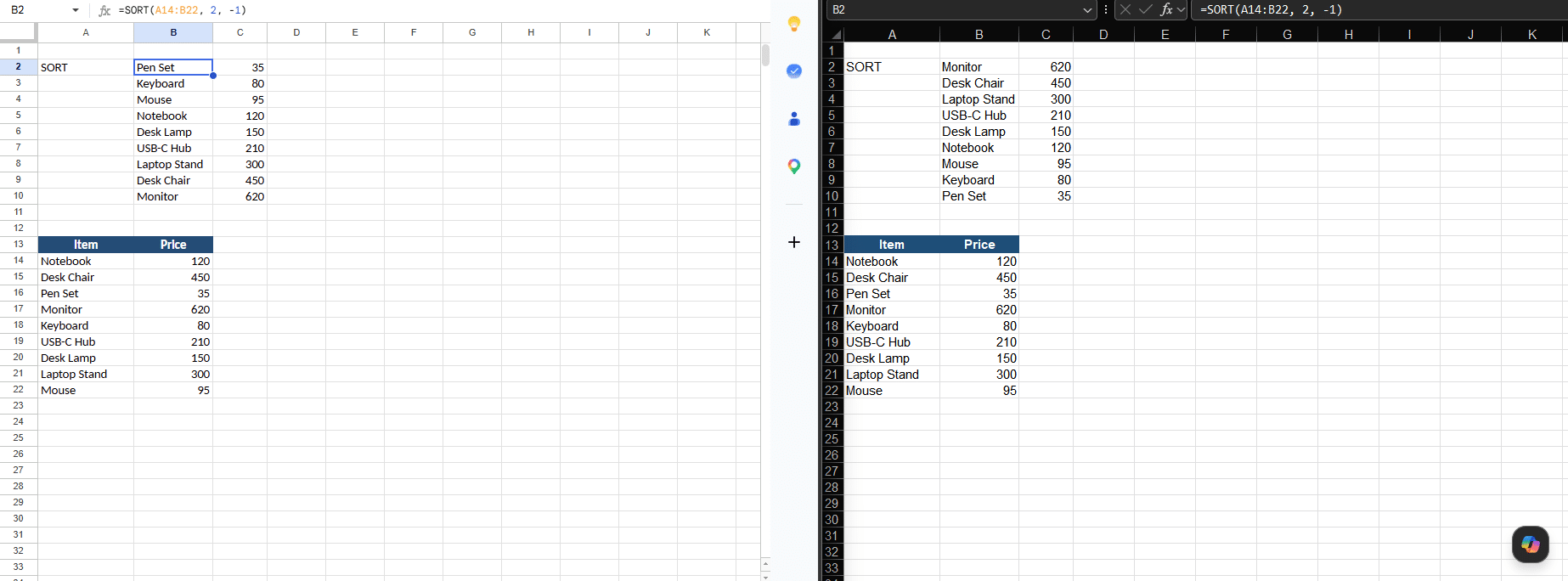
=SORT(A14:B22, 2, -1)
In Excel, -1 is a valid sort order and the data comes back descending, from 620 down to 35, as intended.
In Google Sheets, the third argument expects TRUE or FALSE. The number -1 is non-zero, so Sheets coerces it to TRUE, which means ascending. The identical formula sorts the data the wrong way around, from 35 up to 620, and again there is no error to flag it.
(Multi-column sorts diverge even further: Excel uses array constants like {2,1} for the indexes, while Sheets uses flat repeated pairs like 2, TRUE, 1, FALSE. But the single-column case above is the silent one, because both apps accept it and just disagree.)
3. UNIQUE keeps a different number of rows
UNIQUE looks identical in both apps and is one of the most common cleanup formulas. The trap is case sensitivity: Google Sheets treats UNIQUE as case-sensitive, while Excel treats it as case-insensitive.
Suppose column A contains Apple, apple, and Banana in rows 7 to 9, and you write:
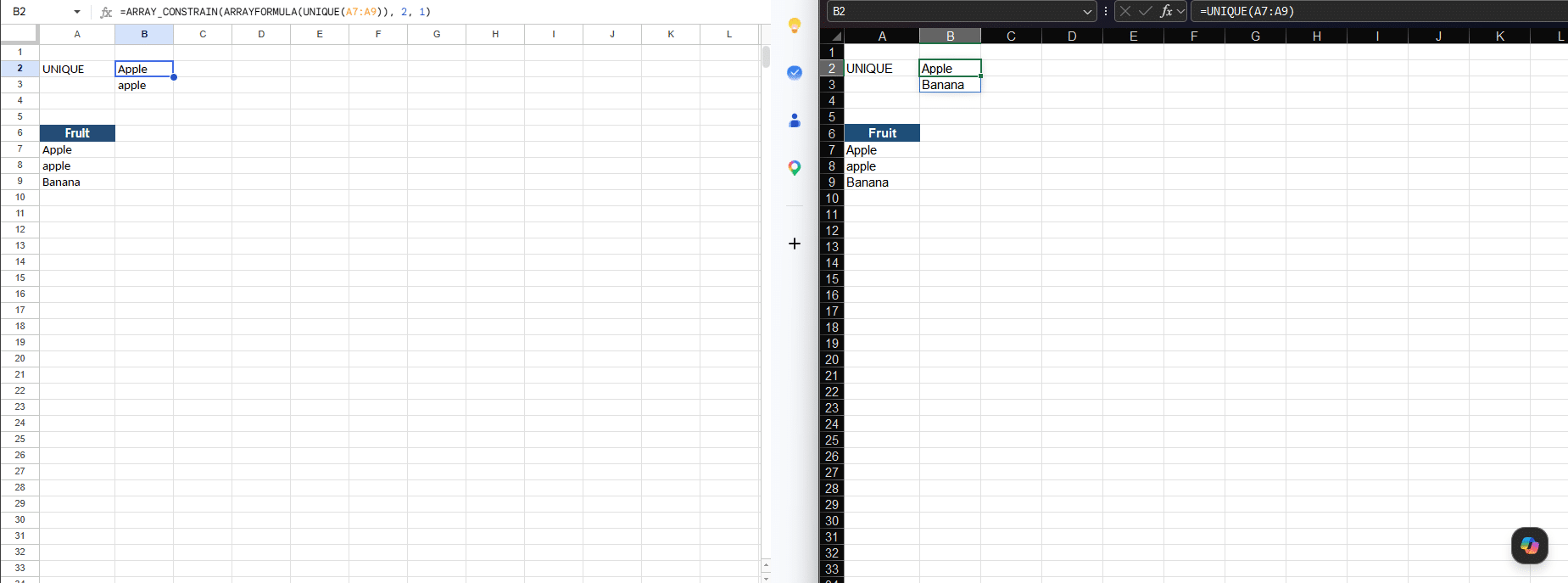
=UNIQUE(A7:A9)
In Google Sheets, Apple and apple are considered different values, so all three rows are returned.
In Excel, Apple and apple are considered the same value, so only two rows come back (Apple and Banana).
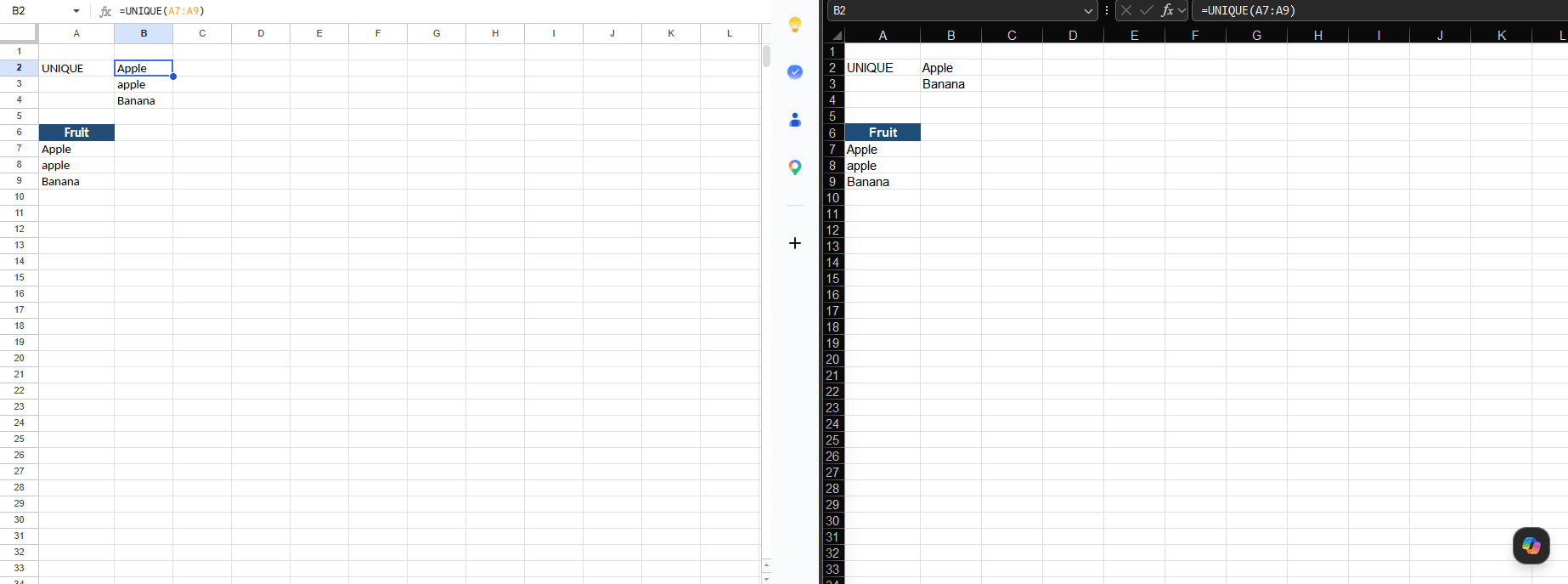
This one is especially easy to miss because it depends on the data, not the formula. A list with no case variation behaves identically in both apps, so the divergence only shows up once a stray lowercase entry sneaks in, which is exactly when a deduplicated count quietly drifts.
Why this keeps happening
All three traps share one root cause. A formula's meaning is defined by the application that runs it, but the formula text does not record which application that was. Excel and Google Sheets deliberately share function names so users can move between them, yet under the hood they made different decisions: a different argument order in FILTER, a different way to encode sort direction in SORT, a different case rule in UNIQUE. The shared name hides the different behavior.
That is fine as long as a spreadsheet stays in its home app. The trouble starts the moment it leaves, because nothing in the file says "compute me the Excel way" or "compute me the Google way."
What actually happens when an Excel file lands in Google Sheets
The differences above describe how each app behaves when you type the formula natively into it. Sending an .xlsx to Google Sheets is a separate question, and the outcome is not "Sheets recalculates everything its own way." It depends on the specific function, because of how each one is stored inside the Excel file.
There are two ways an Excel file ends up in Google Sheets. Opening the .xlsx directly from Drive uses Office editing mode: the file stays in Excel format, and you will see an .XLSX badge by the filename. Choosing File then "Save as Google Sheets," or having Drive set to convert uploads automatically, fully converts the file to a native Google Sheet. The two modes do not treat formulas the same, and neither treats every formula the same.
Excel's dynamic-array functions, FILTER and SORT, are stored in the file under a special compatibility namespace, and when the file opens in Sheets they are rewritten into a wrapped form. A FILTER and a SORT that were written in Excel as =FILTER(A8:B12, B8:B12>=30, C8:C12="Yes") and =SORT(A14:B22, 2, -1) appear in Google Sheets as:
=ARRAY_CONSTRAIN(ARRAYFORMULA(_xlws.FILTER(A8:B12, B8:B12>=30, C8:C12="Yes")), 3, 2)
=ARRAY_CONSTRAIN(ARRAYFORMULA(_xlws.SORT(A14:B22, 2, -1)), 9, 2)
The _xlws. prefix is the Excel compatibility namespace, and the ARRAYFORMULA and ARRAY_CONSTRAIN wrappers are added to manage the spilled output. Once the file is converted to a native Google Sheet, both formulas return #NAME?, because Google's own engine does not recognize the Excel-namespaced _xlws.FILTER or _xlws.SORT.
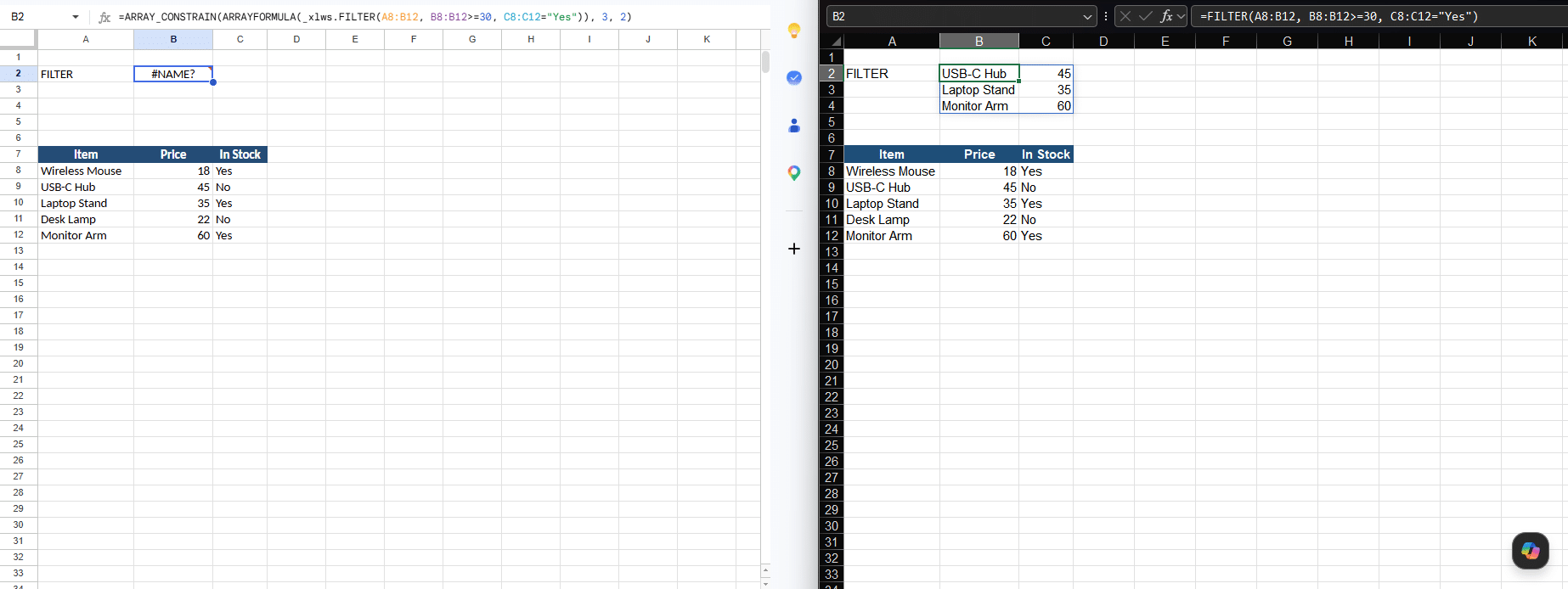
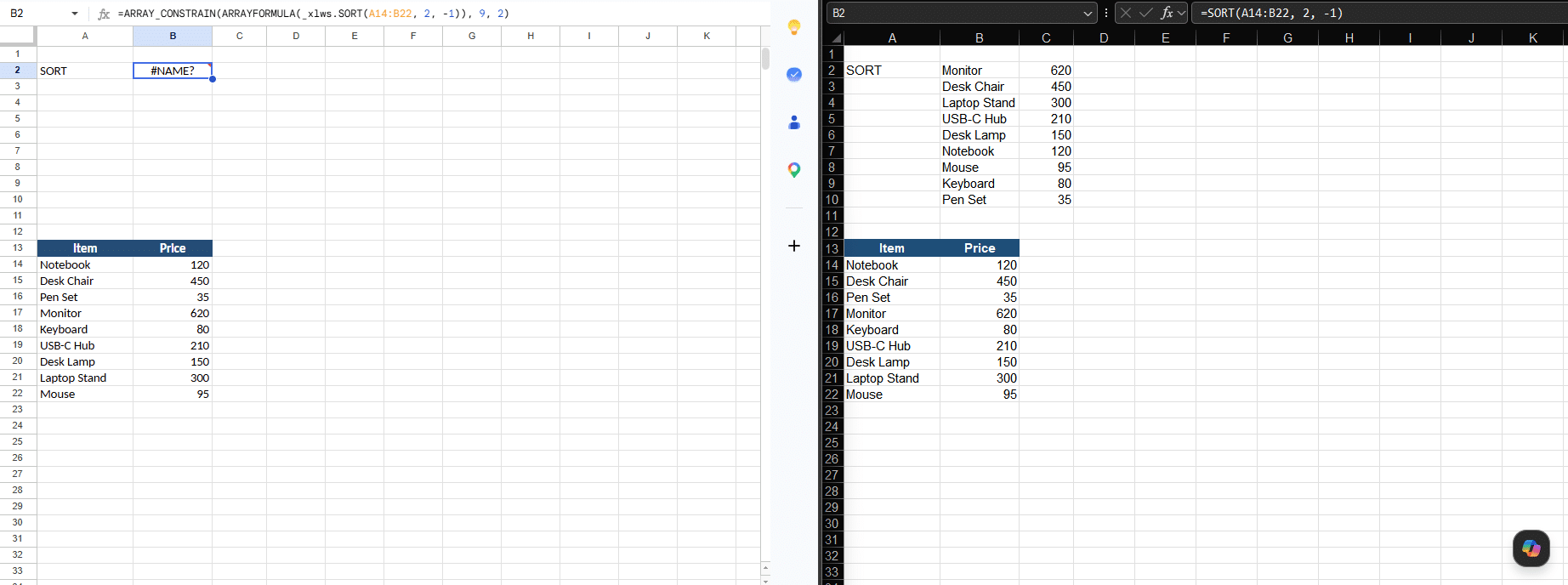
Here is the sting in the tail. A capable user who sees #NAME? and a formula cluttered with _xlws. and ARRAY_CONSTRAIN will often "repair" it by stripping the wrappers back to the clean =FILTER(...) or =SORT(...) they recognize. The error clears and a result spills, so the fix looks successful. But that clean formula is now native Google FILTER or SORT, which apply Google's argument rules, so the cell returns a different answer than the Excel original, two rows instead of three for the FILTER, or the reverse sort order. The user has converted a visible error into an invisible wrong answer, while feeling confident they restored the sender's intent. So for FILTER and SORT the file path does not produce a silent wrong answer on its own; it produces a loud error that a well-meaning fix then turns into a silent one.
UNIQUE gets the same ARRAYFORMULA and ARRAY_CONSTRAIN wrappers, but with one decisive difference: it keeps its plain name and never picks up the _xlws. prefix. It appears as:
=ARRAY_CONSTRAIN(ARRAYFORMULA(UNIQUE(A7:A9)), 2, 1)
Because Google recognizes plain UNIQUE, this does not error; it computes, which is what makes UNIQUE the genuinely dangerous one in transit. But look at what the wrappers do. Google recomputes UNIQUE with its own case-sensitive rule, which on the Apple, apple, Banana list yields three rows. The ARRAY_CONSTRAIN wrapper, though, was sized to Excel's original result, and since Excel merged Apple and apple it had returned only two rows, so the wrapper is locked to two. Clipping Google's three-row result down to two leaves Apple and apple, and silently drops Banana. The displayed answer now matches neither app: it is not Excel's two rows (Apple, Banana) and not Google's own three rows (Apple, apple, Banana), but a corrupted hybrid that both keeps a case-duplicate and loses a genuinely unique value, with no error and no warning, whether or not the file is converted.
The practical lesson is that you cannot predict the outcome from the function name alone, and you cannot rely on a file round-trip to reveal these differences. A formula might be preserved, might break loudly, or might silently change its answer, and which one happens depends on the function. (These behaviors reflect current versions of both apps and can shift over time, so treat them as something to test rather than a fixed rule.)
How to protect yourself
A few habits keep these out of your models:
- Decide where the model truly lives. Pick one app as the source of truth and treat the other's rendering as a copy that may not match.
- Spot-check the usual suspects on every move. When a workbook crosses platforms, re-check FILTER, SORT, and UNIQUE specifically, plus any deduplicated counts.
- Do not trust a file round-trip to reveal these differences. Opening or converting an
.xlsxin Sheets may preserve a formula, break it to#NAME?, or silently recompute it, depending on the function. To compare behavior reliably, rebuild the formula natively in each app rather than importing the same file. - Translate when you migrate for good. If a file is moving permanently, rewrite the divergent formulas: combine FILTER conditions with
*in Excel, fix the SORT direction encoding, and account for UNIQUE's case rule. - Use a calculation engine that is aware of a file's origin. If you regularly run spreadsheets from both apps, an engine that computes each file the way its source app would removes the guesswork, instead of forcing everything through one dialect.
These are only a few of the traps
The three formulas above are among the most common silent divergences, but they are not the whole list. Excel and Google Sheets also differ in other shared functions and in settings such as date systems, locale-driven argument separators, and how mixed text and numbers are ordered when sorted. New functions tend to land in one app before the other, so the gaps shift over time as well. See the full guide to Excel and Google Sheets formula compatibility
The practical takeaway is not to memorize every case. It is to treat cross-platform spreadsheets with healthy suspicion: when a file moves between apps, verify the formulas that matter rather than assuming that an identical-looking formula guarantees an identical result. The manufacturer in the example never sees the distributor's screen, which is exactly why this kind of divergence goes unnoticed until it has already cost something.
