
SpreadsheetWeb blog
How to Build a Timer-Based Quiz Application with SpreadsheetWeb for Accurate Time Tracking
Assess the participants with this timer application quiz template by SpreadsheetWEB, which will challenge both knowledge and speed.

Perhaps you need to assess your students or want to do some market research- the possibilities are endless. Whatever the reason you need a time-constrained quiz app, SpreadsheetWeb offers exactly the right template for you.
The ability to evaluate both the accuracy and speed of responses is invaluable in many contexts, from corporate training to gamified learning. Therefore, we decided to develop an application template that tracks the total time taken to answer 10 questions, helping speed up creators to analyze performance and assessment processes.

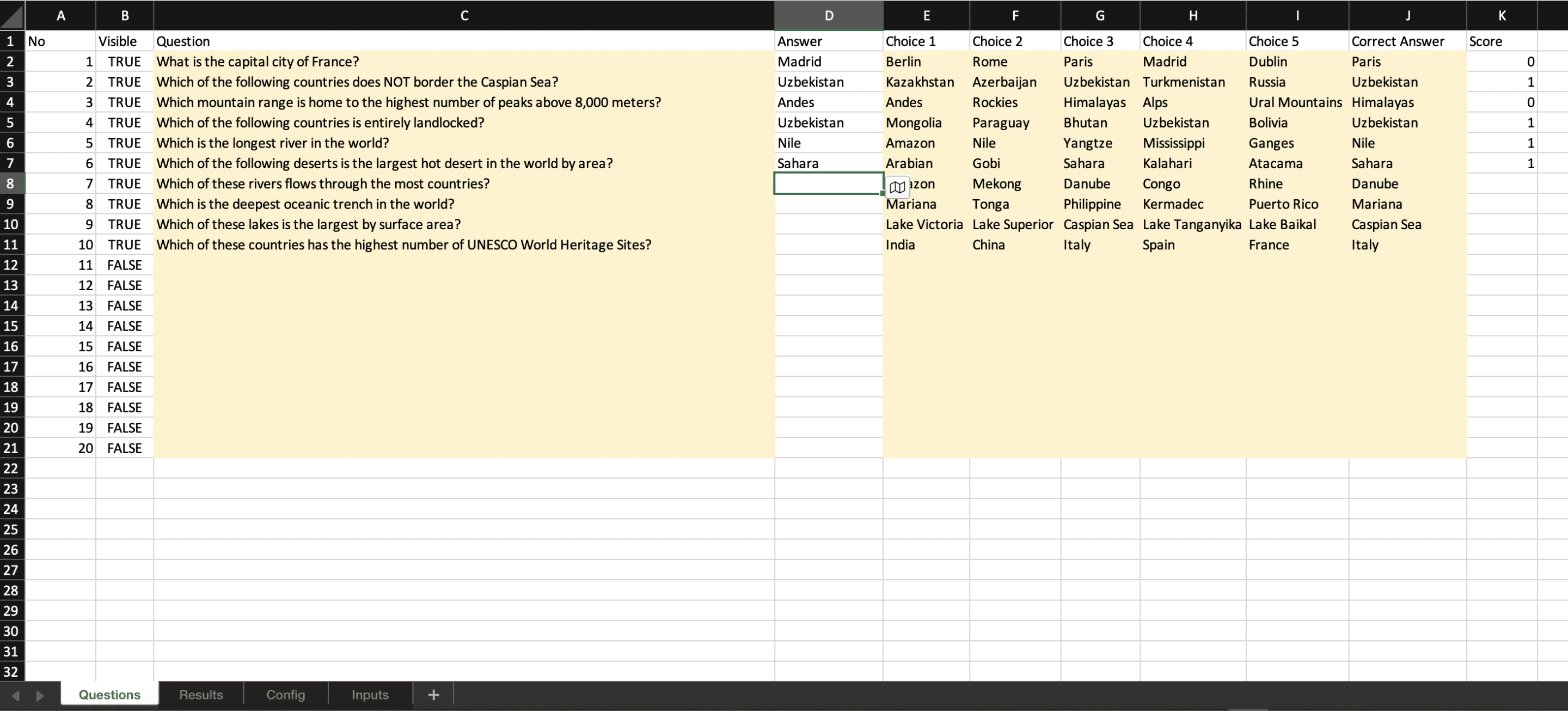
Customizing Quiz Templates and Questions in Excel As with any SpreadsheetWeb application, the configuration process is straightforward and user-friendly. To set up the quiz application, you simply start by entering the questions and their corresponding answers into a table within an Excel template. This Excel file serves as the foundation for your web-based quiz application, acting as both the database and the logic engine.
As can be seen from the images below, the answers entered in the Answer column are scored according to the correct answers determined in the Results Worksheet and scored in the Score column. Although the application supports up to 20 questions by default, adjustment can be made if you need more questions.
To further enrich the quiz experience, you can incorporate detailed scoring logic by assigning specific point values to each question and its corresponding answers. This allows for a customized scoring system that reflects the relative importance or difficulty of each question. Using the robust capabilities of worksheet formulas within the Excel template, you can design complex scoring mechanisms, such as assigning weighted scores, deducting points for incorrect answers, or granting bonus points for specific criteria. Additionally, these formulas can be used to automatically aggregate the results, providing a total score for the quiz or even breaking it down into sections for detailed analysis. This flexibility empowers you to create a dynamic and engaging quiz application tailored to your specific needs.

Enhancing User Engagement with a Web-Based Quiz ApplicationThe web-based quiz application is designed to deliver an engaging user experience. Users begin with an intuitive landing page that provides a clear starting point for the quiz. From there, they proceed to a dedicated page that presents all the quiz questions along with multiple-choice options, ensuring easy navigation and interaction. Once the quiz is completed, users are redirected to a results page, where their final score is in an easy-to-understand format. Additionally, the application offers a feature to receive a detailed report via email. This report includes a breakdown of each question, the correct answers, and the user’s submitted answers, providing feedback and insight into their performance. This combination of features creates a well-rounded and user-friendly experience that caters to both immediate results and in-depth analysis.
Measuring the time taken to complete a quiz is as crucial as evaluating its accuracy, as it provides deeper insights into a user's performance and efficiency. This type of elapsed time tracking can be integrated into a quiz application using SpreadsheetWeb’s scripting feature. By implementing a simple script you can easily add a timer functionality that enhances the overall assessment process.
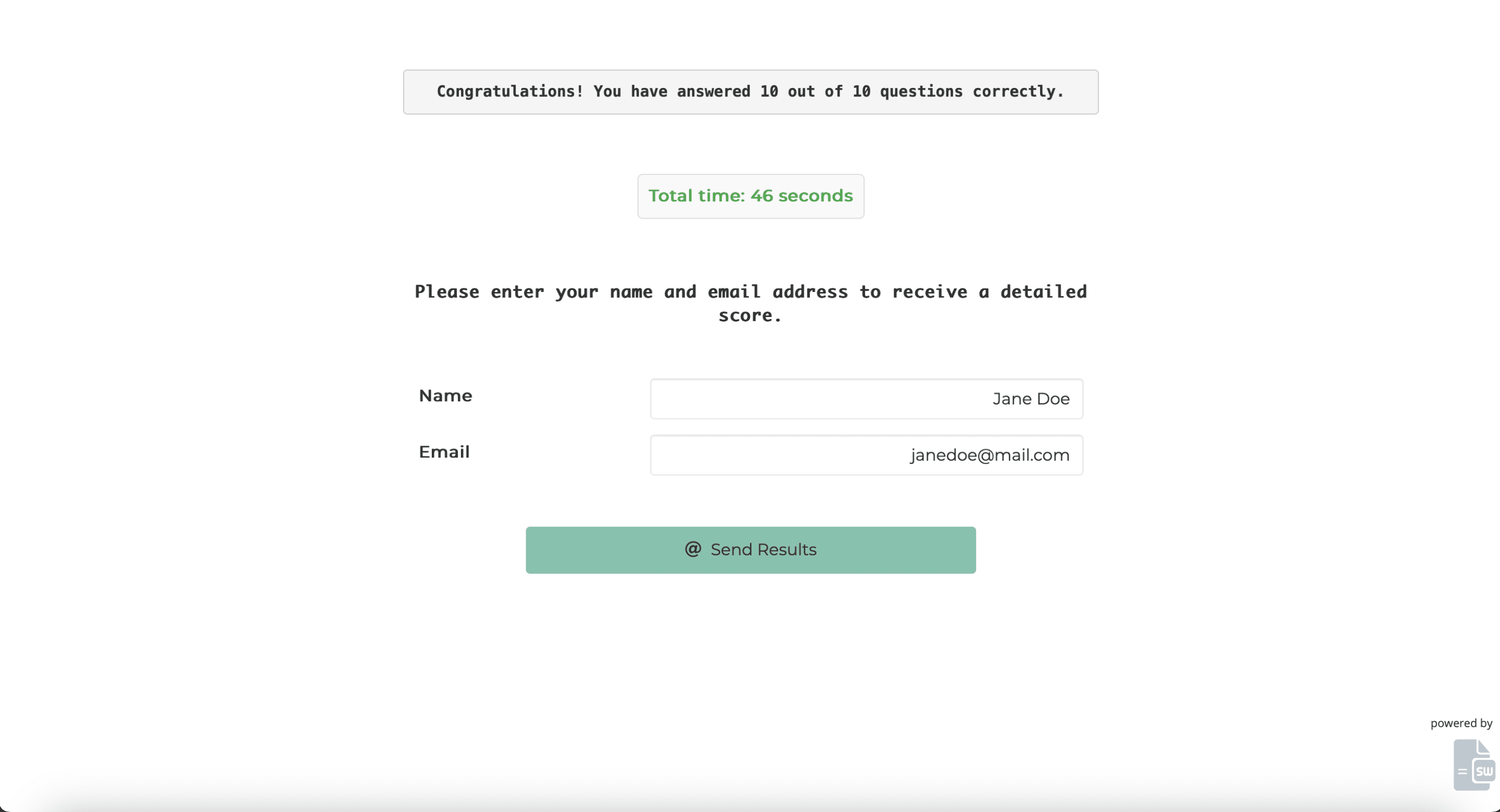
Here’s how the feature operates: the timer begins automatically as soon as the user lands on the questions page, ensuring that the timing starts right from the moment they begin the quiz. It continues to measure the elapsed time until the user submits their answers by clicking the submission button. Once the quiz is complete, the results page not only displays the user's score but also includes the total time taken to finish the quiz, offering an overview of their performance. This approach provides an engaging and informative user experience while enabling quiz administrators to evaluate both speed and accuracy effectively. Furthermore, the provided code is reusable, making it a convenient tool for integrating timers into other quiz applications with minimal effort.

Updating the Timer
The timer can be updated by writing a basic JavaScript code that tracks the time from when the quiz starts until it ends. This involves setting the timer to begin at the start of the quiz, updating the displayed time at regular intervals (e.g., every second), and stopping it when the participant completes the quiz. This approach ensures real-time time tracking and allows the recorded duration to be used for analysis or scoring.
let startTime, timerInterval;
function startTimer() {
    startTime = new Date();
    timerInterval = setInterval(() => {
        const currentTime = new Date();
        const elapsedTime = Math.floor((currentTime - startTime) / 1000);
        document.querySelector('.timer').innerText = `Time elapsed: ${elapsedTime} seconds`;
    }, 1000);
}
function stopTimer() {
    clearInterval(timerInterval);
    const endTime = new Date();
    return Math.floor((endTime - startTime) / 1000);
}
var startButton = pagosApp.buttons.byName("Start")[0];
startButton.on("click", (btnContext) => {
    if (timerInterval) clearInterval(timerInterval);
    startTimer();
});
var saveButton = pagosApp.buttons.byName("Save and Continue")[0];
saveButton.on("click", (btnContext) => {
    pagosApp.once("beforeCalculation", (calcContext) => {
        const totalElapsedTime = stopTimer();
        document.querySelector('.time-elapsed').innerText = `Total time: ${totalElapsedTime} seconds`;
        document.querySelector('.timer').innerText = `Time elapsed: 0 seconds`;
    });
});
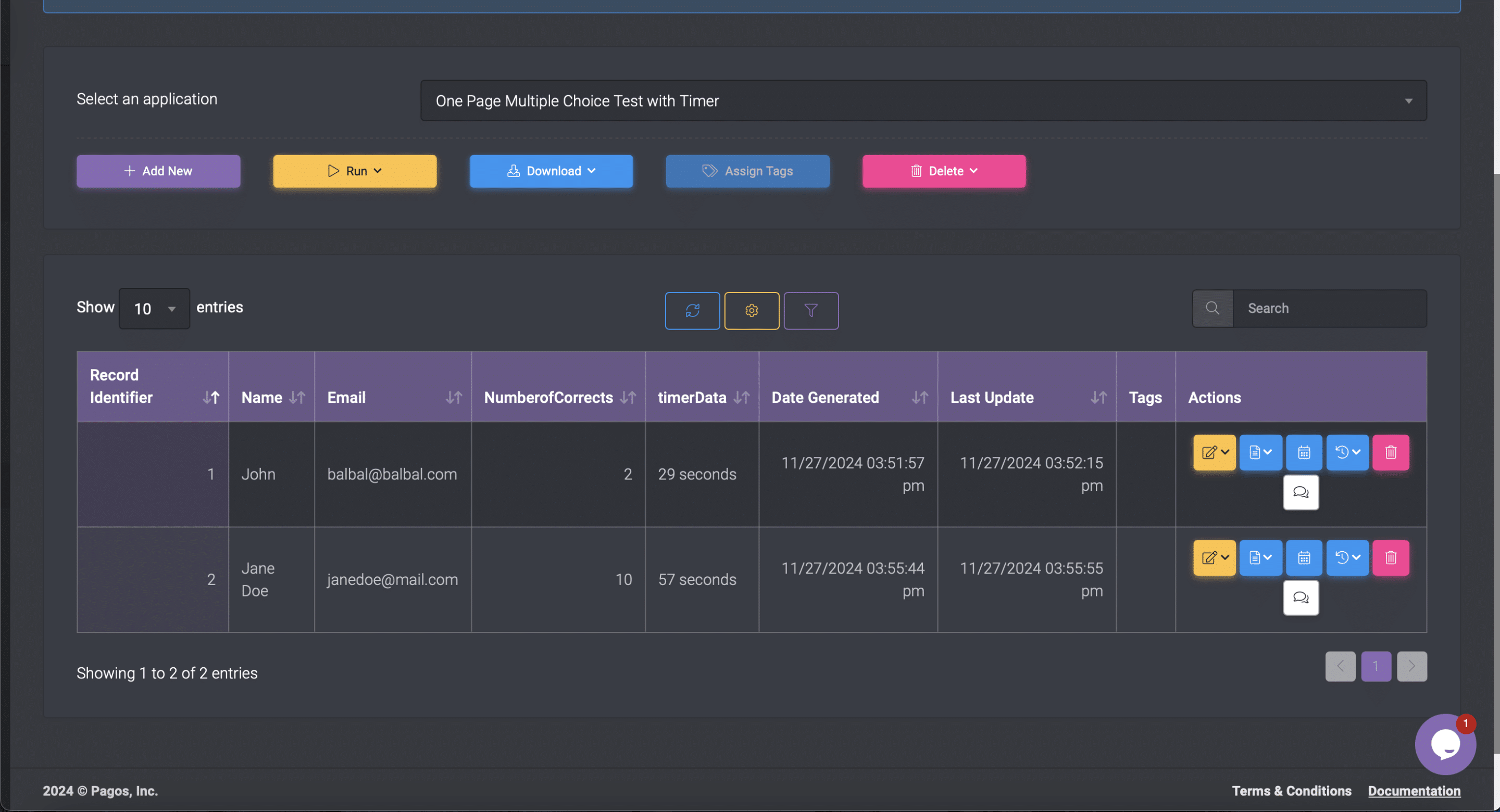
Reviewing Quiz Results and PerformanceAdministrators can just basically inspect the results only by clicking on the database in the SpreadsheetWeb Hub. All submissions will be listed, including participants' names, email addresses, number of correct answers, and time scores.
SpreadsheetWeb always offers an easy-to-use interface for web applications. However, if you need to embed the application to your website, you can always use iFrame and embed the application on your website in just a few minutes. It is also valid for this application.
Integrating a timer into the quiz application significantly enhances its functionality and assessment capabilities. Using JavaScript to track and record the time participants spend on the quiz gives insight into performance efficiency and behavior. This feature not only helps participants manage their time effectively but also enables educators or administrators to evaluate quiz performance in a more nuanced and detailed manner. Overall, the timer is a handy tool that can make the quiz more interactive and data-driven.