
SpreadsheetWeb blog
Introducing Elements: Build Web Apps from Excel Without Named Ranges
The new Elements module in SpreadsheetWEB Hub lets you turn any Excel file into a web app without pre-defining named ranges. Discover how auto-detection, worksheet mapping, and automatic reference generation work.
The old workflow had a catch
If you have ever built an application with SpreadsheetWeb before, you know the drill. Before uploading your Excel file, you had to go back into the spreadsheet and manually define named ranges for every single cell or range you wanted to expose as an input or output in the final app. One named range per field. Sometimes dozens of them. For complex models, that preparation work could take longer than building the app itself.
It worked. But it created a dependency: the Designer interface was locked to the structure of the Excel file you had already configured. If you forgot a cell, or changed your mind about what to include, you had to go back to Excel, rename things, and re-upload.
The new Elements module changes this entirely.
What is the Elements module?
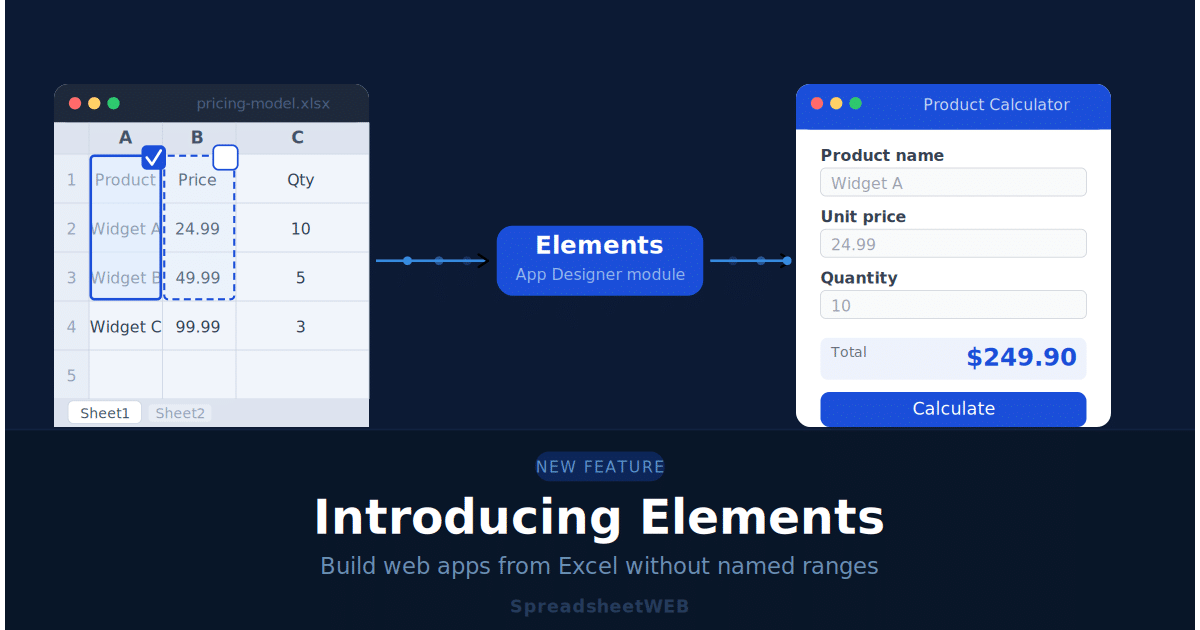
Elements is a new section inside the SpreadsheetWeb Hub App Designer that lets you define your application's user interface elements directly within an interactive, Excel-like grid, after your file has already been uploaded. No pre-configuration required.
Instead of preparing your spreadsheet before upload, you upload it as-is and do all the UI mapping right inside the Designer. SpreadsheetWeb handles the named range generation automatically in the background, giving those references a pgs_auto_ prefix and storing them both in the application database and in the Excel file when downloaded.
Key benefit: You can now take a completely unmodified Excel file and turn it into a working web application without touching the spreadsheet at all. The entire UI configuration happens inside SpreadsheetWeb Hub.If you are also thinking about how your app will store and retrieve user data over time, this guide to stateful, persistent data storage is a natural next step.
How it works: the Excel-like interface
When you open the Elements module, you are presented with a familiar grid that mirrors your Excel file. You can navigate between cells and ranges exactly as you would in a spreadsheet. When you select a cell or a range, you are given the option to add it as a UI element, a control, a label, a grid, or a chart, depending on what you select.
Once added, SpreadsheetWeb automatically generates and stores the internal reference for that element. From that point on, the reference is available everywhere else in the Designer: in layout design, page configuration, calculations, and workflow setup.
The process for adding an element is straightforward:
- Open the Elements module from the App Designer sidebar.
- Navigate to the cell or range you want to add, use the worksheet tabs at the bottom to move between sheets.
- Select the cell or range, either manually or from a suggested selection highlighted by the auto-detection algorithm.
- Enable the checkbox to include it as an element and choose the appropriate type.
- Repeat for each element you want to expose in your application.
Smart auto-detection: let SpreadsheetWeb do the heavy lifting
One of the most practical additions in the Elements module is the built-in auto-detection algorithm. When you load your spreadsheet in the Elements view, the system scans the entire file and highlights cells, ranges, charts, and images that it identifies as likely UI candidates. These suggestions appear with blue borders around them.
You do not have to accept every suggestion. Hovering over a highlighted area reveals a checkbox in the top-right corner, enable it to include the element, or simply ignore suggestions that are not relevant to your app.
Note on overlapping suggestions: Because the algorithm evaluates multiple patterns, the same area of your spreadsheet may surface as several different suggested ranges. For example, a single cell and the surrounding block. Each suggestion gets its own checkbox, so you can pick the option that best matches your intended layout.
If the algorithm misses something, you can always select it manually. Auto-detection is a starting point, not a limitation.
Element types: choosing the right control for the job
What type of element gets created depends on what you select. The module supports four main element types:
Control: A single editable cell. Users can type values, make selections, or interact with it in the final application.
Label: A single read-only cell. Displays a static or calculated value without allowing user input. Enable the Add as label option during selection to create a label instead of a control.
Input Grid: A multi-cell range where users can enter and edit data across multiple rows and columns. If any cells within the selected range need to be editable, choose Input Grid.
Output Grid: A multi-cell read-only range for displaying calculated results, summaries, or data tables.
Charts and images embedded in your Excel file are also detected and can be included as visual elements in your app. They behave the same way as cell selections, highlighted with a blue border, with a checkbox to include them.
Working with worksheets: from tabs to pages
The Elements module gives you full control over which worksheets from your Excel file become part of the application. Each worksheet is listed with its own checkbox, only the sheets you select will appear in the final app.
By default, each selected worksheet becomes a separate page in the application. This is a useful starting point for most use cases: your Input sheet becomes one page, your Results sheet becomes another, and so on.
Advanced page layouts: If you need to combine elements from multiple worksheets into a single page, or split one worksheet's elements across multiple pages, you can configure this using the Pages and Layout & Controls modules in the App Designer. Elements handles the mapping; those modules handle the architecture.
It is a good idea to review all worksheets before finalising your selection. Helper sheets, lookup tables, and intermediate calculation sheets typically do not need to be included in the user-facing interface.
Named range handling: automatic, transparent, and persistent
One of the questions that comes up with any change to how SpreadsheetWeb manages references is: what happens to my existing setup? The answer is straightforward.
For any element you add through the Elements module that does not already have a named range defined in the Excel file, SpreadsheetWeb generates one automatically. These system-generated names use the prefix pgs_auto_ and are visible in the right-hand panel within the Elements module.
These references are stored in two places: in the application database, and in the Excel file itself when you download it from the system. This means you can re-upload the original Excel file without breaking your existing mappings.
You also have the option to rename auto-generated references during the creation process. If you do not rename them, the system assigns default names automatically.
What this means for existing applications
If you already have applications that use manually defined named ranges, nothing changes. The Elements module is additive, it provides a new workflow for building and configuring apps, but it does not affect existing applications or the way named ranges are handled in the legacy workflow.
| Capability | Legacy (Named Ranges) | Elements Module |
|---|---|---|
| Pre-configure Excel before upload | Required | Optional |
| Define UI elements inside Designer | Not available | Yes |
| Auto-detection of elements | Not available | Yes |
| Charts and images detection | Manual | Automatic |
| Worksheet-to-page mapping | Manual | Automated + configurable |
| Backward compatible | Yes | Yes |
Tips for getting the most out of Elements
Elements works best when your spreadsheet has some structure to begin with. Here are a few practices that will make the element detection and selection process smoother:
- Label your inputs and outputs clearly. The auto-detection algorithm evaluates patterns and structure. Cells with adjacent labels and clearly separated input/output areas are easier to detect correctly.
- Separate input and calculation sheets. If your model has a dedicated input sheet and a separate results or calculation sheet, mapping them to distinct pages produces a cleaner user experience.
- Review every worksheet before publishing. Internal calculation sheets, lookup tables, and configuration tabs usually should not be included. Deselect them in the Elements module to keep the app focused.
- Rename auto-generated references when names matter. If you plan to reference elements in Custom Actions, Scripts, or Queries, giving them meaningful names at this stage will save time later.
- Use Pages and Layout modules for advanced layouts. Elements is the mapping step. For anything beyond the default one-sheet-one-page setup, the rest of the App Designer is still available.
Frequently asked questions
Do I still need to define named ranges in Excel to use SpreadsheetWeb?
No. The Elements module lets you upload any Excel file as-is and define all UI elements inside the App Designer. Named range preparation is no longer required.
Will my existing applications break if I start using the Elements module?
No. Elements is fully backward compatible. Applications built with manually defined named ranges continue to work without any changes.
What are pgs_auto_ named ranges?
These are system-generated references created automatically by SpreadsheetWeb when you add an element that does not already have a named range in the Excel file. They are stored in the application database and persist across file re-uploads, so you can re-upload the original Excel file at any time without losing your configuration.
Can I use Elements alongside other App Designer modules?
Yes. Elements works alongside Pages, Layout & Controls, Database, Custom Actions, Scripts, and all other App Designer modules. It is the starting point for mapping your spreadsheet structure, the rest of the Designer handles everything else.
The bigger picture
Elements represents a shift in the SpreadsheetWeb workflow philosophy. The platform has always been about reducing the distance between an Excel model and a production web application. But the named-range prerequisite meant that Excel still had to be prepared by someone who understood both the spreadsheet and the platform.
With Elements, that preparation step moves entirely into SpreadsheetWeb Hub. Subject matter experts can upload their models and hand off the interface configuration to app developers or admins without touching the original file. Iterating on the UI no longer means re-editing the spreadsheet. And getting started with a new application is faster than it has ever been.
The feature is available now in the App Designer for all SpreadsheetWeb Hub users. If you want to explore it in detail, the Elements documentation is a good place to start.