In the world of Excel spreadsheets, the RANDARRAY function is a game-changer. This nifty Math & Trigonometry formula empowers you to effortlessly generate arrays of random numbers. Let's dive into the basics of the RANDARRAY function, explore its syntax, and discover practical examples along with some handy tips and error handling methods.
At its core, the RANDARRAY function is a mathematical wizard that conjures up an array filled with random numbers. Picture it as your go-to tool for injecting spontaneity into your data.
Supported versions
- Before we embark on this Excel adventure, a quick heads-up: as of now, the RANDARRAY function is exclusively available to a select group of insider users. Microsoft plans to roll it out for all Office 365 users once it's polished and ready.
Syntax
Arguments
| [rows] | Optional. The number of rows of randomly generated numbers to be returned. The default value is 1. |
| [columns] | Optional. The number of columns of randomly numbers to be returned. The default value is 1. |
| [min] | Optional. The minimum number to be returned. The default value is 0. |
| [max] | Optional. The maximum number to be returned. The default value is 1. |
| [whole_number] |
Optional. A Boolean value that specifies the type of numbers to return. · FALSE: Decimal number to 15 decimal places. (default) · TRUE: Whole number |
Examples
Row/column only list
=RANDARRAY(1,10)

Row & column array

Random Whole Numbers

Tips
- The RANDARRAY function is a volatile function. This means that it re-calculates the results with every calculation and this can affect the performance of the workbook.
- If you enter nothing for the parameters, the RANDARRAY function acts like the RAND function.=RANDARRAY()
- You can use RANDARRAY as a substitute for the RANDBETWEEN. This requires omitting the [rows] and [columns] arguments and setting [whole_number] to TRUE. For example, to return values between 5 and 10, use =RANDARRAY(,,5,10,TRUE)
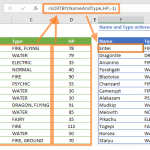
- You can combine the RANDARRAY with the SORTBY function to shuffle an array of values.
Issues
#SPILL!
If there isn't enough space for adding the results below the formula, you will see a #SPILL! error. Excel marks the target range with dashed lines. Clear the contents of the cells in this range, and Excel will automatically update the results.

#VALUE!
- If the [min] is greater than or equal to the [max] you will get a #VALUE! error.
- If any of the argument is not a numeric value, you will get a #VALUE! error.
Whether you're a seasoned Excel user or just beginning your spreadsheet adventures, the RANDARRAY function invites you to think beyond the conventional. As you harness the power of random arrays, discover unique insights, and sprinkle a touch of unpredictability into your data, Excel becomes not just a tool but a canvas for your analytical creativity.