SpreadsheetWeb provides an efficient and user-friendly platform for creating web applications directly from Excel spreadsheets. In this detailed guide, we will walk through the steps to develop a robust tournament management application. This application will cover general tournament details, fixtures, and standings, leveraging both Excel's capabilities and SpreadsheetWeb's features. The process involves preparing the data structure and formulas in Excel, and then using SpreadsheetWeb Designer to transform it into a web application.
Setting Up the Excel File for Tournament Management
Creating the General Information Page
The first step in preparing your Excel file is to set up a general information page. This page will serve as the foundation for inputting and managing the tournament's basic details. Begin by creating a worksheet named "General Information" or similar. In this worksheet, define cells for essential data such as the tournament name, start date, number of teams, and number of groups.
For clarity and ease of reference, assign specific names to these cells. For example, you can name the cell for the tournament name as "TournamentName," the start date cell as "StartDate," and so on. Naming cells makes it easier to reference these values later in formulas and in the SpreadsheetWeb Designer.

Defining Group and Tournament Team Structures
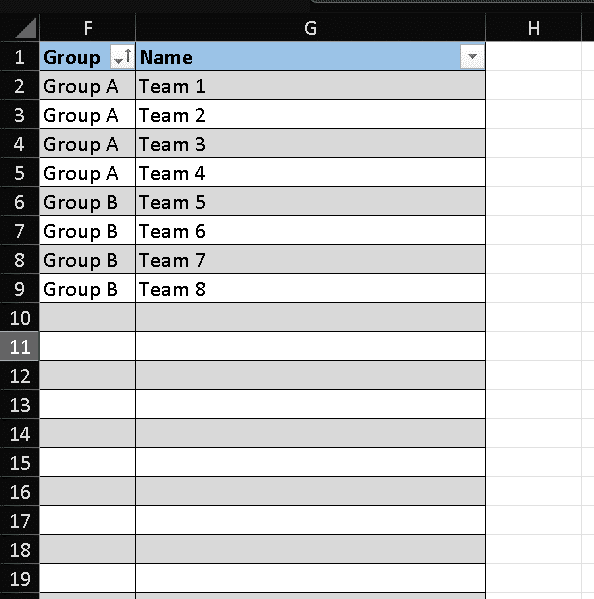
Next, determine the structure of your tournament by defining the number of teams and groups. This step is crucial as it will effect the subsequent setup of participation tables, fixtures, and standings. Create a table that outlines the groups and the teams within each group. You can either predefine the team names or allow them to be input manually.
For instance, you might have a table structured as follows:
- Group A: Team 1, Team 2, Team 3
- Group B: Team 4, Team 5, Team 6
To facilitate user input and ensure consistency, utilize Excel’s Data Validation feature. This feature allows you to create dropdown lists where users can select predefined group and team names.
Creating Participation, Tournament Fixture, and Score Tables
With the general structure in place, proceed to create detailed tables for participation, fixtures, and scores. These tables are critical for managing and tracking tournament progress.
Participation Table: This table captures which teams are participating and their group assignments. Key columns might include Team Name and Group.
Fixture Table: The fixture table will record match schedules and results. Columns should include Match Date, Team 1, Team 2, Team 1 Score, Team 2 Score, and possibly additional information like venue or match time. As the matches are played, an admin user will update this table with scores.

Score Table: This table will dynamically calculate and display the standings based on the match results. Essential columns include Team Name, Matches Played, Wins, Draws, Losses, Goals For, Goals Against, Goal Difference, and Points.
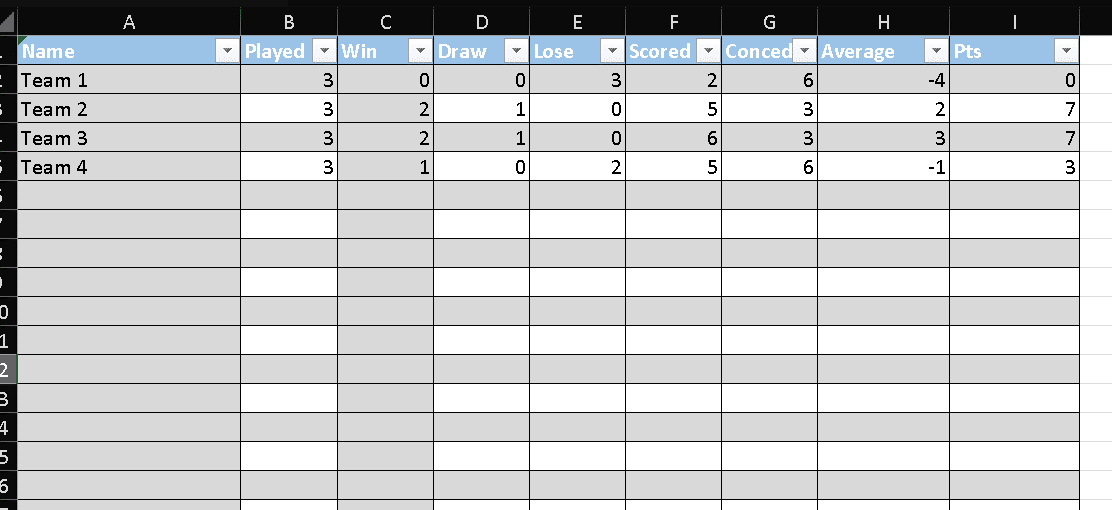
Calculating Tournament Participants' Standings
The standings table is central to your tournament management application. Use Excel formulas to dynamically update this table as matches are played and scores are entered. Here are some key formulas you might use:
- Matches Played: =IFERROR(C2+D2+E2,"")
- Wins: =IF(LEN([@Name])>0,SUMPRODUCT((Fixtures!$D$2:$D$100=Scores!$A2)*(Fixtures!$E$2:$E$100>Fixtures!$G$2:$G$100))+SUMPRODUCT((Fixtures!$H$2:$H$100=Scores!$A2)*(Fixtures!$G$2:$G$100>Fixtures!$E$2:$E$100)),"")
- Draws: =IF(LEN([@Name])>0,SUMPRODUCT((Fixtures!$D$2:$D$100=Scores!$A2)*(Fixtures!$E$2:$E$100=Fixtures!$G$2:$G$100)*(Fixtures!$D$2:$D$100<>"")*(Fixtures!$G$2:$G$100<>""))+SUMPRODUCT((Fixtures!$H$2:$H$100=Scores!$A2)*(Fixtures!$E$2:$E$100=Fixtures!$G$2:$G$100)*(Fixtures!$H$2:$H$100<>"")*(Fixtures!$E$2:$E$100<>"")),"")
- Losses: =IF(LEN([@Name])>0,SUMPRODUCT((Fixtures!$D$2:$D$100=Scores!$A2)*(Fixtures!$G$2:$G$100>Fixtures!$E$2:$E$100))+SUMPRODUCT((Fixtures!$H$2:$H$100=Scores!$A2)*(Fixtures!$E$2:$E$100>Fixtures!$G$2:$G$100)),"")
- Goals For: =IF(LEN([@Name])>0,SUMPRODUCT((Fixtures!$D$2:$D$100=Scores!$A2)*(Fixtures!$E$2:$E$100))+SUMPRODUCT((Fixtures!$H$2:$H$100=Scores!$A2)*(Fixtures!$G$2:$G$100)),"")
- Goals Against: =IF(LEN([@Name])>0,SUMPRODUCT((Fixtures!$D$2:$D$100=Scores!$A2)*(Fixtures!$G$2:$G$100))+SUMPRODUCT((Fixtures!$H$2:$H$100=Scores!$A2)*(Fixtures!$E$2:$E$100)),"")
- Goal Difference: =IFERROR(F2-G2,"")
- Points: =IFERROR(C2*3 + D2*1,"")
These formulas ensure that the standings are always up-to-date, reflecting the latest match results entered in the fixture table.
Creating a Dynamic Table for Standings
To make your standings table dynamic and responsive to user input, use the SORTBY and FILTER functions. For example, to sort the standings by points in descending order:
=SORTBY(FILTER(Table3, Table3[Name]<>""), FILTER(Table3[Pts], Table3[Name]<>""), -1)

This formula filters out empty rows and sorts the remaining data by points. This approach ensures that your standings are always presented in an easily understandable and sorted manner, facilitating quick insights into the tournament's progress.
Designing the Tournament Management Application in SpreadsheetWeb
Setting Up Permissions
Ensuring that only authorized users can make changes is crucial for maintaining data integrity. SpreadsheetWeb provides the SpreadsheetWebUserInfo function to help manage user permissions. For example, to verify if a user is authorized, use:
=IF(OR(ISBLANK(SpreadsheetWebUserInfo("Id")), SpreadsheetWebUserInfo("Id")=""), FALSE, TRUE)


This formula checks if the user’s ID is present and valid. Create a Boolean cell based on this check, which will later be used in the SpreadsheetWeb Designer to control page and control access.
Designing Pages and Controls
In the SpreadsheetWeb Designer, you can create different pages to manage various aspects of the tournament:
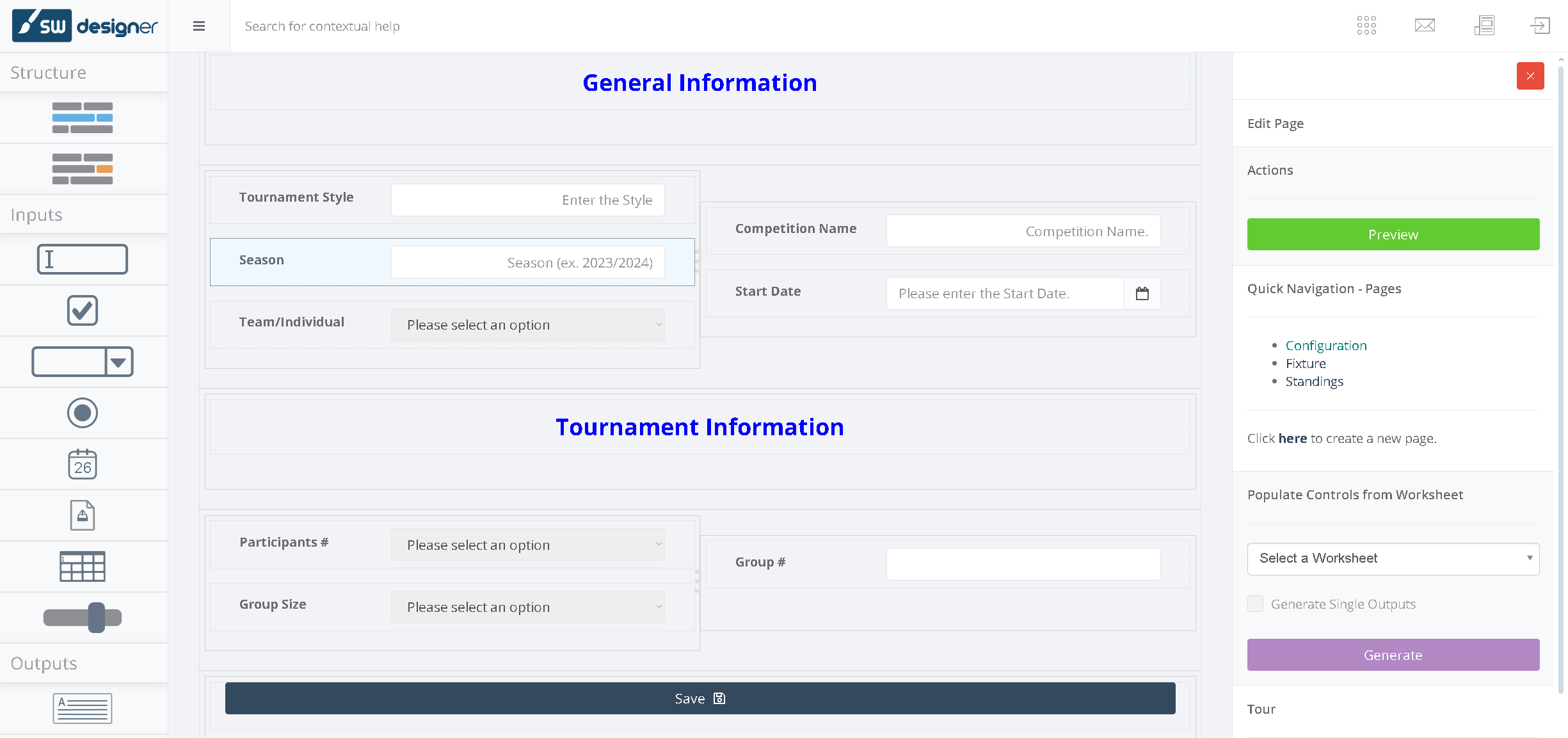
General Information Page
On this page, users will input general details about the tournament. Use input fields to capture data such as the tournament name, start date, number of teams, and groups. Map these fields to the corresponding named cells in your Excel file.
The layout should be intuitive and user-friendly, ensuring that users can easily navigate and input the required information. Consider adding tooltips or help text to guide users through the process.
Participation Page
This page allows users to input team and group assignments. Use dropdown lists and data validation to ensure consistency and ease of use. Each entry should be linked to the participation table in your Excel file.
To enhance user experience, you can include features like auto-complete for team names and dynamic validation rules to prevent duplicate entries or invalid group assignments. This ensures data accuracy and reduces the likelihood of user errors.
Fixture Page
Here, users can input match details and update scores. Create input fields for match dates, teams, and scores. These inputs should be mapped to the fixture table in Excel.
Consider adding features such as date pickers for match dates and real-time validation to ensure scores are entered correctly. Providing a clear and structured format for entering fixtures and results helps maintain consistency and accuracy in the data.

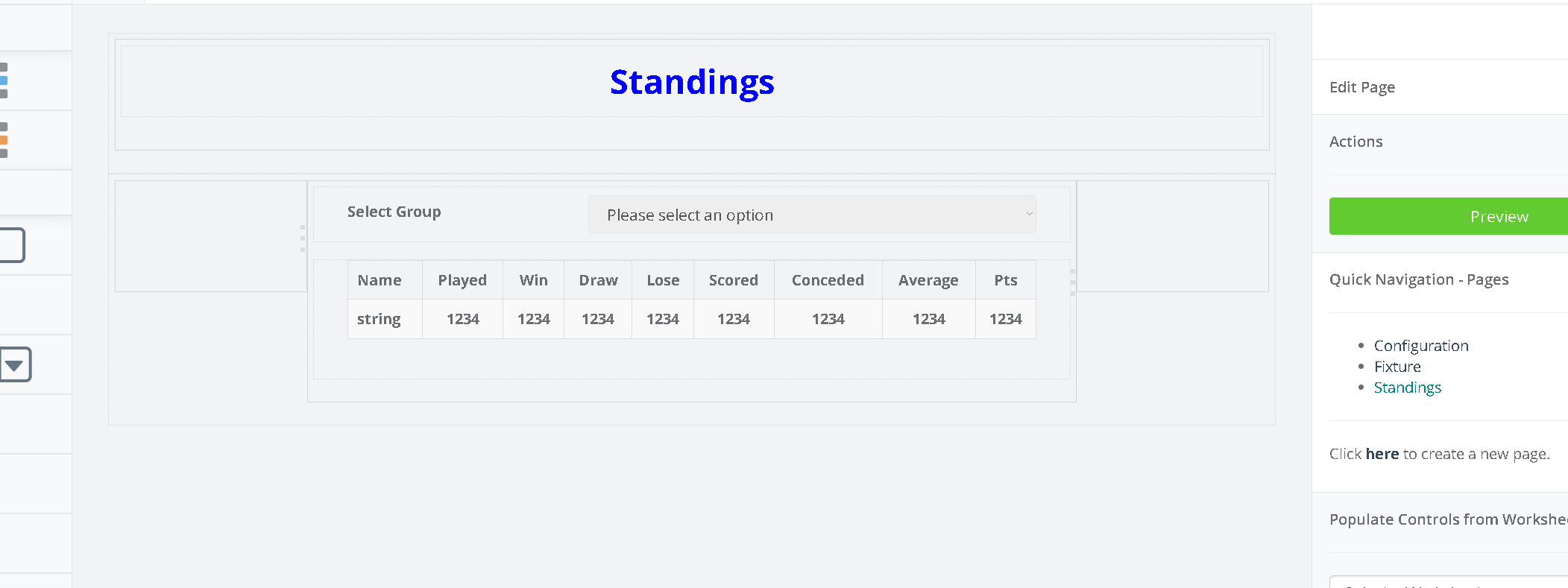
Standings Page
The standings page displays the dynamically updated standings. Use the dynamic table created in Excel to show the latest standings based on the match results entered in the fixture page.
Incorporate sorting and filtering options to allow users to view standings by different criteria, such as group, points, or goal difference. This makes the standings page more versatile and informative for users.
Using Features and Toggles
SpreadsheetWeb provides powerful features to control the visibility and editability of pages and controls:
Editable and Visible Toggles
In the Page section of the Designer, use the editable toggle and visible toggle features. Link these toggles to the Boolean cell created earlier to ensure that only authorized users can access and edit specific pages or controls.
This granular control over page visibility and editability enhances the security and usability of your application. Unauthorized users will be unable to access sensitive data or make unauthorized changes. In this case, the scores can only be updated by an authorized user.

Implementing Buttons
Add buttons to facilitate actions such as saving data, updating scores, and generating reports. Control button functionality by setting the "Editable by Value of" property to the Boolean cell, ensuring only authorized users can interact with them.
Buttons should be clearly labeled and positioned for easy access. Consider using different button styles or colors to distinguish between different actions, such as saving data or generating reports.

Public Record Feature
The Public Record feature allows you to create shareable links for specific records. This is useful for sharing standings or specific match details with external parties. You can configure these records to be viewable or editable based on user permissions.
In this case, the public record feature is utilized to make the fixtures and standings pages visible to the end user. These pages are read-only, ensuring that the end user can only view the information and cannot accidentally make any changes. This read-only mode maintains the integrity of the data while allowing users to stay informed about the latest fixtures and standings.
Additionally, the public link to these pages can be embedded into a web page, providing easy access and ensuring compatibility with existing websites. This embedding capability allows seamless integration into your current online infrastructure, enabling visitors to access up-to-date information without navigating away from your main site.
Conclusion
Creating a comprehensive tournament management application involves detailed preparation in Excel and strategic use of the SpreadsheetWeb Designer. By defining clear structures for general information, participation, fixtures, and standings, and implementing robust permission controls, you can develop a versatile and secure application. SpreadsheetWeb's powerful functionalities enable you to create dynamic, user-friendly web applications directly from your Excel spreadsheets, making it an ideal tool for managing complex data-driven tasks like tournament management.
This guide provides a foundational approach to building a tournament management system, but the flexibility of SpreadsheetWeb allows for further customization and enhancement to meet specific needs and preferences. Whether managing a small local tournament or a large-scale international event, this template equips you with the tools to streamline and simplify the process.
Sample Application Link
Sample Excel Link