
Microsoft Excel is famous for having lots of powerful features. It has more than 400 different formulas that are great for making detailed data models, calculators, and other cool tools. Microsoft often adds new formulas and keeps the old ones too, so older Excel files still work well. But even people who are really good at using Excel don't use all 400 formulas. Some formulas are super useful for complex tasks, but others aren't used much and has rare usage.
We're going to look at some Excel formulas that aren't used a lot to see what they do. You might find something new! We'll talk about formulas like CONCATENATE, BAHTTEXT, ROMAN, and GETPIVOTDATA.
Excel CONCATENATE Function
The CONCATENATE function in Excel is a tool used to join two or more text strings into one single string. It's really helpful when you need to combine words, numbers, or a mix of both from different cells into one cell. Here's a bit more about how it works.
The main use of CONCATENATE is to merge text from different cells. For example, if you have someone's first name in one cell and their last name in another, you can use this function to put the full name together in a new cell.
Syntax: The syntax for CONCATENATE is CONCATENATE(text1, [text2], ...).
-
text1is the first item you want to join.[text2]is the second item, and so on. These are optional; you can add as many as you need.
CONCATENATE can also mix text and numbers. For instance, if you have a date or a number that you want to include in a text string, this function can handle it. While CONCATENATE is useful, it's worth noting that Excel has introduced a new function named CONCAT, which is an improved version and can handle ranges of cells, not just individual cells. There's also TEXTJOIN which offers even more flexibility, like adding separators between the joined text.
You can also join texts together in Excel by just using the '&' symbol between the words or numbers you want to combine. Using '&' usually does the same thing as the CONCATENATE function. The only time CONCATENATE might be better is if you have to join together a lot of items, like 100 of them. Then, using CONCATENATE means you don't have to type '&' so many times. But remember, even with CONCATENATE, you still have to pick each cell one at a time because it can't work with a whole group of cells at once.

Microsoft has noticed that CONCATENATE function is a rare formula in terms of usage, so they came up with a new function named CONCAT. This new function is more advanced because it can handle groups of cells all at once, not just one cell at a time. As of now, this CONCAT function is only available if you have Office 365.
If you want to learn more about the CONCATENATE function, which isn't used much, we have a guide that can help. It's called 'Transforming Data with the CONCATENATE function in Excel.' This guide is great for understanding how to use this uncommon and not-so-popular function to join together words and numbers in Excel. It's especially useful if you're not using Office 365 and don't have access to the newer CONCAT function.
Rare "BAHTTEXT" Formula
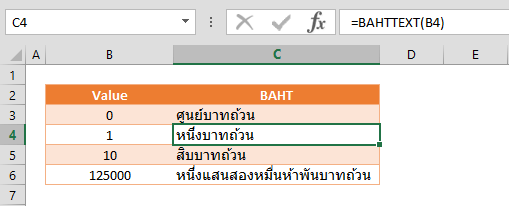
Unlike the CONCATENATE, the BAHTTEXT formula in Excel is much more specific and uncommon tool which is used for changing numbers into Thai words. It's really handy for if you need to write numbers as words in Thai, especially for money-related things like budgets or bills. However as you can understand, it's one of the least useful and one of the most uncommon formula. Here's how it works: you just type BAHTTEXT and put the number you want to change in brackets.
For example, if you type =BAHTTEXT (B4) , Excel will show this number in Thai words, and it will add 'Baht' at the end, which is the Thai word for their money. This formula is mostly used for documents in Thailand, so it's not very common elsewhere. It's a cool example of how Excel can do things for different places around the world.
There's a funny little story about why Excel has the BAHTTEXT formula. Some people say that the formula was made because the people who created Excel really liked eating Thai food. They often ordered meals from a Thai restaurant. To make it easy to figure out how much their food cost in Thai money, they added this special formula to Excel. This way, they could quickly write the cost in Thai words. This story might not be an answer for the "Why is BAHTTEXT a rare formula?" question, but it's a fun idea. It shows that sometimes, the things people like can have a funny impact on the tools we use, like Excel.
Excel ROMAN Function
The ROMAN function in Excel is used to convert Arabic numerals (the standard numbers we use every day, like 1, 2, 3, etc.) into Roman numerals (the number system used in ancient Rome, like I, II, III, IV, V, etc.) and it has very rare usage. This function can be quite handy when you need to display numbers in a classical or historical context. Although Excel provides 5 levels of precision from classic to simplified, it has only aesthetical value and doesn’t see much use. Maybe once a year, when creating Super Bowl statistics?
Here's how this rare formula works:
Syntax: The basic syntax of the ROMAN function is ROMAN(number, [form]).
-
- number is the Arabic numeral you want to convert.
- [form] is an optional argument that specifies the form of the Roman numeral. It can range from 0 to 4, with 0 being the classic form (most detailed) and 4 being the simplest form (less detailed).

This rare formula has a partner function too, called ARABIC, which does the opposite – it changes Roman numerals back into regular numbers. If you're interested in learning more about how to use these ROMAN numeral functions in Excel, we have a guide called 'How to use ROMAN numbers.' It explains everything in simple steps, so you can easily understand how to convert numbers to Roman numerals and back again with Excel.
Uncommon Excel "GETPIVOTDATA" Formula
The GETPIVOTDATA function in Excel is kind of special and has its own set of benefits like CONCATENATE function has once. But, it's also a bit tricky because of how it's set up. It can sometimes lead to mistakes and make it hard to keep your Excel workbook in good shape. This function is used to get summary data from a PivotTable, but only if that summary data is already showing in your report.
Using it is pretty straightforward at first. Just like with any other formula in Excel, you start by typing an equal sign (=). Then, when you click on a cell that's part of a PivotTable, Excel will automatically create the GETPIVOTDATA formula for you. But, that's where the easy part ends.
If your PivotTable is big, you'll end up with a really long formula that's hard to understand. And when you look at this formula, it just shows one cell being highlighted, which doesn't really help you figure out what's going on. This makes GETPIVOTDATA a bit rare formula and not used a lot, especially when you're dealing with large PivotTables where keeping track of data can be a challenge.
Syntax: The basic syntax of GETPIVOTDATA is GETPIVOTDATA(data_field, pivot_table, [field1, item1], [field2, item2], ...).
data_fieldis the name of the data field in the PivotTable that contains the data you want to retrieve.pivot_tableis any cell reference within the PivotTable.[field1, item1], [field2, item2], ...are optional pairs of field names and item names that define the data you want to extract.

In the GETPIVOTDATA formula, the parts you put inside quotes (like this: "") are the names of the fields, and they don't change automatically. So, if you change the name of a field in your PivotTable, you have to remember to change it in the GETPIVOTDATA formula too. If you don't, you'll get an error in Excel that says #REF!, which means the formula can't find the field anymore.
This kind of manual updating is one reason why GETPIVOTDATA is a rare formula which isn't used much. It's not that common because when you're working with big tables or making lots of changes, keeping the formula updated can be a lot of work.
Also, if you're interested in getting better at using PivotTables in Excel, you should check out our article 'How to Organize and Analyze Your Data Quickly with Excel's PivotTables.' It's really helpful for learning more about PivotTables, which are great for organizing and looking at your data in different ways.
More Rare Functions in Excel:
Here are a few more of these rare formulas in Excel except CONCATENATE, GETPIVOTDATA, BAHTTEXT and ROMAN :
DGET: This function is part of Excel's database functions and is used to extract a single value from a column of a list or database that matches conditions you specify. It's rare because its functionality is very specific and can be complex to set up correctly.
FISHER and FISHERINV: These statistical functions are used to perform Fisher transformations, converting correlation coefficients to a normally distributed variable (FISHER) and vice versa (FISHERINV). They are primarily used in advanced statistical analysis, which is why they're not commonly seen in general Excel usage.
FORECAST.ETS: This function is used for forecasting and is based on an Exponential Triple Smoothing algorithm, which is part of Excel's newer forecasting functions. Its use is more specialized, often confined to advanced data analysis and trend forecasting.
IMSUB and other complex number functions: Functions like IMSUB, IMCOS, and IMDIV are used for calculations involving complex numbers. These are rarely used outside of specific fields like engineering or certain branches of applied mathematics.
DBCS: A function used to convert a full-width (double-byte) character to a half-width (single-byte) character. Its usage is very specific and is primarily relevant in certain language-specific contexts.
NPER: While not extremely rare, the NPER function, which calculates the number of periods for an investment or loan, is less commonly used in everyday Excel tasks.
CONVERT: Used to convert a number from one measurement unit to another (like pounds to kilograms). It's not frequently used in standard data analysis or business reporting.
These formulas represent the diversity and depth of Excel's capabilities but are typically employed in more specialized or advanced scenarios.
