Excel uses double quotes to identify text; you need a different approach. This article shows you How to use double quotes in Excel formulas in two ways: with and without a function.
Syntax
=""""
=CHAR(34)
How to use Double Quotes in Excel?
There are two ways to use double quotes in Excel formulas:
- Without a function
- With a function
Using Double Quotes Without a function
This is the generic and most commonly used approach to add double quote characters in a formula. Type double quotes twice, like double-double quotes (""). Although using double quotes twice is our preferred approach, things can get messy when these double-double quotes come together with double quotes that specify a text.
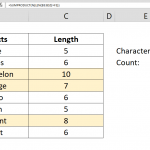
="The "&B3&" is a """&C3&""" type Pokémon"
It may be really hard to count double quotes on smaller screens. Here is an alternative way to distinguish string separators from the double quotes used for text.
Using Double Quotes With a function
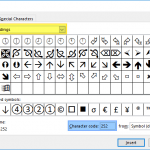
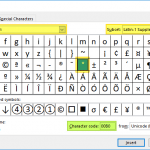
The function is called CHAR, which returns the character of a specific number. It can get a number from 1 to 255 as its argument and returns the character from your computer's character set that matches the number. The character sets are different for Windows and Mac systems. While Windows machines use ANSI code system, Mac machines use Mac OS Roman.
Thankfully, the double quote character shares the same numeric code for both systems, 34. So you can use the CHAR function with code 34 to insert a double quote.
="The "&B4&" is a "&CHAR(34)&C4&CHAR(34)&" type Pokémon"