Remove Duplicates
Efficient data management often involves the meticulous process of cleaning up datasets to ensure accuracy and streamline analysis. Among the crucial tasks within this realm is the elimination of duplicate values, a procedure that enhances the overall integrity and reliability of the data. In this article, we will guide you through the steps of removing duplicates in Excel, utilizing the built-in "Remove Duplicates" feature. This feature provides a systematic and user-friendly approach to identify and eliminate redundant entries, offering a practical solution for maintaining data precision in your Excel spreadsheets. Whether you're dealing with large datasets or seeking to enhance the quality of your information, mastering the art of removing duplicates is a valuable skill for data analysts, business professionals, and Excel enthusiasts alike. Join us as we explore the intricacies of this indispensable feature and streamline your data cleansing process. To find duplicate values using a formula please see:
How to highlight duplicate values in a data set dynamically
How to find the unique items in a list
Steps
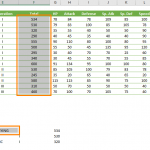
- Select your data or click a cell in that table to remove duplicates in Excel.

- Click the Remove Duplicates icon under the DATA tab.

- Excel can typically identify headers in your data. However, it's always a good idea to enable the My data has headers checkbox, and select the columns you want to remove duplicates from.

- Click OK to remove the duplicate values in your selection.
- You will receive a confirmation message with the details on how many cells were affected.


If you encounter difficulties removing duplicates, you can contact Microsoft Support for further assistance.