In the realm of data management and analysis, Microsoft Excel stands out as a powerful tool due to its array of functions that facilitate efficient data manipulation. One such function is the ability to determine the total number of columns within a given range. While Excel does not offer a direct function for this specific task, users can easily derive this information using existing functions and techniques. Understanding the total number of columns within a dataset is essential for various reasons, including dynamic data analysis, automation, data validation, and overall flexibility in data manipulation.
Understanding the Purpose: The primary purpose of determining the total number of columns in a dataset is to gain insights into the structure and size of the data. This information becomes particularly crucial when dealing with datasets that are subject to frequent changes in terms of columns or when creating automated processes that require precise data handling.
Benefits of Knowing the COLUMN Function in Excel:
- Dynamic Data Analysis: When working with datasets that undergo changes in column structure, such as adding or removing columns, knowing the total number of columns helps in dynamically analyzing and interpreting the data.
- Automation: For users creating macros or VBA scripts to automate tasks in Excel, knowing the column count enables them to design more adaptable and robust automation processes.
- Data Validation: Ensuring that the dataset aligns with the expected structure and size is essential for maintaining data integrity. Knowing the column count aids in validating the data against predefined standards.
- Flexibility: The ability to dynamically determine the column count allows for greater flexibility in data manipulation and analysis, enabling users to adapt to evolving data requirements.
COLUMN Function in Excel: Steps
Practical Application: To understand how to determine the total number of columns in a dataset, consider the following step-by-step approach:
- Select the Range: Begin by selecting the range of cells for which you want to count the total columns.
- Open the Formula Bar: Click on the formula bar or press F2 on your keyboard to activate the formula input.
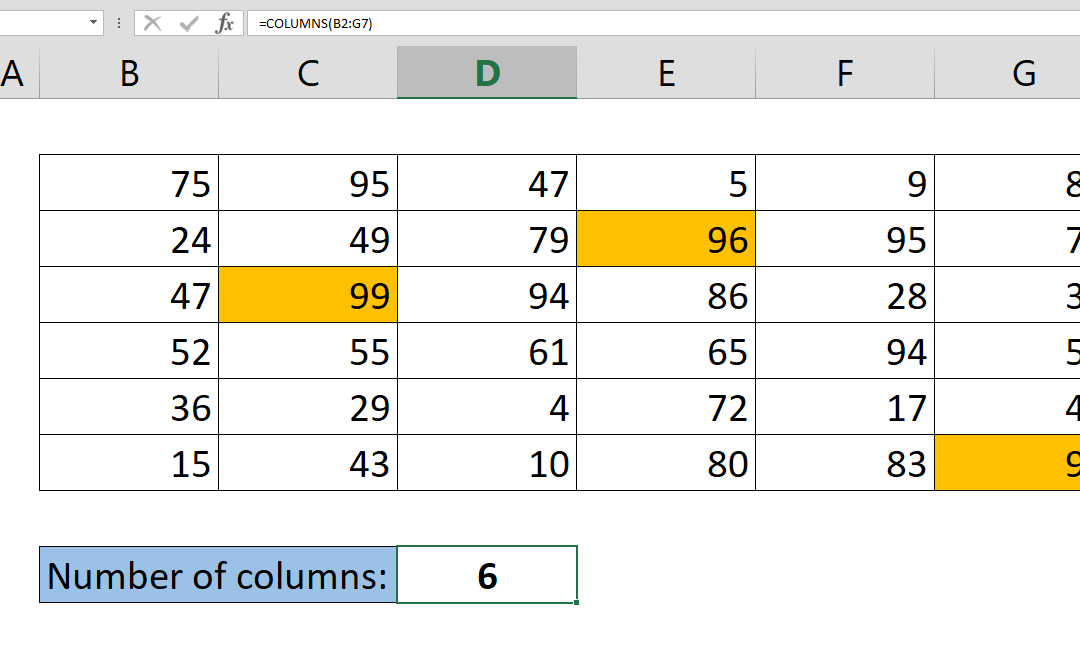
- Type the Formula: Enter the formula =COLUMNS(range), replacing "range" with the actual range you selected. For example, if your data is in the range A1:L10, the formula would be =COLUMNS(A1:L10).
- Press Enter: After entering the formula, press Enter to execute it. The result displayed will be the total number of columns in the specified range.
Detailed Example: Suppose you have a dataset containing monthly sales data for a product from January to December. If this data is located in the range A1:L10, you can use the formula =COLUMNS(A1:L10) to determine the total number of months (columns) for which you have sales data.
Advanced Tips:
- Dynamic Range Count: Utilizing Excel Tables can automatically update the COLUMNS function in Excel when columns are added or removed from the dataset, providing dynamic range counting capabilities.
- Combination with ROWS Function: In addition to counting columns, users can also leverage the ROWS function to count the number of rows within a dataset, allowing for comprehensive analysis of two-dimensional ranges.
- Integration with VBA: For users working with Visual Basic for Applications (VBA) to automate Excel processes, integrating the COLUMNS function in Excel with VBA scripts can enhance automation capabilities, especially when dealing with datasets of varying sizes.
- Conditional Counting: By combining the COLUMNS function with conditional functions like COUNTIF, users can perform specific counts based on conditions, providing a more nuanced analysis of the dataset.
As a conclusion, Mastering the art of determining the total number of columns within a dataset in Excel is a valuable skill that can significantly enhance data management and analysis capabilities. By understanding the various methods and techniques available, users can leverage this knowledge to create more efficient and dynamic spreadsheets, paving the way for enhanced data-driven decision-making processes.