The Excel WORKDAY function is a versatile Date & Time tool designed to assist users in calculating dates by adding or subtracting a specific number of workdays from a given starting date. This article aims to offer a guide on how to effectively utilize the WORKDAY function, alongside insights into various tips and methods for handling errors. At its core, the WORKDAY function returns a numerical representation of a date that falls either before or after a specified starting date, taking into account a user-defined number of working days. These working days automatically exclude weekends, ensuring accurate date calculations, and can further accommodate the exclusion of specified holiday dates. The practical applications of this function extend to various scenarios, including the calculation of invoice due dates, expected delivery times, or simply determining the number of workdays required to complete a task.
By mastering the Excel WORKDAY function, users gain the capability to streamline date-related calculations, enhance project planning, and improve overall efficiency in various professional and personal contexts. This article will delve into the specifics of how to implement the WORKDAY function effectively, and address potential challenges.
Supported Versions
- Excel 2007 and newer
Syntax of WORKDAY Function
The WORKDAY function within Excel is characterized by its simple syntax, encompassing three key components:
- Start_date (Required): This essential element necessitates the entry of a specific date, serving as the foundation for your date calculations. It represents the initial date from which you intend to either advance or regress by a designated number of workdays.
- Days (Required): The second parameter, 'Days,' is also obligatory. It involves specifying the count of workdays you wish to move forward or backward relative to the 'start_date.' It is important to note that this count excludes weekends and any dates recognized as holidays. When you provide a positive value for 'days,' it will yield a future date, while a negative value will result in a date in the past.
- Holidays (Optional): The 'Holidays' argument is discretionary and allows you to designate a list of dates that should be excluded from the calculation. These dates typically represent holidays, encompassing state, federal, or custom floating holidays relevant to your context. You have two options for presenting this list: it can either consist of a range of cells containing the holiday dates or an array constant featuring serial numbers that correspond to those specific dates.
The WORKDAY function equips you with the capability to derive dates in the future or the past, while taking into account only workdays, and optionally, excluding defined holidays. This functionality proves invaluable in various scenarios, ranging from project scheduling to managing due dates for invoices and projecting delivery timelines, enhancing productivity across both professional and personal domains.
Examples of the WORKDAY Function
Example 1: Only Weekends Excluded
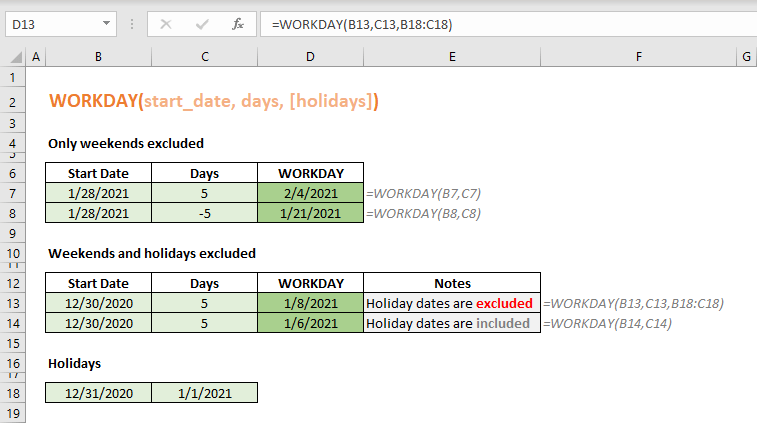
To determine a date that falls before or after a specified date while intelligently excluding weekends from the calculation, you can employ the WORKDAY formula. This formula operates with two key parameters: 'start_date' and 'days,' both of which exhibit flexibility in terms of input formats. You can provide these values as strings, serial numbers, or even dynamically compute them using other formulas like DATE.
Let's illustrate this concept with practical examples. Imagine you have a 'start_date,' and you wish to navigate the calendar by adding or subtracting a specified number of days. In the following scenarios, we add 5 days to the 'start_date' and, alternatively, subtract 5 days from it. Without the WORKDAY formula's adept handling of weekends, these calculations would yield different results – 2/2/2021 and 1/23/2021, respectively.
However, thanks to the WORKDAY function's awareness of weekends and its exclusion of them from the calculation, the outcomes are adjusted. Thus, we obtain 2/4/2021 and 1/23/2021. This demonstrates the practical utility of the WORKDAY function, ensuring that date calculations align with workdays while avoiding weekends, a crucial feature for precise scheduling, financial projections, and various other applications in both personal and professional contexts.
Past date: =WORKDAY("1/28/2021",-5)

Example 2: Excluding Weekends and Holidays in WORKDAY Function
You have the flexibility to enhance the accuracy of your date calculations by furnishing the WORKDAY function with an array of dates within the '[holidays]' argument. This array effectively allows you to exclude not only weekends but also specific dates of your choice from the calculation. It's worth noting that this '[holidays]' argument can be presented in two ways: as a range of cells containing holiday dates or as a constant array denoting these specific dates.
To illustrate the significance of this feature, consider the following example, which explores scenarios both with and without the inclusion of holiday dates. This showcases the practical versatility of the WORKDAY function.
By integrating your own array of dates into the calculation, you can tailor the function to accommodate the unique scheduling requirements of your projects or financial analyses. Whether you need to factor in public holidays, corporate events, or any other significant dates, the ability to exclude them from your date calculations ensures a higher degree of precision in your work. This level of customization makes the WORKDAY function an indispensable tool for professionals and individuals alike seeking to fine-tune their date-related calculations to meet specific needs.

WORKDAY vs. WORKDAY.INTL Functions
The WORKDAY and WORKDAY.INTL functions in Excel are both used for calculating a date that is a specific number of working days away from a given start date. Similar to Excel WORKDAY function, WORKDAY.INTL calculates a future or past date by adding a specified number of working days to a start date. The key difference is the ability to define which days of the week are considered weekends.
In WORKDAY.INTL, you can define weekends as any day of the week or even specify weekends that span more than two days. The function uses a numeric code (1 through 7) to define the weekend days. For example, "1" for Saturday and Sunday (default), "2" for Sunday and Monday, and so on. It is ideal for scenarios with non-standard weekends or in international contexts where the weekend days might differ from Saturday and Sunday.

WORKDAY Function Tips
- It is advisable to consider using the WORKDAY.INTL function when your objective is to calculate working days while taking into account the specific weekends in your region or context. Unlike the basic WORKDAY function, which simplifies the weekend calculation by treating weekends as a universal standard, WORKDAY.INTL offers a more tailored approach, allowing you to precisely determine which days should be considered as weekends in your calculations.
- One important point to note is that the WORKDAY function disregards the time component of dates. In Excel, dates and times are internally represented as numerical values. The system's reference point is January 1st, 1900, assigned a value of 1, with all subsequent dates being relative to this starting point. Each whole number in this numerical representation signifies a day, while decimal values represent time. For instance, January 1st, 2018 corresponds to the numeric value 43101, and the time 12:00 PM is equivalent to 0.5 in this numeric system.
- This numerical representation is essential for accurate date and time calculations within Excel, as it underpins all date-related operations.
Error Handling in WORKDAY Formula
Error handling for the WORKDAY function in Excel is important for creating robust and error-free spreadsheets, especially when dealing with project timelines, deadlines, and scheduling:
#VALUE! Error: This error occurs when the input values are of the wrong data type. For example, if the start date is not a valid date or the days argument is non-numeric, Excel will return a #VALUE! error.
#NUM! Error: This error is less common with WORKDAY but can occur if the start date is not a valid Excel date (dates in Excel are stored as serial numbers).
To prevent these errors, ensure the start date and any dates in the holiday list are valid Excel dates. Use functions like ISNUMBER and DATEVALUE to validate date inputs. Also, verify that the number of days to add is a numeric value. Non-numeric values will cause a #VALUE! error.
When specifying a list of holidays, ensure it's provided as a range (like A1:A10) or an array (like {DATE(2021,1,1), DATE(2021,12,25)}). Incorrect formats can lead to errors.
Wrap the WORKDAY function in an IFERROR or IFNA function to handle errors gracefully. For example:
=IFERROR(WORKDAY(start_date, days, holidays), "Error in Calculation")