DATEVALUE?
Excel, the ubiquitous spreadsheet software, is a go-to tool for managing data, performing calculations, and presenting information in a structured manner. One of Excel's fundamental strengths lies in its ability to work with dates effortlessly. However, it assumes that dates are stored in a specific numerical format, which can pose challenges when dealing with data representing dates as text. Enter the Excel DATEVALUE function, which bridges the gap between text-based dates and Excel's native date number format. This comprehensive guide will dive into the intricacies of the DATEVALUE function, demonstrating its utility and providing essential tips and error-handling techniques to make your date-related tasks a breeze.
In Excel, dates are typically stored as numerical serial numbers, with each day since January 1, 1900, assigned a unique value. This standardized format simplifies date calculations and allows for accurate date-based analysis. However, not all data sources adhere to this format, and you might find yourself working with dates stored as text.
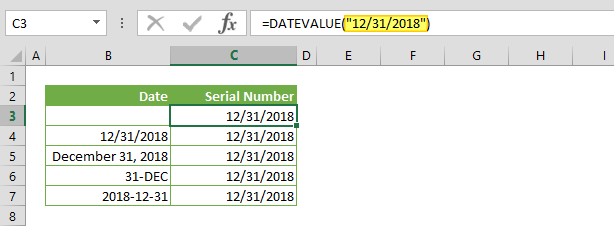
Imagine a scenario where you have a list of sales transactions, and the dates are entered in various text formats, such as "12/31/2018," "December 31, 2018," or "2018-12-31." Excel, by default, won't recognize these entries as dates. This is precisely where the DATEVALUE function proves its worth. It excels at converting these text-based representations into Excel's date serial numbers, enabling you to perform date-related operations seamlessly.
How to Harness the DATEVALUE Function
Using the DATEVALUE function is straightforward:
- Select a cell where you want the converted date to appear. Enter the following formula:
=DATEVALUE(date_text)
- Replace `date_text` with the cell reference or the text-based date you want to convert.
- Press Enter. The function will process the input, and the cell will display the numerical date serial number corresponding to the original text-based date.
The DATEVALUE function is versatile and adaptable, making it a valuable tool for a wide range of scenarios:
- Data Import and Cleanup: When you receive data from external sources, such as CSV files or databases, dates are often stored as text. DATEVALUE quickly transforms these textual representations into a format Excel understands, ensuring your data is ready for analysis.
- Custom Date Formats: Whether your dates are formatted as "mm/dd/yyyy," "dd/mm/yyyy," or even unconventional formats like "Mon, Jan 31, 2018," DATEVALUE can handle them all. You can specify the expected format within the function to ensure accurate conversions.
- Date Arithmetic: Once your dates are converted, Excel's extensive library of date functions becomes accessible. You can calculate durations, find the difference between dates, and perform complex date-based calculations effortlessly.
DATEVALUE Usage
To make the most of the DATEVALUE function, consider these practical tips:
- Uniform Formatting: Ensure consistency in the format of your text-based dates. DATEVALUE functions best when the date representations follow a consistent pattern throughout your dataset.
- Date Formatting: Familiarize yourself with the common date formats and adapt the DATEVALUE function accordingly. Excel is flexible, and you can tailor the function to match the format of your data.
Error Handling
Real-world data can be messy, and text-based dates may sometimes contain errors or inconsistencies. Implement error-handling techniques using functions like IFERROR to gracefully manage these situations and maintain the integrity of your calculations.
- Date Display: After converting your dates to numerical serial numbers, you can easily format cells using Excel's formatting options to display them in your preferred date format. This ensures that your data remains both accurate and visually appealing.
DATEVALUE and Its Challenges: While DATEVALUE is a powerful ally, there are a few challenges you should be aware of:
- #VALUE! Error: If you inadvertently feed a number into the DATEVALUE function instead of a text-based date representation, Excel will return a #VALUE! Error. Vigilance in data validation is key to avoiding such errors.
- Date Range Limitation: DATEVALUE is designed to work within a specific range, covering dates from January 1, 1900, to December 31, 9999. Any date outside this range will also trigger a #VALUE! Error.
In this guide, we will navigate the nuances of DATEVALUE and provide in-depth insights into its usage. You'll discover how this function can transform your data manipulation capabilities, save time, and enhance your proficiency in handling dates within Excel.
So, let's embark on this journey of harnessing the DATEVALUE function to elevate your Excel skills to new heights. From mastering basic conversions to tackling complex date-related challenges, you'll emerge from this guide with a deep understanding of how to make Excel work effectively with text-based dates.
Supported Versions
- All Excel versions
Examples
formulas return a number for the date 12/31/2018.
Excel DATEVALUE Tips
Certainly, let's expand on this important concept of how Excel stores date as numbers and its implications, including handling cases where the year information is not explicitly provided in the date text.
- Excel's Numeric Date System: At the core of Excel's date management lies a numeric system that simplifies the handling of dates. In this system, Excel treats each date as a numerical value, with January 1, 1900, as its starting point. On this auspicious date, Excel assigns the value '1.' From there, it systematically increments this number by 1 for each subsequent day.To illustrate this, let's take an example. Consider the date '12/31/2018.' Excel's numeric date system represents this particular date by the value '43465.' This numeric representation might not be immediately intuitive to us, but it's a crucial aspect of how Excel operates internally.
- DATEVALUE and Numeric Date Conversion: You might wonder how this numeric representation relates to the DATEVALUE function. The DATEVALUE function plays a pivotal role in translating these numeric date values back into human-readable date formats. Applying the DATEVALUE function to a cell containing a numerical date effectively reverses the process, converting that number into a recognizable date format.So, if you were to enter `=DATEVALUE("12/31/2018")`, Excel would perform the reverse lookup and display '12/31/2018' as a result, even though it's stored internally as the numeric value '43465.'
- Handling Dates with Incomplete Information: One fascinating feature of the DATEVALUE function is its ability to handle dates without complete information. Excel, being its adaptable tool, can deduce the missing details to make sense of your data. Consider this scenario: You have a date written as '31-DEC.' It's apparent that the day and month are provided, but the year is conspicuously absent. In this case, the DATEVALUE function doesn't throw an error or get stuck; instead, it defaults to using the current year as a reference. So, if you input `=DATEVALUE("31-DEC")` in Excel, and let's say the current year is 2024, Excel will interpret it as 'December 31, 2024.' This intelligent handling of incomplete dates makes Excel a robust tool for working with real-world data, where you might not always have access to the complete date information.Excel's numeric date system, combined with the DATEVALUE function's flexibility, empowers you to manipulate and display dates in various formats, ensuring accuracy and convenience in your date-related tasks. Whether dealing with extensive datasets or performing intricate date calculations, understanding these fundamentals can greatly enhance your proficiency in Excel.
Issues
Certainly, let's delve deeper into the potential issues that can arise when using the DATEVALUE function in Excel:
#VALUE! Error with Numeric Input
One of the common pitfalls when working with the DATEVALUE function is inadvertently supplying it with a numeric value instead of a text representation of a date. Excel expects the `date_text` argument to be in text format, encapsulated within quotation marks. If you forget to enclose the date in quotes, or if the date you're trying to convert is already in numeric form, Excel will return a #VALUE! Error.
For example, if you mistakenly enter `=DATEVALUE(43465)` without enclosing it in quotes, Excel will not recognize it as a valid text-based date and produce an error. To avoid this issue, always make sure your date input is enclosed within double quotes, like this: `=DATEVALUE("12/31/2018")`.
#VALUE! Error for Dates Outside Excel's Range
Excel's date system assumes that dates fall within a specific range, spanning from January 1, 1900, to December 31, 9999. Any date falling outside this extensive but finite range will trigger a #VALUE! Error when processed with the DATEVALUE function.
For instance, if you attempt to convert a date like '01/01/10000' or '12/31/99999,' Excel will not be able to accommodate it within its established date system, and you will receive a #VALUE! Error.
To mitigate this issue, you must ensure that your work dates within Excel are within this range. This limitation is rarely a problem in practical scenarios, as the Excel date range encompasses an incredibly vast period, spanning thousands of years into the past and future. Nevertheless, it's good practice to be aware of these boundaries when dealing with dates, especially in historical or futuristic contexts.
Error Handling and Prevention
Consider implementing error-handling techniques to maintain the integrity of your Excel spreadsheets and prevent #VALUE! errors when using the DATEVALUE function. These techniques can help you gracefully handle unexpected situations and provide meaningful feedback or alternative values when errors occur.
For example, you can use the IFERROR function to wrap your DATEVALUE formula and specify a default value or a custom error message to display when an error occurs. This ensures your spreadsheet remains robust and user-friendly, even when dealing with potentially problematic date data.
In conclusion, while the DATEVALUE function is a powerful tool for converting text-based dates into Excel's date serial number format, it's essential to be mindful of potential issues like providing numeric input or dates outside Excel's range. By understanding these challenges and implementing error-handling strategies, you can effectively manage and manipulate date data in Excel with confidence and precision.