In this guide, we'll explore a method to highlight Excel comments, making them readily visible efficiently. This technique primarily utilizes Visual Basic for Applications (VBA), a useful tool within Excel. With VBA, we can simplify identifying and managing comments in Excel, whether you want to add, edit, or review these annotations.
How to highlight Excel Comments using VBA
Visual Basic for Applications (VBA) in Excel offers a range of predefined cell types containing special values, enhancing managing and interacting with Excel comments. One of the key tools in this regard is the SpecialCells method. This method is instrumental in accessing specific cell types, utilizing two primary arguments: Type and Value. By effectively combining these two arguments, you can precisely target and manipulate the desired cell or range of cells. The SpecialCells method are evident in the variety of values it can interpret for both Type and Value arguments, making it an invaluable asset for handling cells with unique characteristics, such as those with Excel comments, notes, or specific formatting. This significantly simplifies tasks related to comment management in Excel, be it adding, deleting, or modifying comments.
Type Argument
In Excel, VBA's SpecialCells method categorizes cells into various types, each representing a unique set of characteristics. The 'Type' argument in this method includes a comprehensive list of categories:
- xlCellTypeAllFormatConditions: This includes cells of any format, making it versatile for diverse formatting needs.
- xlCellTypeAllValidation: Targets cells with validation criteria essential for data integrity checks.
- xlCellTypeBlanks: Identifies empty cells, useful in data cleaning and organizing.
- xlCellTypeComments: Specifically designed for cells containing notes or comments, this type is vital for managing Excel comments effectively.
- xlCellTypeConstants: Encompasses cells that contain constants, aiding in formula-driven tasks.
- xlCellTypeFormulas: This type includes cells with formulas, the key to identifying calculation-based cells.
- xlCellTypeLastCell: Represents the last cell in the used range, including empty cells that have experienced any format changes. This is crucial for understanding the extent of the data in a sheet.
- xlCellTypeSameFormatConditions: Groups cells sharing the same format, aiding in uniform formatting tasks.
- xlCellTypeSameValidation: Includes cells with identical validation criteria, ensuring consistency in data validation.
- xlCellTypeVisible: Comprises all currently visible cells, allowing for operations on currently active cells.
Each type plays a distinct role in how one interacts with and manipulates data in Excel. For instance, the 'xlCellTypeComments' is particularly relevant when dealing with Excel comments, as it targets cells containing such annotations.
Value Argument
In addition to the 'Type' argument, the SpecialCells method in Excel's VBA utilizes the 'Value' argument, further refining the workbook search. This argument can take on several forms:
- xlErrors: For cells containing errors.
- xlLogical: Targets cells with logical values (TRUE or FALSE).
- xlNumbers: Identifies cells that contain numerical values.
- xlTextValues: Applies to cells that hold text.
When our objective is to locate cells with Excel comments, the 'xlCellTypeComments' is used as the 'Type' argument. Interestingly, the 'Value' argument is unnecessary in this context, as our focus is solely on cells with comments, regardless of their content type.
Once the relevant cells are identified, the ColorIndex property becomes a key player. This property allows you to assign specific colors to the selected range, enhancing visibility and organization. The ColorIndex property uses numerical values to represent colors, such as:
- 3 for Red
- 4 for Green
- 5 for Blue
- 6 for Yellow
- 0 for No Fill
This color coding can be particularly useful in distinguishing cells with comments, especially in extensive spreadsheets.
There are two primary methods of practical application of these codes:
- Module Method: Integrating the module into the workbook or add-in file. By copying the VBA code into the module, it runs effectively and allows the code to be saved for future use. This is advantageous for repetitive tasks. Additionally, module subroutines can be linked to menu ribbon icons or keyboard shortcuts for quick access. It's crucial to save your file in XLSM or XLAM format to retain the VBA code.
- Immediate Window Method: This approach is more direct but less permanent. Codes are pasted into the Immediate Window and executed by pressing Enter. While this method is quick and easy, it doesn't save the code or allow for the use of icons or shortcuts.
Each method offers flexibility depending on the user's needs, particularly when managing Excel comments and cell formatting.
Highlighting Cells with Comments in an Active Worksheet
We can apply specific methods in VBA to enhance the visibility of cells containing comments in the active worksheet. The process involves changing the interior color of these cells, making them stand out. This can be accomplished using two different approaches in VBA: the Module method and the Immediate Window method.
Module Method
The Module method involves creating a subroutine within a VBA module. This method highlights the Excel comments and saves the code for future use, enhancing the efficiency of repeated tasks. Here's the code snippet for this method:
ActiveSheet.UsedRange.SpecialCells(xlCellTypeComments).Interior.ColorIndex = 4
End Sub
In this subroutine, `ActiveSheet.UsedRange.SpecialCells(xlCellTypeComments)` targets all cells with comments in the active worksheet. The `.Interior.ColorIndex = 4` part sets the interior color of these cells to green (as 4 represents green in the ColorIndex property), making the Excel comments easily noticeable.
Immediate Window Method
The Immediate Window method offers a quick solution to highlight Excel comments. This method is particularly useful for one-time tasks where saving the code is unnecessary. To use this method, enter the following line in the Immediate Window and press Enter:
This single line of code performs the same action as the Module method – highlighting cells with green comments within the active worksheet.
Both methods effectively visually distinguish cells with Excel comments, simplifying reviewing and managing comments in a worksheet. The choice between the Module and Immediate Window methods depends on the user's preference for permanence and the task frequency.
Highlight Cells with Comments in All Worksheets
Module Method
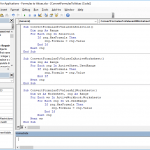
Expanding our scope beyond the active worksheet, we can now explore how to highlight cells with comments in all worksheets within an Excel workbook. This broader approach is particularly valuable when dealing with workbooks containing multiple sheets. We'll achieve this using VBA, specifically through the Module method.
Here's the VBA code for highlighting cells with comments in all worksheets:
Dim ws As Worksheet
For Each ws In ActiveWorkbook.Worksheets
ws.UsedRange.SpecialCells(xlCellTypeComments).Interior.ColorIndex = 4
Next ws
End Sub
This code snippet creates a subroutine that iterates through each worksheet in the active workbook (`For Each ws In ActiveWorkbook.Worksheets`). For each worksheet, it identifies cells with comments (`ws.UsedRange.SpecialCells(xlCellTypeComments)`) and changes their interior color to green (`Interior.ColorIndex = 4`).
By employing this method, you can uniformly highlight cells with comments across all worksheets in your Excel workbook. It's a solution for maintaining consistency and enhancing visibility when working with multiple sheets and comments.
Immediate Window Method
In Excel, multiple ways exist to efficiently highlight cells with comments across all worksheets within a workbook. One such method is the Immediate Window approach, which is quick and convenient for one-time tasks. This method involves a single line of VBA code that can be executed directly from the Immediate Window. Here's the code:
This concise line of code accomplishes the task of highlighting cells with comments in all worksheets. Let's break down how it works:
- `For Each ws In ActiveWorkbook.Worksheets:`: This initiates a loop that iterates through each worksheet within the active workbook.
- `ws.UsedRange.SpecialCells(xlCellTypeComments).Interior.ColorIndex = 6`: For each worksheet (`ws`), it identifies cells with comments using `ws.UsedRange.SpecialCells(xlCellTypeComments)` and then sets their interior color to yellow (6 represents yellow in the ColorIndex property).
- `Next ws`: It proceeds to the next worksheet in the loop.
Executing this code in the Immediate Window will instantly highlight cells with comments in all worksheets. It's a handy approach for a quick visual overview of your workbook's comments.
To learn more about VBA, check our article on beginner VBA tips!