
SpreadsheetWeb blog
How to lock a cell in Excel formula using VBA
In this article, we're going to show you how to lock a cell in Excel formula using VBA and prevent your users from changing formulas or data.
Users entering data into the wrong cells or changing existing formulas can make data collection a tedious process. However, you can prevent users from going outside the intended boundaries by disabling certain sections of your workbook. In this article, we're going to show you how to lock a cell in Excel formula using VBA.
Protection
Worksheets are objects in a workbook's worksheet collection and they have Protect and Unprotect methods. These methods determine the protected status of a worksheet as the name suggests. Both methods can get accept other optional arguments. The first is the password argument. By setting a string for the parameter argument, you can lock your worksheets with a password. Below is a breakdown.

Lock Cells
Important note: Protecting a sheet does not lock individual cells! The cells you want to lock should be marked as Locked too. A cell can be marked as Locked, and/or Hidden, in two ways:
- Via user interface
- Via VBA
The User Interface method requires using the Format Cells dialog. Select a cell or a range of cells, and press Ctrl + 1 to open this menu and go to the Protection tab. Use the corresponding checkboxes to activate properties.

The second method is doing this via VBA code. Every cell and range can be made Locked and FormulaHidden properties. Set these two as True or False to change their status.
Activecell.Locked = True
Activecell.FormulaHidden = True
You can use the Hidden status to hide your formulas as well.
Detect Cells with Formulas
If you just need to lock only cells with formulas, you need to first identify cells that have formulas. The cells and ranges have a HasFormula property, which makes them read only. It returns a Boolean value based on whether the cell or range has a formula. A simple loop can be used to detect cells in a given range that contain formula.
    For Each rng In ActiveSheet.Range("B4:C9")
        If rng.HasFormula Then
            rng.Locked = True
        Else
            rng.Locked = False
        End If
    Next rng
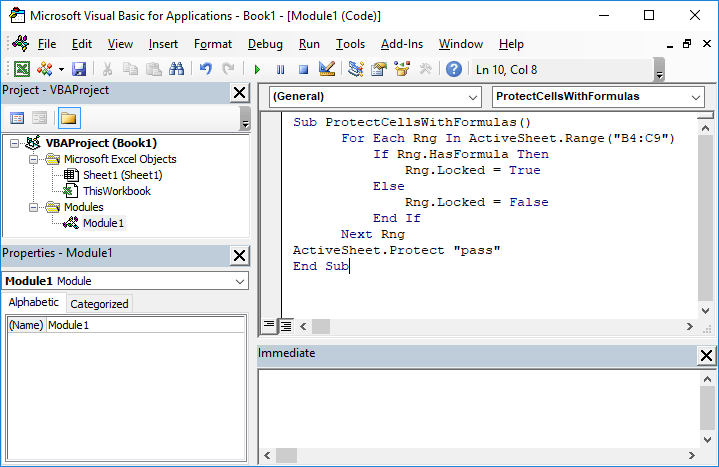
To run this code, you need to add a module into the workbook or the add-in file. Copy and paste the code into the module to run it. The main advantage of the module method is that it allows saving the code in the file, so that it can be used again later. Furthermore, the subroutines in modules can be used by icons in the menu ribbons or keyboard shortcuts. Remember to save your file in either XLSM or XLAM format to save your VBA code.
Lock cells and protect a worksheet
The code example below checks every cell in the range "B4:C9" from the active worksheet. If a cell has a formula, it locks the cell. Otherwise, the cell becomes or remains unlocked.
Sub ProtectCellsWithFormulas()
      For Each rng In ActiveSheet.Range("B4:C9")
          If rng.HasFormula Then
              rng.Locked = True
          Else
              rng.Locked = False
          End If
      Next rng
ActiveSheet.Protect "pass"
End Sub