In the realm of Excel, understanding how to count characters is a fundamental skill that enhances data analysis and manipulation. While the LEN function is a go-to for character count, it falls short when dealing with ranges or arrays. This article unveils two powerful methods to efficiently count characters within a range in Excel, leveraging the synergy of SUMPRODUCT and SUM in conjunction with LEN.
Syntax
=SUMPRODUCT(LEN(range))
{=SUM(LEN(range))}
1. Using SUMPRODUCT
The LEN function simply returns the count of characters in the argument. All special characters like space, new line character, minus in negative numbers, point in decimal number etc. are counted.
See the article How to count the number of characters inside a cell for more information on LEN.
Using the LEN function with an array causes #VALUE! error like any other non-array functions. To make a non-array function handle arrays, we can use the SUMPRODUCT formula.
All you need to do is to wrap your function with SUMPRODUCT. The LEN function will return an array of character counts in each cell in the range.
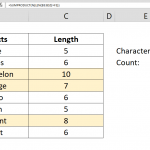
LEN(B3:B7) returns {5;59;4;5;4}
Next step is that the SUMPRODUCT to sum all values in the array.
=SUMPRODUCT(LEN(B3:B7)) returns 77
2. Using SUM and Array Formula
By defining a formula as an array, you can make it return an array of values which is calculated for each cell in the range. To make a formula an array, press Ctrl + Shift + Enter key combination instead of regular Enter. Excel wraps the formula with curly brackets ({}).
Note: Excel puts the curly brackets itself after pressing Ctrl + Shift + Enter. Do not type them manually.
Using LEN function with a range returns error. But the same function as an array formula returns an array.
{=LEN(B3:B7)} returns {5;59;4;5;4}
However; if you use the LEN function by itself in a cell, it only shows the 1st value of the array, 5 in this case. But if you use SUM formula it will return the sum of all values in the array.
{=SUM(LEN(B3:B7))} returns 77
Mastering character count in Excel is a pivotal aspect of effective spreadsheet management. By exploring the SUMPRODUCT and SUM techniques alongside the LEN function, users gain versatile tools to dissect and comprehend the intricacies of character data within a range. Whether employing the array-friendly SUMPRODUCT or the array formula with SUM, these approaches empower users to seamlessly navigate character counts, transforming Excel into a more robust platform for data analysis and interpretation.