The Excel CHAR formula is a powerful Text function that can be incredibly useful for various spreadsheet tasks. This function allows you to retrieve a character based on its corresponding numeric code in the character set used by your computer. In this comprehensive guide, we'll delve into the ins and outs of the Excel CHAR function, providing a thorough understanding of its capabilities and how to incorporate it into your Excel projects effectively. At its core, the Excel CHAR function operates by taking a numeric code as its argument and returning the character associated with that code. This numeric code corresponds to a specific character within the character set used by your computer, which is typically based on the ASCII (American Standard Code for Information Interchange) or Unicode standards. This means you can use the CHAR function to insert special symbols, letters, or control characters into your cells and formulas. The Excel CHAR function has a wide range of practical applications. For instance, you can use it to:
- Create custom formatting in your Excel reports by adding special characters, such as bullets or arrows, to enhance visual appeal.
- Generate dynamic text and symbols in headers, footers, or cell contents, making your spreadsheets more informative and user-friendly.
- Develop complex formulas that involve specific characters or control codes, facilitating data manipulation and analysis.
- Implement internationalization and localization efforts by incorporating characters from various languages and scripts into your Excel workbooks.
In this guide, we will walk you through the basic usage of the Excel CHAR function and share valuable tips and best practices to help you optimize your Excel workflow. You'll learn how to handle common errors, deal with non-standard characters, and explore creative ways to leverage this function for enhanced productivity.
Supported Versions of the Excel Char Formula
- All Excel versions
Excel CHAR Function Syntax
The Excel CHAR function is a versatile text function that allows you to retrieve a character based on a numeric code. Its syntax is straightforward and consists of the following elements:
=CHAR(number)
| number | A number between 1 and 255 specifying the character. |
CHAR Function Examples
Example 1: Basic Usage of CHAR
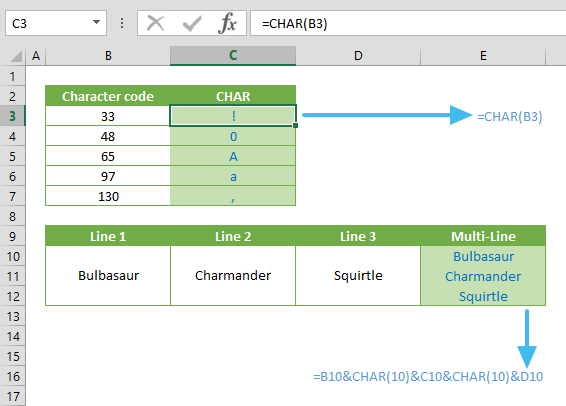
Character codes are a fundamental concept when using the CHAR function in Excel. These codes uniquely identify each character in a given character set, such as the ASCII character set commonly used in computing. The CHAR function leverages these codes to retrieve specific characters based on the numeric values you provide as arguments. For instance, if you input the formula `=CHAR(65)`, Excel will return "A" because 65 corresponds to the character code for the uppercase letter "A" in the ASCII character set. Character codes offer versatility in Excel, allowing you to insert symbols and special characters and dynamically generate text, enhancing both your spreadsheets' visual appeal and data manipulation capabilities. However, it's essential to ensure that your character code is valid within the chosen character set to prevent errors and maintain formula accuracy.

Example 2: Creating Line Breaks in Excel with the CHAR Function
Adding line breaks can be a useful formatting technique in Excel, especially when structuring text or data within a cell. While you can manually create a line break by pressing the Alt + Enter key combination, this method has limitations, particularly when dealing with formula-generated content. However, the CHAR function comes to the rescue, offering a flexible solution for inserting line breaks into formula-generated text.
The Limitation of Alt + Enter: The traditional method of inserting line breaks in Excel involves pressing Alt + Enter within a cell. This action manually creates a line break, allowing you to format text as needed. However, this approach doesn't work seamlessly with formula-generated content, as pressing Alt + Enter within a formula won't produce the desired line breaks.
The Power of the CHAR Function: To overcome this limitation, the CHAR function can add line breaks or new lines within a string generated by a formula. This function allows you to specify a specific character code corresponding to a line break, creating a visually pleasing and organized display of information within a cell.

Additional Notes and Considerations
Enabling Wrap Text for Proper Display: When using the CHAR function to insert line breaks, enabling the "Wrap Text" option in the cell where the formula result is displayed is crucial. If this option is not activated, Excel will render all the concatenated values in a single row, potentially leading to a cluttered and unreadable presentation. Enabling "Wrap Text" ensures that each value appears on a separate line within the cell, maintaining the formatting and clarity of your data.
Platform-Specific Differences: It's worth noting that when working with the CHAR function on different operating systems, such as Windows and Mac, there are variations in character sets that can impact the choice of character code for line breaks. Using `CHAR(10)` is the standard approach to insert line breaks on Windows. However, you should use `CHAR(13)` on Mac OS. These differences arise from the distinct character encoding standards used by each platform. To ensure compatibility and proper line breaks, you must be aware of these variations and select the appropriate character code based on your operating system.
Tips for Handling Platform Differences: Understanding the platform-specific differences in character sets can save you time and potential formatting issues. Here are some tips for effectively managing these variations:
Cross-Platform Compatibility: If your Excel documents will be shared or used on both Windows and Mac platforms, consider using a formula that accommodates both character codes, such as `=IF(ISMACRO,"CHAR(13)","CHAR(10)")`. This formula checks the platform and selects the appropriate character code accordingly, ensuring consistent line breaks regardless of the operating system.
Testing and Validation: Always validate your Excel documents on the target platform to confirm that line breaks and formatting are correctly displayed. This step can help you identify and address compatibility issues before sharing your files.
For more information about adding a new line, see: How to add a new line inside a cell.
Tips on Excel CHAR Formula
-
The character codes will be different based on your operating system:
- Windows: Windows Character Set (1252)
- macOS: MAC OS Character Set
- Excel Online supports only 9, 10, 13, 32 and above
- Add 32 to the code of an uppercase alphabetic character to switch it to lowercase. For example, 65 = A, 97 = a.
- The CHAR function is great for inserting special characters that usually do not exist in keyboards. Some examples are as follows:
- Use the CODE function to return the code number of a character. The CODE function is essentially the opposite of the CHAR function.
Issues and Error Handling in CHAR Formula
While the CHAR function is a powerful tool for manipulating characters in Excel, it's important to be aware of potential errors that can occur, particularly when working with numeric codes that don't correspond to valid characters in your selected character set. To maintain the robustness and reliability of your formulas, it's essential to implement error-handling methods effectively. This section will explore techniques to gracefully handle errors and prevent them from disrupting your spreadsheet calculations.
#VALUE! Error
One common error that can occur when using the CHAR function is #VALUE! Error. This error arises in specific scenarios, primarily when dealing with numeric codes incompatible with the function's expectations. There are two main situations where you might encounter this error:
Invalid Character Codes: If you provide a numeric code that does not correspond to a valid character within your chosen character set, Excel will return a #VALUE! Error. This can happen when you mistakenly input an incorrect code or use a code that doesn't exist in the character set.
Empty Reference Cells: When your formula relies on referencing empty cells, the CHAR function may also return a #VALUE! Error. It cannot process empty cells as valid input for character codes.
To ensure that your Excel formulas are error-free and your spreadsheet calculations remain reliable, consider implementing these error-handling techniques:
Data Validation: Before using the CHAR function, validate your input data to ensure that the numeric codes are accurate and within the range of valid character codes for your character set. This step can help prevent #VALUE! errors caused by incorrect codes.
IFERROR Function: Use the IFERROR function to trap and manage errors in your formulas. For example, you can wrap your CHAR function within an IFERROR statement to replace any potential #VALUE! Errors with a more user-friendly message or a blank cell.
=IFERROR(CHAR(65), "Invalid Code")
In this formula, if the CHAR function returns a #VALUE! Error, it will display "Invalid Code" instead.
Conditional Statements: Implement conditional statements within your formulas to handle different scenarios gracefully. For instance, you can use an IF statement to check if a referenced cell is empty before applying the CHAR function, preventing potential errors.
=IF(B10<>"", CHAR(B10), "")
This formula checks if cell B10 is not empty before using the CHAR function.