The FORMULATEXT function bridges the formulas and plain text, allowing users to return the formula used in a cell as a string of text. This comprehensive guide delves into the depths of the FORMULATEXT function in Excel. We'll explore its fundamental purpose: converting Excel formulas to text, providing a window into the mechanics of your spreadsheet's calculations.
By the end of this guide, you'll understand the basics of the FORMULATEXT Excel function and appreciate its versatility. From simple tasks like viewing formula text in Excel to more advanced applications like integrating text and formulas in one cell or converting Excel text to formula, you'll be equipped with the knowledge to handle various scenarios. We'll also demonstrate how the Excel text with cell reference can be dynamically used within your formulas, adding another layer of sophistication to your Excel toolkit.
Supported versions
- Excel 2013 and later
FORMULATEXT Function Syntax
Let's dive into the syntax of the FORMULATEXT function.
'reference' is the only parameter, signifying the cell for which you wish to return the formula text. It's essential to note that the reference should be a cell that contains a formula for the FORMULATEXT to work. Excel will return an error if the referenced cell does not contain a formula, showcasing one of the key error-handling aspects you must know when using this function.
FORMULATEXT Examples
Example 1: Using Cell Reference
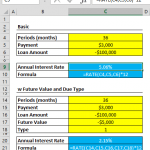
In this scenario, the FORMULATEXT function targets cell E3. What this formula does is simple yet profoundly useful: it returns the formula present in cell E3 as a text string. This functionality is particularly beneficial when you want to inspect or display the formula used in a particular cell without executing or triggering the formula itself.
Imagine you are working on a complex spreadsheet where understanding each calculation's logic is as important as the results themselves. By applying the =TEXT formula, like =FORMULATEXT(E3), you can easily reveal the formula contained within E3, displaying it as plain text. This feature is invaluable for educational purposes, troubleshooting, or collaborating with others who might need to understand the logic behind your data without altering the existing formulas.
Moreover, using the Excel return formula function, such as FORMULATEXT, assists in creating transparent and self-explanatory spreadsheets. It can be particularly helpful in scenarios where formulas are complex or when you're preparing a template for others to use.

Example 2: Using Range Reference
The FORMULATEXT function in Excel is not just limited to returning the formula of a single cell; it extends its capabilities to deal with ranges, showcasing its versatility in handling more complex scenarios. When applied to a range of cells, FORMULATEXT exhibits a unique behavior: it generates an array of formulas corresponding to that range. This feature is particularly useful for users who need to extract formulas from multiple cells simultaneously, providing a comprehensive view of the formulas used across a range.
Consider this note when working with the FORMULATEXT function on a range: If you input the function without the Ctrl + Shift + Enter key combination, traditionally used for array formulas in Excel, FORMULATEXT will default to returning only the formula from the first cell in the specified range. This behavior underscores the importance of understanding how array formulas operate in Excel, particularly when dealing with functions like FORMULATEXT that can return array results.
To circumvent this limitation and harness the full potential of FORMULATEXT with ranges, one effective approach is combining it with other functions designed to work seamlessly with arrays. A prime example is the INDEX function, which can strategically target a specific formula within the array returned by FORMULATEXT.
Let's illustrate this with an example:
In this formula, FORMULATEXT(E9:E12) initially generates an array of formulas from the cells E9 to E12. The INDEX function then navigates this array to fetch the formula in the third row and first column of the referenced range. This methodology not only simplifies the process of extracting specific formulas from a range but also highlights the power of combining different functions in Excel to achieve more nuanced and targeted results.

Use FORMULATEXT and ISFORMULA Functions Together
Using the ISFORMULA and FORMULATEXT functions together in Excel allows you to check if a cell contains a formula and then display that formula as text. The ISFORMULA function in Excel is designed for differentiating between cells populated with static data and formula-driven ones. This function becomes particularly vital in complex spreadsheets where tracing the source of data and understanding the mechanics of each cell's content is key. It checks a specified cell and returns TRUE if it contains a formula and FALSE if it does not. This binary, true-or-false output makes it incredibly easy to scan your Excel sheet and identify formula-containing cells quickly.
For instance, to check if a particular cell, say E5, contains a formula, you would use the following syntax:
In this example, if cell E5 has a formula, the ISFORMULA function will return TRUE; if E5 contains just a static value or text, it will return FALSE. This functionality is especially useful in auditing and reviewing spreadsheets where you need to confirm the presence of formulas or in scenarios where the distinction between formula-driven and static cells impacts data analysis or decision-making processes.
Moreover, ISFORMULA can be a significant ally in troubleshooting and error-checking within Excel. For instance, if a cell is not behaving as expected, a quick check with ISFORMULA can tell you whether the issue might be with the formula or the data entered in the cell.
You might want to display the formula in a cell only if there is a formula present. This is where you can use these functions together, typically with an IF function. Assuming you want to check cell A1 and display its formula in cell B1, you can use the following formula in B1:
This formula checks if there is a formula in cell A1. If TRUE (there is a formula), FORMULATEXT(A1) is executed, and the formula in A1 is displayed as text in B1. If FALSE (no formula is present), the text "No formula" is displayed in B1.
Error Handling in FORMULATEXT Function
#N/A Error
One of the most common errors in FORMULATEXT function the #N/A error. Here are the primary reasons you might encounter the #N/A error in Excel, especially when dealing with functions that return text or formulas:
Non-Formula Reference: The most common trigger for an #N/A error using the FORMULATEXT function occurs when the reference cell does not contain a formula. FORMULATEXT is designed to return the formula in a cell as text. If the specified cell lacks a formula, Excel logically cannot return a formula as text, resulting in the #N/A error.
Excessively Long Formulas: Another scenario leading to the #N/A error is when the formula within the referenced cell exceeds Excel's character limit. Excel has a set limit for the number of characters in a formula (8192 characters). If your formula surpasses this threshold, FORMULATEXT cannot convert it into text, causing the #N/A error.
Worksheet Protection: Sometimes, the worksheet's protection settings can interfere with the functioning of FORMULATEXT. If a formula can't be displayed due to the protection settings of the worksheet, FORMULATEXT will return an #N/A error. This is Excel's way of adhering to the security protocols set for that particular worksheet.
External Reference Issues: Lastly, the #N/A error might appear if FORMULATEXT references a cell in an external file that is not currently open. Excel requires access to the external reference to fetch and display the formula as text. If the external file is closed, FORMULATEXT cannot retrieve the formula, leading to the #N/A error.