In our global society, where diverse groups work together and exchange information effortlessly, the capability to communicate and access applications in multiple languages has become increasingly critical. As applications reach a worldwide audience, it's vital to ensure that users from various language backgrounds can easily navigate your software. This approach to linguistic inclusivity improves the user experience and broadens your application's potential influence and scope.
For those utilizing SpreadsheetWeb Hub for application creation and management, you have access to a powerful platform that simplifies the integration of multiple languages. Whether you modify labels, tailor system messages, or translate different text elements in your application, SpreadsheetWeb Hub offers various features to enhance global accessibility.
This article will focus on language translation capabilities within SpreadsheetWeb Hub. We aim to outline various strategies for adapting your applications to be more accessible to non-English speakers. A key focus will be on how to update labels directly within the Excel workbook. This provides a straightforward method to translate text into the language of your choice, ensuring your application can connect more effectively with a global audience.
Changing Labels Through the Excel Workbook
Easiest way to translate your SpreadsheetWeb Hub template is by changing the labels directly within the underlying Excel workbook. This method allows for a quick and efficient update of label text in a different language. Here's how to do it:
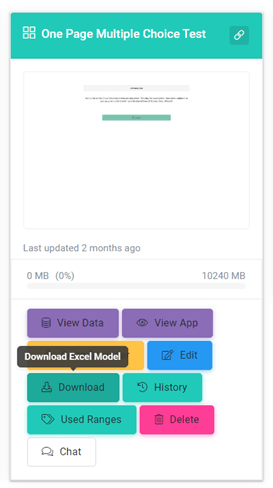
Step 1: Download the Workbook
Start by downloading the Excel workbook from your SpreadsheetWeb Hub Applications Page.
Step 2: Change Label Names
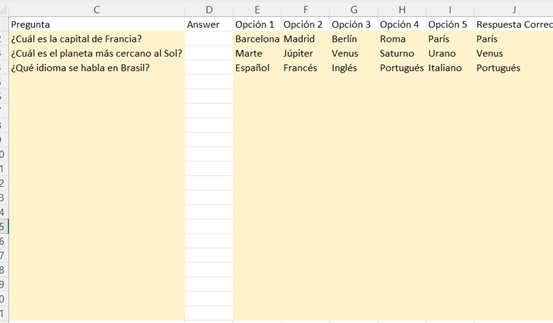
Open the downloaded Excel file and locate the labels that need translation. Update the label text to the desired language.
Step 3: Save the Workbook
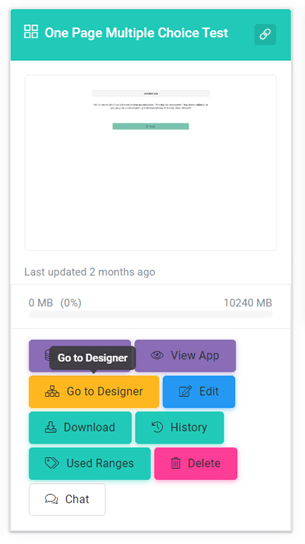
After changing the label names, save the Excel workbook with the updated labels. Navigate to your applications page and click on "Go to Designer."
Step 4: Upload the Updated Workbook
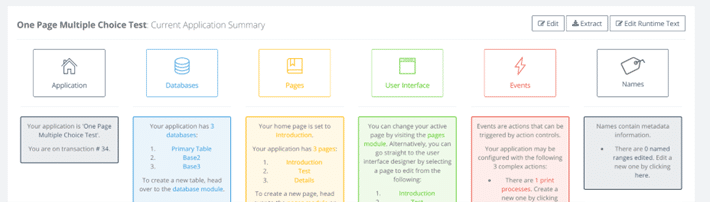
Go to the Application Module and upload the updated workbook within the Designer interface.
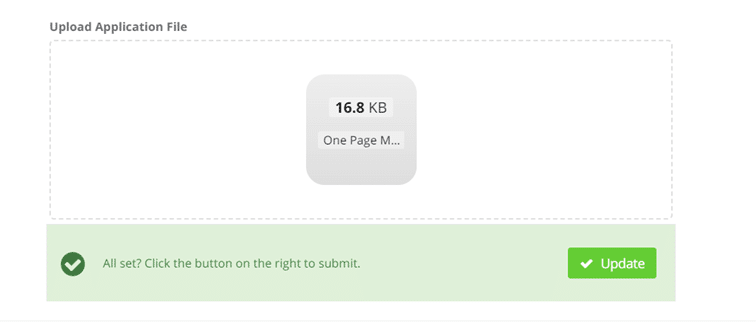
Step 5: Publish the Application
Finally, publish the application. The updated version will now be live for all users accessing the application, presenting labels in the newly translated language.

This method ensures that your application speaks the language of your target audience, making it more user-friendly and inclusive. However, if you prefer a different approach to label translation, you'll be pleased to know that SpreadsheetWeb Hub offers additional methods for achieving the same goal. Stay tuned for the following sections, where we'll explore alternative ways to make your application accessible to diverse linguistic communities.

Changing Labels via the Designer Interface
For users inclined towards a more visually interactive method of translating their SpreadsheetWeb Hub applications, the platform's Designer interface presents a straightforward and intuitive option. This approach enables direct modifications of label names and text within the platform itself, catering to those seeking a smoother and more integrated translation workflow. In this section, we provide a guide on altering labels through the Designer interface, aiming to facilitate the creation of a multilingual user experience.
This hands-on method allows for real-time adjustments and previews, ensuring that translations align with the overall design and functionality of the application. By utilizing the Designer interface, you can enhance your application's accessibility and appeal to a broader, more diverse audience, breaking down language barriers and enriching the user interaction with your application.
Step 1: Access the Designer Interface
Go to your applications page and click on "Go to Designer."
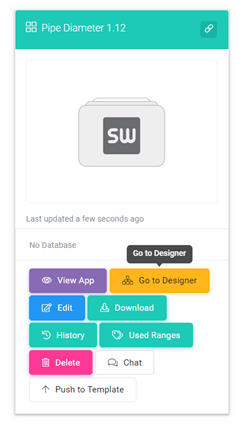
Step 2: Navigate to User Interface Module
Within the Designer interface, navigate to the User Interface Module, where label names can be changed.
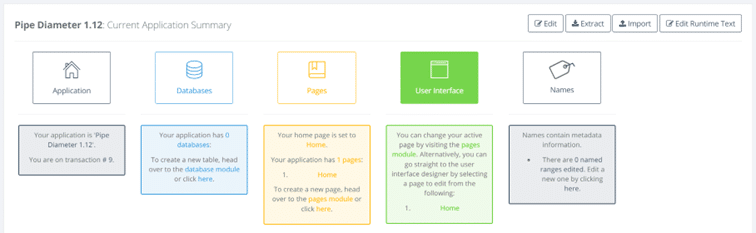
Step 3: Change Label Names
Locate the labels that need translation and update them to the desired language.



Step 4: Publish the Application
After making the necessary changes, publish the application. The updated version will now be accessible to users in the newly translated language.

Modifying labels via the Designer interface is a direct and user-focused method for translating your SpreadsheetWeb Hub applications. Following the easy steps detailed in this segment, you can efficiently adjust your labels to the preferred language, making your applications more accessible and welcoming to a broader audience. After implementing the required changes, publishing the application to make the new, translated version available to users is crucial. This language translation method is a powerful way to widen your global presence and provide a superior user experience.
Translating System Messages and Runtime Texts
When localizing applications and templates for different language audiences, attention often centers on visible components, such as labels and user interfaces. Yet, for a genuinely engaging and user-oriented experience, translating system messages and runtime texts is just as critical. SpreadsheetWeb Hub acknowledges this requirement and provides an accessible way to personalize these system messages in your chosen language. This section delves into enhancing your application's multilingual capabilities by translating system messages and runtime texts, ensuring a more inclusive and seamless user experience across various linguistic backgrounds. This step is key to making your application not only visually but also functionally adaptable to diverse user groups, thereby broadening your application's appeal and usability.
Step 1: Access the Designer Interface
Go to your applications page and click on "Go to Designer."

Step 2: Edit Runtime Text
Within the Designer interface, click on "Edit Runtime Text."

Step 3: Add and Customize
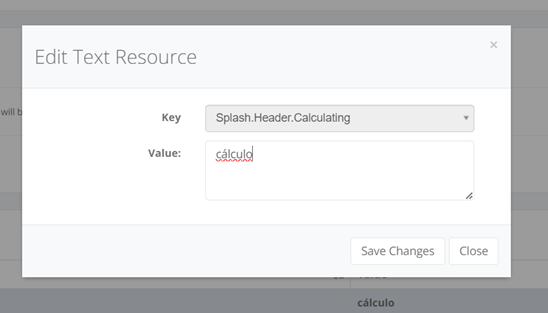
Click "Add" to select the value you want to translate, such as "Calculating" or "Save." After selection, write the text in your desired language and click "Save Changes."
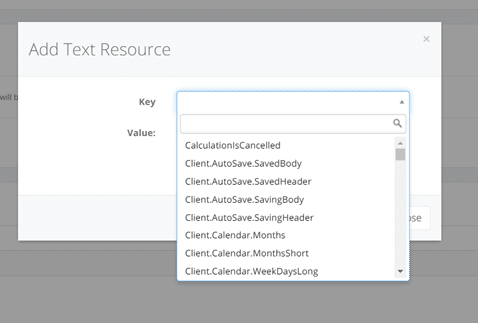

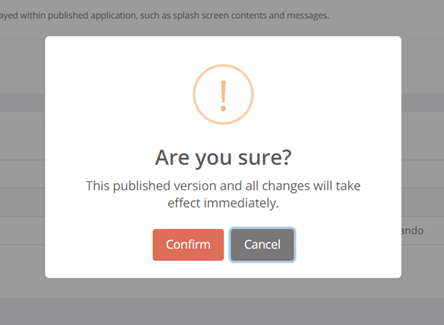
Step 4: Publish the Application
After completing the translation of system messages and runtime texts, publish the application. The updated version will be accessible to all users in the newly selected language.
Translating labels and user interfaces marks a pivotal step towards crafting a multilingual application, yet it's the finer details, such as system messages and runtime texts, that genuinely enrich the user experience. These elements, while small, play a crucial role in making an application genuinely user-friendly by offering them in the user's preferred language. SpreadsheetWeb Hub facilitates this detail-oriented customization, enabling you to tailor system messages effortlessly. Adhering to the straightforward steps and publishing your application ensures a smooth and comprehensive experience for users from various linguistic backgrounds, underlining the importance of translating system messages and runtime texts in fostering a universally accessible and inclusive application.
In today's globally interconnected landscape, delivering software and applications in multiple languages is not just an advantage but a necessity. SpreadsheetWeb Hub equips you with a robust platform for effortlessly translating your applications and templates, making them welcoming to many users. This blog post has introduced several approaches, including modifying labels in Excel workbooks and personalizing system messages.
These strategies are instrumental in improving the user interface and broadening your application's global appeal, achieved through simple enhancements. Adopting a multilingual approach not only elevates your application's usability but also positions you to succeed in a world marked by extensive collaboration across borders. Hence, take a step towards translation and observe the expansive impact of your application across different regions and cultures.