When it comes to working with time calculations that extend from the current day to the next day in Excel, it's not uncommon to encounter complications that may lead to the presence of unexpected '#' characters within your formulas. This can be particularly problematic when dealing with shift schedules that span midnight. In this article, we'll guide you through a practical and solution-oriented approach by illustrating how to create an Excel time calculator tailored specifically for managing these intricate time calculations.
Our strategy revolves around the effective use of the IF function, a core component of Excel renowned for its ability to handle conditional logic with precision. By following the straightforward, step-by-step instructions provided in this tutorial, you'll gain the capability to construct a reliable Excel time calculator. This tool will empower you to simplify the complexity of time-related calculations that cross over midnight, ensuring accurate results while eliminating any potential confusion that may arise when transitioning from one day to another. Let's delve into the finer details of crafting this Excel time calculator to enhance your time management capabilities."
Syntax of the Strategy to Create a Time Calculator in Excel
=IF( end time > start time, end time + start time, end time + start time + 1 )
`end time > start time`: This is the logical test condition. It checks whether the value in the cell or reference labeled as "end time" is greater than the value in the cell or reference labeled as "start time." If this condition is true, the formula will execute the first part; otherwise, it will execute the second part.
Now, let's examine the two possible outcomes:
`end time + start time`: If the logical test condition (end time > start time) is true, this part of the formula will be executed. It means that if the end time is greater than the start time, the formula will add the values in the cells or references labeled as "end time" and "start time."
`end time + start time + 1`: If the logical test condition (end time > start time) is false, this part of the formula will be executed. It means that if the end time is not greater than the start time (i.e., end time is less than or equal to start time), the formula will add the values in the cells or references labeled as "end time" and "start time," and then add 1 to the result.
This formula calculates the total time by adding the "end time" and "start time" values. However, if the "end time" is not greater than the "start time," it adds 1 day to the result. This kind of formula can be useful for calculating time intervals or durations, especially when dealing with time periods that may cross over midnight, where adding 1 day accounts for the time that spans from the end of one day to the beginning of the next.
Steps Explained
Start by using the IF function in your chosen cell to create a time calculator in excel. You can do this by typing `=IF(` in the cell where you want the result to appear. The first part of the IF function requires a condition to compare the start date (located in cell D3) with the end date (located in cell C3). This condition helps Excel determine whether the end date is greater than the start date. Input the condition `D3>C3,` indicating that Excel should check if the date in cell D3 is greater than the date in cell C3.
Now, let's consider what should happen if the condition is true, meaning that the end date (D3) is indeed greater than the start date (C3). In this case, you want Excel to calculate the difference between these two dates. To do this, input `D3-C3,` which instructs Excel to subtract the start date (C3) from the end date (D3) when the condition is met.
In the third argument of the IF function, you need to account for situations where the end date (D3) is not greater than the start date (C3). To handle this scenario, you'll add 1 to the result of the subtraction. This is done by inputting `D3-C3+1` as the formula for this condition. To finalize the IF function, make sure to close it with a closing parenthesis `)` to encompass all the conditions and arguments within it. After you've closed the IF function with `)`, simply press the ENTER key. This action tells Excel to compute the formula. The cell will then display the result based on the conditions you've set.
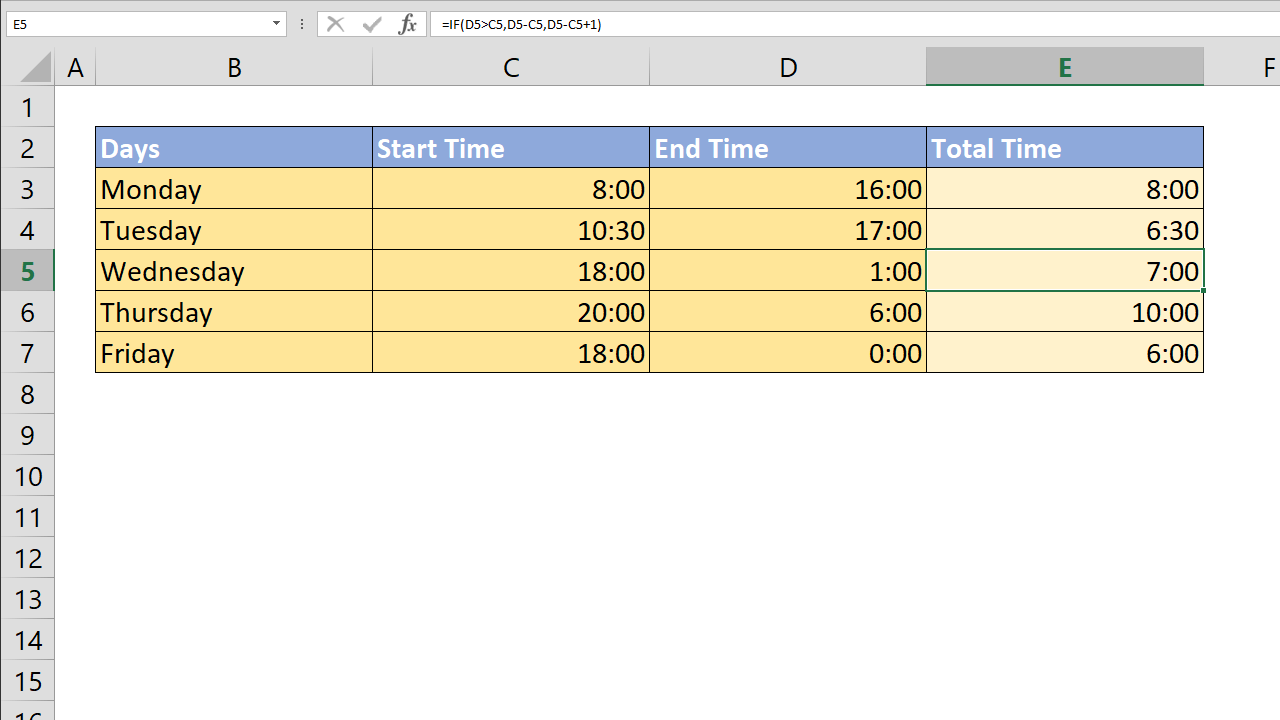
By following these steps, you can easily create a time calculator in Excel that efficiently calculates the date difference while accommodating scenarios where the end date is not greater than the start date. This time calculator offers a practical solution for managing various date-related scenarios in your spreadsheets.
How Is That Possible?
Excel employs a numerical system to represent both dates and times. It begins its timeline from January 1st, 1900, assigning it the value '1' in this numeric scheme. In this system, whole numbers denote days, while decimal numbers represent specific times. For instance, January 1st, 2018, is represented as 43101, and noon is simply 0.5.
However, the standard practice of subtracting smaller numbers from larger ones and converting the result to a positive value, common with regular numbers, doesn't directly apply to date and time data in Excel. This is because Excel's numeric representation of dates and times starts from an unconventional point, which is 0 (1/0/1900, a date that doesn't exist). Consequently, the concept of negative date or time values doesn't exist in Excel, necessitating a different approach.
This is where adding 1 to the subtraction becomes useful. This adjustment signifies the passage of one day, equivalent to 24 hours. In Excel, time operates on a 24-hour basis, unlike our base-10 numeric system, which has ten digits. By incorporating this simple adjustment and adding 24 to the time value for the following day, Excel sidesteps the challenges of dealing with negative values and facilitates accurate date and time calculations, akin to transitioning from a single-digit to a double-digit number in our base-10 numerical system. This approach streamlines the handling of date and time data in Excel, ensuring consistency and accuracy in calculations.
As a result; the idea is that if the end value is greater than the start value, do regular subtraction, if not then add 1 to the subtraction.
=IF(D3>C3,D3-C3,D3-C3+1)
Practical Use Cases of Time Calculators: Timesheet Applications
Calculating the time difference between start and end times has a wide range of practical applications, particularly in the development and use of timesheet applications. These time calculator applications play a crucial role in various business operations. Let's expand on some key aspects and uses:
Employee Time Tracking: In timesheet applications, employees log their start and end times for different tasks or projects. This helps in accurately tracking the amount of time spent on each project, which is essential for project management, client billing, and payroll.
Project Management and Efficiency: By analyzing the time logged by employees on various projects, managers can assess project progress and efficiency. It helps in identifying projects that are taking more time than anticipated, allowing for timely interventions to get things back on track.
Billing and Invoicing: For businesses that bill clients based on hours worked, such as law firms, consulting firms, or freelance professionals, calculating time differences is essential. Timesheet data ensures that clients are billed accurately for the actual time spent on their projects.
The conversion of Excel-based timesheet tools into web applications using platforms like SpreadsheetWeb offers a transformative approach to managing employee timesheets. This approach significantly enhances the functionality and accessibility of timesheets. Here's an expanded view of its benefits and capabilities:
Centralized Data Collection and Analysis: With web-based applications, timesheet data can be accessed in real-time, allowing for immediate analysis and decision-making. This is particularly useful for tracking project progress and managing deadlines. Storing timesheet data in a centralized database ensures consistency and integrity of data. It reduces the risks associated with multiple versions of spreadsheets and data discrepancies.
Enhanced Collaboration and Role-Based Access: Web applications can be configured to provide different access levels for employees, managers, HR, and payroll administrators. This role-based access control ensures that each user only accesses the information relevant to their role. By moving to a web-based platform, collaboration is enhanced as multiple users can input, access, and analyze data simultaneously from different locations. This is particularly beneficial for organizations with remote or geographically dispersed teams.
Streamlined Timesheet Management Process: The transition to a web-based system allows for the automation of workflows. For instance, timesheets can be automatically forwarded to managers for approval, and then to HR and payroll, reducing manual intervention and streamlining the process. Web applications enable customization of timesheet forms, allowing businesses to tailor the data fields to their specific needs. This could include different project codes, task types, or departmental codes.
Reporting and Analytics: Web-based applications typically offer advanced reporting capabilities, allowing managers and HR professionals to generate detailed reports on employee hours, project time allocation, overtime, and more. Integration with data visualization tools enables the creation of dashboards that provide an at-a-glance view of key metrics, such as total hours worked, project progress, and departmental comparisons.
Integration with Other Business Systems: Timesheet data can be integrated directly with payroll systems, ensuring that payroll processing is based on accurate and up-to-date information. Integration with project management tools can provide a more holistic view of project progress, resource allocation, and budgeting.
Compliance and Security: Web-based timesheet applications can be updated to comply with changing labor laws and regulations, ensuring that businesses remain compliant. Data stored in web applications is typically more secure than in standalone spreadsheets, with features like encryption, backups, and secure access controls.
Accessibility and User Experience: Employees can fill in their timesheets from anywhere, which is especially beneficial for remote or field-based workers. Modern web applications tend to have more user-friendly interfaces compared to traditional spreadsheets, which can increase user adoption and reduce errors.
To create your custom timesheet application or to transform your current Excel-based timesheet tool, you can register for a free account with SpreadsheetWeb.