Excel serves as an efficient platform for developing online calculators that assist in handling diverse facets of both business and personal tasks. Gaining proficiency in Excel enables the creation of tailored tools with ease. Furthermore, SpreadsheetWeb provides a solution for transforming these Excel-based calculators into interactive web applications, offering a more streamlined experience compared to their original development. This article will concentrate on the construction of a Food Calorie Calculator using Excel and its subsequent conversion into a web application.
Developing an online food calorie calculator app is a straightforward way to support healthier eating habits. It offers users real-time access to track their calorie intake, promoting informed food choices. With its ability to integrate with other health platforms, it not only aids personal health management but also opens avenues for business opportunities in the wellness sector. This tool caters to the growing health-conscious market, providing a practical solution for both users and developers. In essence, creating such an app presents a unique opportunity to impact health and wellness positively.
Now, let’s learn how to build one using Excel. You can skip this part, download the Excel source file we already made, and continue to read the part explaining how to create an online application using SpreadsheetWeb’s no-code web development platform.
Setting Up the Excel Workbook to Create an Online Calculator
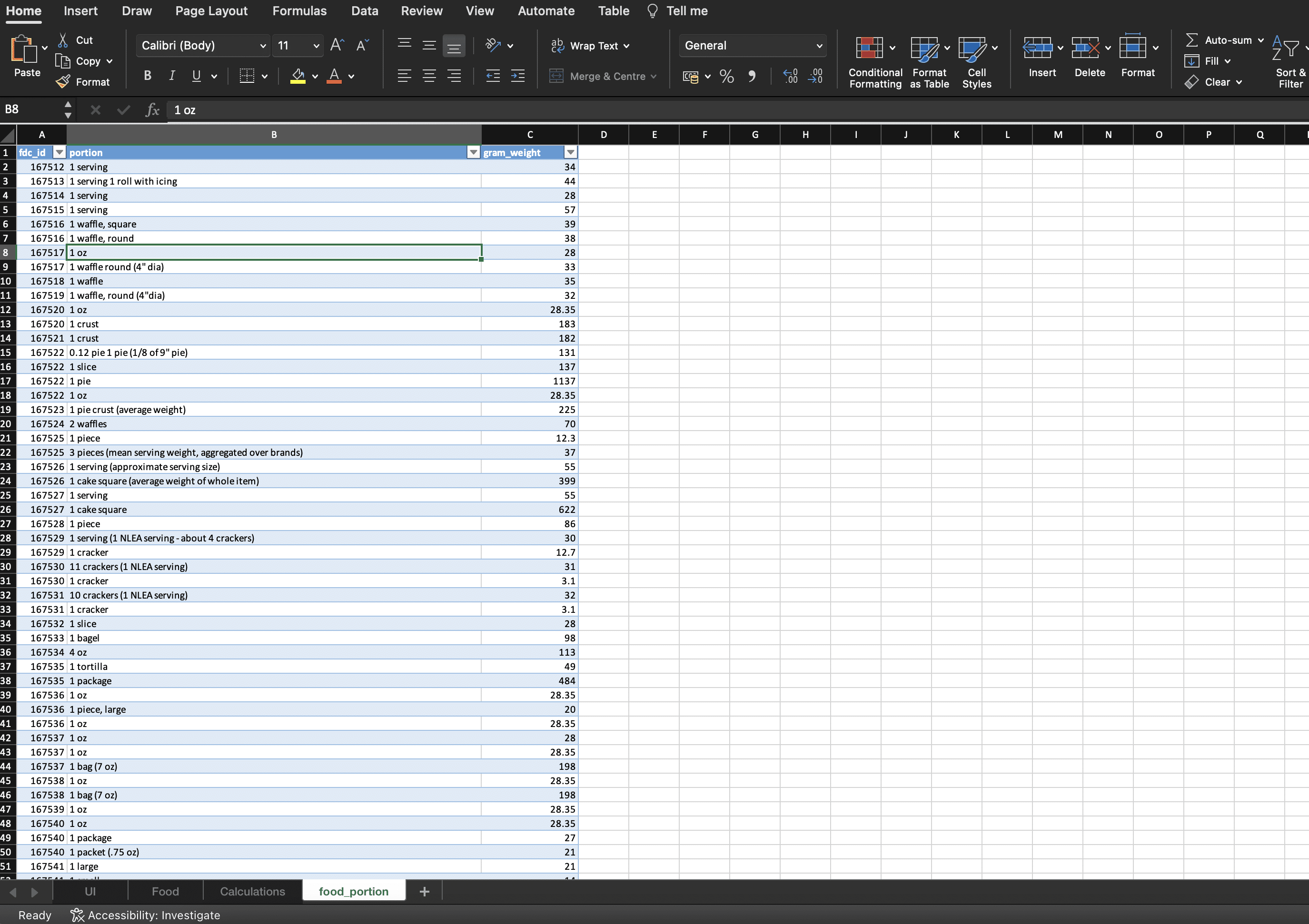
Our workbook will contain three central sheets: UI, Food, Calculations, and an additional food_portion sheet. Each plays a crucial role in the functionality of our calculator.
UI Sheet
The UI sheet is where users will interact with the calculator. It's designed to be intuitive and easy to use, with dropdown lists for selecting food categories, specific foods, portions, and an input for the amount. It also displays the calculated calories based on the selections.
- B2 (Category): A dropdown list that allows users to select a food category.
- B3 (Food): Another dropdown list that shows foods based on the selected category in B2.
- B4 (Portion): A dropdown list for selecting the food portion, changing based on the food selected in B3.
- B5 (Amount): A field for users to input the number of portions.
- B6 (Calories): This cell will display the calculated calories based on the inputs.

Food Sheet
This sheet contains a table with food data, including columns for fdc_id, description (name of the food), Category, and Energy (calories per gram or standard portion).

Food_Portion Sheet
Here, we have a table with portion data for each food, including fdc_id, portion (description of the portion size), and gram_weight (weight of the portion in grams).
Calculations Sheet
The calculations sheet is where the magic happens. It includes formulas to look up and calculate the calories based on user inputs. Unfortunately, setting up this sheet can be complex without guidance. Let's break down how to do it:
- ItemId: =XLOOKUP(Item,Food[description],Food[fdc_id],"",0) - This formula finds the fdc_id for the selected food item from the UI sheet.
- Category: =SORT(UNIQUE(Food[Category])) - Generates a sorted, unique list of food categories for the dropdown in the UI sheet.
- Portion: =IFERROR(FILTER(CHOOSECOLS(food_portion,{2,3}),food_portion[fdc_id]=ItemID),"") - Retrieves the portion size and gram weight for the selected food.

Setting Up Data Validation and Dynamic Dropdowns
To create dynamic dropdowns, we'll use named ranges and Excel's data validation feature.
- Define Named Ranges: For each column in the Food and food_portion sheets, create a named range. This simplifies formula creation and maintenance.
- Data Validation for Dropdowns: Use data validation to create dropdowns in the UI sheet. For the Category dropdown in B2, the source will be the unique list of categories from the Calculations sheet. For the Food dropdown in B3, use a formula to display only foods matching the selected category. Similarly, for the Portion dropdown in B4, display portions relevant to the selected food.
Implementing the Calculation Logic
The core formula for calculating calories will reference the selected food, portion, and amount, multiplying the energy content by the amount and portion size selected. This formula will be dynamically updated based on user selections and input in the UI sheet.
Final Steps and Testing
Once all formulas and data validations are in place, test your calculator thoroughly. Ensure that the dropdowns update correctly based on selections and that the calorie calculations are accurate.
Transforming Excel into an Online Calculator
Building an Online Food Calorie Calculator Using SpreadsheetWeb to Transform Excel Workbooks into Online Applications
SpreadsheetWeb offers a no-code platform that simplifies turning Excel workbooks into online applications. To create an application, you will first need to sign up for an account on the SpreadsheetWeb Hub. Once logged in, go to the applications section, and choose "Create New Application" to upload your Excel workbook, in this case, the Food Calorie Calculator.

After uploading your workbook, SpreadsheetWeb provides two options for creating your application's interface: using the platform's AI feature for automatic design or manually designing the interface. If you wish to try the AI feature, click the “Try it” button in the AI Automation dialog.

If you prefer to design the interface yourself, select the "no thanks" option to return to the applications page and then go to “Go to Designer” to begin customization.

The interface design process is user-friendly, allowing drag-and-drop functionality to lay out your application. You can easily drag and drop a container, then add the sections that contain the input boxes, dropdown lists and more.

An essential part of designing your application is linking Excel functions to the web app using "named ranges." These named ranges are crucial for ensuring that the logic from your Excel workbook operates correctly within your web application. After adding your dropdown boxes, bind them by selecting the related named range on the menu.
When your design meets your expectations, you can use the preview feature to check the application's functionality. Your application is ready to be published once you're satisfied and have made any needed adjustments. Since we have already build one to show you, we know that it will probably look like this.
You can also embed the application to your website using iFrame. To learn more about this click here!
Using SpreadsheetWeb to convert your Excel Food Calorie Calculator into an online application makes it more accessible and user-friendly.
Join SpreadsheetWeb Hub to simplify your work.