The NOT function in Excel is a versatile tool classified under logical functions, designed to evaluate and return the opposite of its argument. Its fundamental role is to assess a given condition or expression and provide the logical negation of that condition. In simpler terms, it helps you ascertain when something is not the case or when a condition does not hold true. The primary application of the NOT function lies in its ability to facilitate logical comparisons within your spreadsheets. You can leverage it when you want to ensure that one value is not equal to another. This means that it serves as a gatekeeper, allowing you to establish conditions where a specific assertion or requirement must be met to trigger a particular action or outcome. For instance, consider a scenario where you're managing a database of products, and you want to filter out items that are not in stock. By using the NOT function, you can easily identify products that do not meet the criteria of being in stock, thereby streamlining your inventory management processes.
Furthermore, the NOT function is instrumental in error handling and data validation. It helps you flag potential issues or inconsistencies in your data by highlighting conditions that should not occur. This proactive approach aids in maintaining data integrity and ensuring that your Excel spreadsheets are error-free. The NOT function in Excel is a crucial tool for conducting logical evaluations, making informed decisions, and enhancing the accuracy of your data analysis. Its usage spans a wide range of scenarios, from data filtering to error detection, empowering you to effectively manage and manipulate your data with precision and confidence. As we explore its functionalities in this guide, you'll discover how this logical function can be a valuable asset in your Excel toolkit.
Supported Versions
- All Excel versions
Excel NOT Function Syntax
logical: This is the core element of the NOT function. It can be any value or expression that Excel can evaluate as either TRUE or FALSE. In other words, you provide Excel with a statement or condition, and the NOT function operates on this input to determine its logical opposite.
The NOT function essentially acts as a logic gate, capable of reversing the truth value of a statement. When 'logical' is TRUE, NOT returns FALSE, and when 'logical' is FALSE, NOT returns TRUE. This simple yet powerful function allows you to perform logical negation, which is invaluable for various tasks in Excel. You might use the NOT function to check if a cell contains a specific value and return TRUE if it does not. Alternatively, you could employ it to validate data entries, ensuring that certain conditions are not met before proceeding with calculations or data processing. Whether you're filtering data, implementing conditional formatting, or creating dynamic formulas, the NOT function plays a pivotal role in enhancing the logic and precision of your Excel spreadsheets.
Excel NOT Function Examples
Example 1: Simple Usage with OR Function
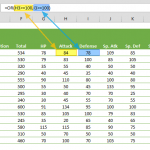
In this formula, we are dealing with a combination of logical functions, specifically the OR and NOT functions. Let's break it down step by step:
This part of the formula consists of the OR function, which evaluates multiple logical conditions. In this case, it checks if either of the two conditions is true. The first condition, '84>=100', is evaluating whether 84 is greater than or equal to 100, which is clearly false. The second condition, '78>=100', is also false because 78 is not greater than or equal to 100. Therefore, the OR function returns FALSE, as neither of the conditions it evaluates is true.
Now, the NOT function comes into play. It takes the result of the OR function, which is FALSE, and negates it. In other words, it flips FALSE to TRUE. So, the final result of the formula is TRUE.
The formula is assessing two conditions and determining whether at least one of them is true. Since neither condition is true in this case, the OR function yields FALSE. Then, the NOT function negates this result, giving us the final output of TRUE.
This type of logical construction can be especially useful in scenarios where you need to check for multiple conditions and determine whether none of them or all of them are true. It allows you to build complex logical evaluations within your Excel spreadsheets, enhancing your ability to make data-driven decisions and automate processes based on specific criteria.

Example 2: Combining NOT Function with OR and AVERAGE
This formula is also combination of logical functions and expressions. Let's break it down:
The formula begins with a NOT function, which is evaluating whether the string "FIRE, FLYING" is equal to "Water." Now, these two strings are clearly different, so the direct comparison would yield FALSE. However, the NOT function acts as a logical negator, effectively flipping the result to TRUE because it's checking if "FIRE, FLYING" is NOT equal to "Water."
This part is a straightforward comparison of two strings, "I" and "II." Since these strings are not equal, the expression evaluates to FALSE.
Here, we're calculating the average of a set of numbers and checking if it's greater than or equal to 100. The average of the provided numbers is 88.3333, which is not greater than or equal to 100. So, this condition also evaluates to FALSE.
Now, let's put it all together:
- The first part of the formula, NOT("FIRE, FLYING"="Water"), returns TRUE because it's essentially saying "FIRE, FLYING" is NOT equal to "Water."
- The second part, "I"="II," returns FALSE because "I" is indeed not equal to "II."
- The third part, AVERAGE({78,84,78,109,85,100})>=100, returns FALSE as the average is below 100.
Next, we have the OR function that evaluates whether at least one of these conditions is TRUE. In this case, the first condition is TRUE (due to the NOT function), while the other two are FALSE. Since OR only requires one TRUE condition to return TRUE, it yields TRUE in this instance.
As a result, the IF function then interprets this TRUE value as a condition met and returns "Pass." This showcases how complex logical evaluations can be constructed in Excel, enabling you to make decisions based on multiple criteria and automate outcomes accordingly.

Tips for NOT Formula
The NOT formula in Excel is a fundamental logical function that operates on a single logical argument or condition and returns the opposite of that argument. Its operation is straightforward: when you input TRUE, it returns FALSE, and when you input FALSE, it returns TRUE. This function essentially acts as a toggle switch for logical values, effectively inverting their truth status.
Here's a breakdown of how the NOT function works:
- NOT TRUE: When you apply the NOT function to the logical value TRUE, it negates it and returns FALSE. In this case, it's saying that the statement is NOT true.
- NOT FALSE: Conversely, when you use NOT with the logical value FALSE, it negates it to become TRUE. Here, it's asserting that the statement is NOT false, which is equivalent to saying it's true.
While the NOT function might seem simple on its own, its true power lies in its ability to combine with other logical functions like AND, OR, and XOR. By doing so, you can create intricate logical scenarios and conditions that allow you to make precise decisions and automate processes based on complex criteria.
For instance, when used in conjunction with the AND function, you can require that multiple conditions must be simultaneously true for a particular outcome to occur. Conversely, with the OR function, you can establish scenarios where at least one of several conditions needs to be met for an action to be triggered. XOR, on the other hand, deals with exclusive conditions, ensuring that only one of multiple conditions is true.
While the NOT function itself is straightforward, it serves as a building block for crafting intricate logical operations. By combining it with other logical functions, you can tackle a wide range of complex scenarios, enhance decision-making, and automate processes effectively within your Excel spreadsheets. Understanding how to harness the synergy of these functions can significantly bolster your data analysis and problem-solving capabilities.
Excel NOT Function Issues & Error Handling
#VALUE! Error
When you use the NOT formula, it typically expects an argument that provides a Boolean value, which is either TRUE or FALSE. If you mistakenly input an argument that does not yield a valid Boolean result, the formula returns an error denoted as #VALUE!. This error serves as an indicator that the input you provided does not conform to the expected Boolean format.
Treatment of Empty Cells
It's important to note that Excel handles empty cells differently when used in conjunction with the NOT formula. In this context, empty cells are essentially placeholders that do not contain any data. When the NOT formula encounters an empty cell within its argument, it simply ignores it. This means that empty cells do not disrupt the formula's operation, and it continues to evaluate the other components of the argument without being affected by the presence of empty cells.
By understanding these behaviors, you can effectively utilize the NOT formula in Excel while being aware of potential errors and the treatment of empty cells within your calculations.