
SpreadsheetWeb blog
How to shorten VBA code in Excel
In this guide, we're going to show you how to shorten VBA code in Excel. Shorter codes are easy to write and read.
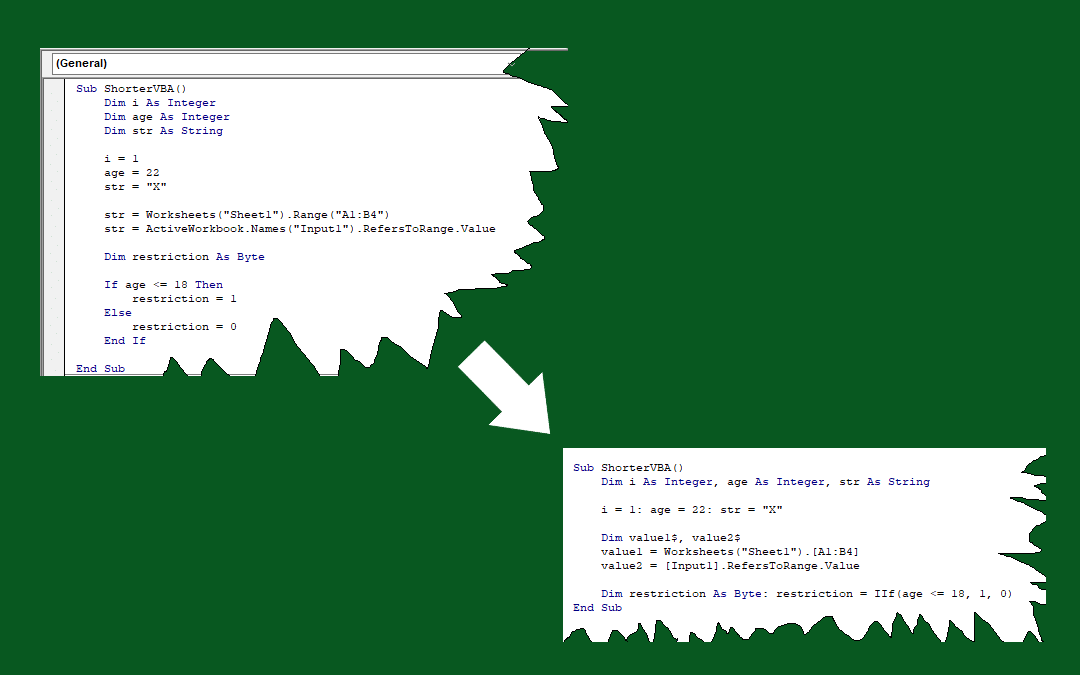
How to shorten VBA code in Excel
In the vast realm of Excel and spreadsheets, mastering the art of writing concise VBA code can be a game-changer. The ability to streamline your code not only enhances readability but also makes maintenance a breeze. In this guide, we'll unravel the secrets of shortening VBA code in Excel.
Variable declaration
Our first tip is variable declaration. You can use a single Dim statement to declare multiple variables by putting commas between each variable.
Instead of the following:
Dim i As Integer
Dim j As Integer
Dim str As String
Dim nm As Name
Use:
Dim i As Integer, j As Integer, str As String, nm As NameAn alternative approach is to use shorthand characters: % -integer; & -long; @ -currency; # -double; ! -single; $ -string
Merging lines to shorten VBA code
You can use colon (:) characters to merge multiple lines into one. This can be helpful in combining similar and short lines of code. Variable assignments are a good example to this.
Instead of the following:
i = 0
j = 1
str = "X"
Use:
i = 0 : j = 1 : str = "X"Direct range references
You can use the square brackets ([]) to refer to a workbook reference, instead of Range or Name objects.
Instead of the following:
str = Worksheets("Sheet1").Range("A1:B4")
str = ActiveWorkbook.Names("Input1").RefersToRange.Value
Use:
str = Worksheets("Sheet1").[A1:B4]
str = [Input1]
You can check How to refer a range or a cell in Excel VBA to learn more about references in VBA.
IIf Function instead of IF-ELSE
The IIf function is the VBA counterpart of the Excel’s IF function. If you need to use one-line, variable assignment codes depending on whether a condition is met, use IIf to shorten your VBA code.
Instead of the following:
If age <= 18 Then
  restriction = 1
Else
  restriction = 0
End If
Use:
restriction = IIf(age <= 18, 1, 0)With Statement can shorten VBA code
If you want to change multiple properties of a certain object, consider using a With statement to refer to the parent object in each line. Using the With statement, the code becomes easier to write and read.
Instead of the following:
Range("E8").Interior.Pattern = xlSolid
Range("E8").Interior.PatternColorIndex = xlAutomatic
Range("E8").Interior.ThemeColor = xlThemeColorAccent1
Range("E8").Interior.TintAndShade = 0.399975585192419
Range("E8").Interior.PatternTintAndShade = 0
Use:
With Range("E8").Interior
  .Pattern = xlSolid
  .PatternColorIndex = xlAutomatic
  .ThemeColor = xlThemeColorAccent1
  .TintAndShade = 0.399975585192419
  .PatternTintAndShade = 0
End With
Remember to close the block by End With statement. This is our last tip on how to shorten VBA code in Excel article.
In the dynamic universe of Excel and spreadsheet management, mastering the art of concise VBA code is indispensable. As we conclude this guide on how to shorten VBA code in Excel, remember that efficiency and readability go hand in hand. Embrace these techniques, incorporate them into your coding repertoire, and watch as your VBA endeavors transform into a seamless and streamlined experience. Happy coding!