Blank rows in Excel can be a persistent nuisance, particularly when dealing with data imported from external sources or entered by less experienced users. These empty rows not only clutter your spreadsheet but can also pose challenges when utilizing features like table creation, sorting, or filtering, as Excel often considers blanks as boundaries for data ranges. In this article, we'll guide you through a simple and effective method using the "Go To" feature to address this issue, allowing you to seamlessly delete blank rows and enhance the organization of your Excel data.
How to make Excel delete blank rows
Select the data containing blank rows:
Begin by highlighting the range of cells that includes the blank rows you want to eliminate.
Open the Go To Special dialog:
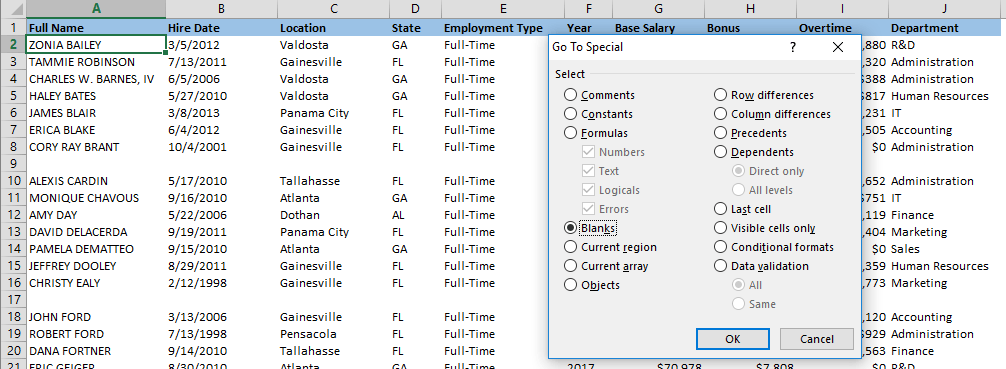
Navigate to the HOME tab, click on "Find & Select," and choose "Go To Special" from the dropdown menu in the ribbon.
Select the Blanks option:
In the Go To Special dialog, opt for the "Blanks" option. This will highlight all the blank cells within your selected range.
Choose and delete the blank rows:
After selecting the blank cells, press the Ctrl + - (minus) combination on your keyboard. This will delete the entire rows containing these blank cells.
Click the OK button to apply your selection:
Confirm your action by clicking the OK button in the Go To Special dialog, and Excel will proceed to delete the identified blank rows.
Note of caution
While the Go To feature is a powerful tool, exercise caution when removing blank rows, especially since it targets individual blank cells within rows that may also contain values. Deleting these rows may result in data loss. Although the Undo function can reverse your actions, it's advisable to double-check your selection to avoid unintentional removal of essential information.
Efficiently managing and organizing data in Excel is crucial for optimal spreadsheet functionality. Dealing with blank rows becomes simpler with the strategic use of the Go To feature, allowing you to streamline your data and enhance the overall clarity and usability of your Excel workbooks. Remember to exercise caution and review your selections carefully to avoid unintended data loss during the blank row deletion process.