How to Group Worksheets and How to Manage in Excel: See all sheets and navigate
To see the list of all visible (not hidden) worksheets and quickly move to another, right click on the two arrows (◄►) next to the sheet tabs. Once the list is open, double-click on the sheet you want to go.

Navigate to the first or last sheet
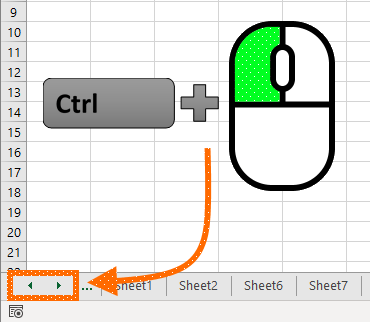
You can directly go to the first or the last sheet using a keyboard - mouse click combination:
- Hold Ctrl and left click on the left arrow (◄) to go to the first sheet
- Hold Ctrl and left click on the right arrow (►) to go to the last sheet
Move between worksheets
- Next worksheet: Ctrl + Page Down
- Previous worksheet: Ctrl + Page Up
Commands to manage worksheets

Move or copy a sheet
From the context menu, you can copy your worksheet using the Move or Copy command. However, there is an easier way to do this: drag & drop.
You can click, hold, and move a sheet with your mouse. You can copy the sheet using the same method by holding down the Ctrl button before clicking.

How to Manage and How to Group Worksheets in Excel: Insert a new worksheet
Another command in the context menu which you can apply with a single shortcut is for creating new worksheets. Just press Shift + F11 keys to insert a new sheet.
Please note that, if you click Ctrl + F11, you will see that a worksheet is added under the name Macro1. Although it looks like a worksheet, it is not. Macro sheets are from the outdated Excel 4.0 macros, and are still kept for backward compatibility. If you want to use macros, try Visual Basic for Applications (VBA).