In this guide, we're going to show you how to insert country flags in Excel.
There are two ways of inserting flags into your Excel workbook. First is to find the images and insert them into your workbook copy pasting. If you place the flags inside a cell, you can create lookup formulas to populate images dynamically. Check out our other related articles to learn more about this method:
Microsoft 365 only: How to do an image lookup in Excel
All versions: How to create dynamic images in Excel without VBA
The second method is a bit easier, but only available if you are a Microsoft 365 subscriber (Worldwide Multi-Tenant client). In September 2018, Excel has introduced Data Types which allow pulling data dynamically from other online sources.
Geography is one these Data Types that can return information about countries and cities. In addition to population, coordinates, birth rate, currency, and other types of data, you can also pull flags. Let’s start how you can use Data Types to insert country flags.
How to insert country flags with Data Types
- Start by adding country names into your worksheet, and keep them inside a single column. Helper commands will also become available when you start entering names.

- Although this is an optional step, we recommend converting the country names into an Excel Table. This way, you will automatically get titles of the information pulled with this feature. You can press Ctrl + T when selecting a cell containing a country name. Excel will automatically select all countries.
- Country name will be selected from the Data tab in the Ribbon and click on the Geography command in Data Types

- Once clicked, you will see small map icons next to country names. If you see a question mark, double check the name. Also, there will be a Add Column icon on the top-right corner.

- Click the Add Column icon to see the options you can add.

- Click Image to insert the corresponding country flags.


These are steps to insert country flags into you Excel workbook. Although flags may not be displayed in high resolution, you can adjust the row heights and column widths to resize the images.
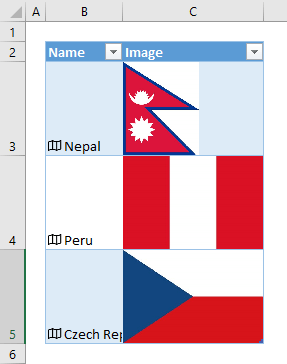
If you do not want to place flags into the same table with country names, use the FIELDVALUE function to pull information, such as the flag image, into cells. Only prerequisite is that you must set a cell with country name as a data type cell.
Use the data type cell’s reference with the string “image” to populate the flag of the corresponding country.