In complex Excel workbooks, locating cells that contain errors is often a challenging task. This guide aims to simplify this process by demonstrating the use of VBA (Visual Basic for Applications) to highlight formulas within Excel that result in errors. By leveraging the power of VBA and the 'specialcells' feature, you can efficiently identify and address formula errors in your spreadsheets. We will take you through a step-by-step process, ensuring that even those new to VBA can easily follow along and apply these techniques in their work.
How to Display Cell Formulas in Excel That Have Errors?
When working with Excel, identifying and displaying cell formulas that result in errors is a crucial skill for efficient data management. Visual Basic for Applications (VBA) provides an effective solution for this through its 'SpecialCells' functionality. This feature is a part of the SpecialCells method, a tool in VBA that targets cells with specific characteristics.
The SpecialCells method functions by utilizing two primary arguments: Type and Value. These arguments are essential in defining the specific cells or range types you wish to access. By strategically combining these two arguments, you gain the ability to pinpoint and interact with cells that have certain types of data or meet particular conditions, including those with formula errors.
Type
In Excel VBA, the 'SpecialCells' feature of the SpecialCells method is versatile, offering various 'Type' options to cater to different needs. Here's a detailed look at each 'Type' you can utilize:
- xlCellTypeAllFormatConditions: Targets cells with any format applied. This is particularly useful for identifying cells with specific formatting conditions in your data set.
- xlCellTypeAllValidation: Focuses on cells that have data validation criteria. This type is essential for ensuring data integrity in your spreadsheets.
- xlCellTypeBlanks: Highlights empty cells. Utilizing this type helps in cleaning and organizing data effectively.
- xlCellTypeComments: Selects cells containing comments or notes. This is ideal for reviewing annotations or instructions left in the workbook.
- xlCellTypeConstants: Identifies cells containing constants. This type is crucial for isolating cells with static values.
- xlCellTypeFormulas: This is particularly relevant for our discussion, as it selects cells that contain formulas. It's invaluable for pinpointing formulas that might be causing errors in your spreadsheet.
- xlCellTypeLastCell: Targets the last cell in the used range, including empty cells that have had any format changes. This type is useful for assessing the overall range of active data.
- xlCellTypeSameFormatConditions: Finds cells with the same format conditions, aiding in the consistent formatting of your data.
- xlCellTypeSameValidation: Selects cells with identical validation criteria, helping maintain data validation consistency.
- xlCellTypeVisible: Covers all visible cells, particularly useful in scenarios where you have hidden rows or columns.
Value
In addition to the various 'Type' options available in Excel VBA's 'specialcells' method, the 'Value' argument plays a pivotal role in refining your search criteria. This argument allows you to specify the kind of data you're targeting within the cells. The primary 'Value' options include:
1. xlErrors: This value is crucial for our discussion. When paired with 'xlCellTypeFormulas,' it allows you to pinpoint cells where formulas have resulted in errors.
2. xlLogical: Targets cells containing logical values (TRUE or FALSE).
3. xlNumbers: Focuses on cells that contain numerical values.
4. xlTextValues: Selects cells that contain text.
Using the combination of 'xlCellTypeFormulas' and 'xlErrors,' you can efficiently identify cells with formula errors. Once these cells are identified, the 'ColorIndex' property can be applied to visually distinguish them. Here's a quick guide to using ColorIndex:
- 3 (Red): A strong indicator for errors or critical values.
- 5 (Blue): Useful for highlighting informational data.
- 6 (Yellow): Ideal for drawing attention to cells that require further review.
- 0 (No Fill): Resets the cell to no fill.
It's recommended to start your VBA script with 'On Error Resume Next' to gracefully handle scenarios where no errors are found, especially in worksheets that are error-free.
Please note the necessity of adding the VBA module to your workbook or add-in file. Simply copy and paste the code into the module to execute it. The advantage of using a module is its reusability; the code can be saved within the file for future use. Additionally, the subroutines housed in these modules can be linked to menu ribbon icons or keyboard shortcuts for quick access. Remember, to preserve your VBA code, save your file in either the XLSM or XLAM format.
To optimize the "Highlight named ranges" section for better SEO performance and readability, focusing on the keyword "specialcells," here's a revised version:
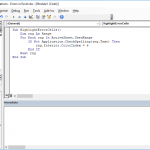
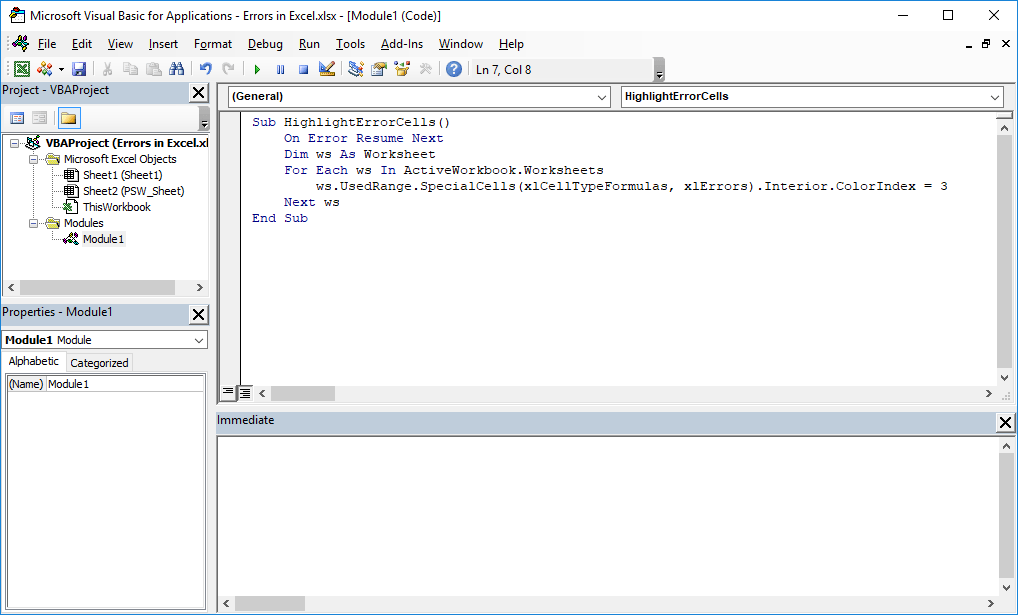
Sub HighlightErrorCells()
    ' Error handling to prevent runtime errors
    On Error Resume Next

    ' Declare a variable to represent each worksheet
    Dim ws As Worksheet

    ' Loop through each worksheet in the active workbook
    For Each ws In ActiveWorkbook.Worksheets
        ' Use the SpecialCells method to target cells with formula errors
        ' and set their interior color to red (ColorIndex 3)
        ws.UsedRange.SpecialCells(xlCellTypeFormulas, xlErrors).Interior.ColorIndex = 3
    Next ws
End Sub
This subroutine starts with the `On Error Resume Next` statement, ensuring that the script continues running smoothly even if a worksheet doesn’t contain any cells with formula errors. It then declares a `Worksheet` variable and iterates over each worksheet in the active workbook. Within each sheet, it uses the `SpecialCells` method with the parameters `xlCellTypeFormulas` and `xlErrors` to locate cells containing formula errors. These cells are then highlighted in red using the `ColorIndex` property set to 3.
This approach provides a simple yet powerful way to visually identify errors, enhancing the process of debugging and data validation in complex Excel workbooks.