SpreadsheetWeb blog
How to calculate percentage in Excel
In this article, we are going to show you how to calculate percentage in Excel. You can show numbers as percentages without any calculation.

In Excel, you can actually show numbers as a percentage, without using any calculations. A percentage is a number or ratio that means a fraction of 100. They are expressed with the percentage sign (%), following the ratio. For example, 12% means 12/100, 0.12 or 12:100. The common use case of percentages is to express a proportionate part of a total. In this article, we are going to show you how to calculate percentage in Excel.
Enter a percentage value in Excel
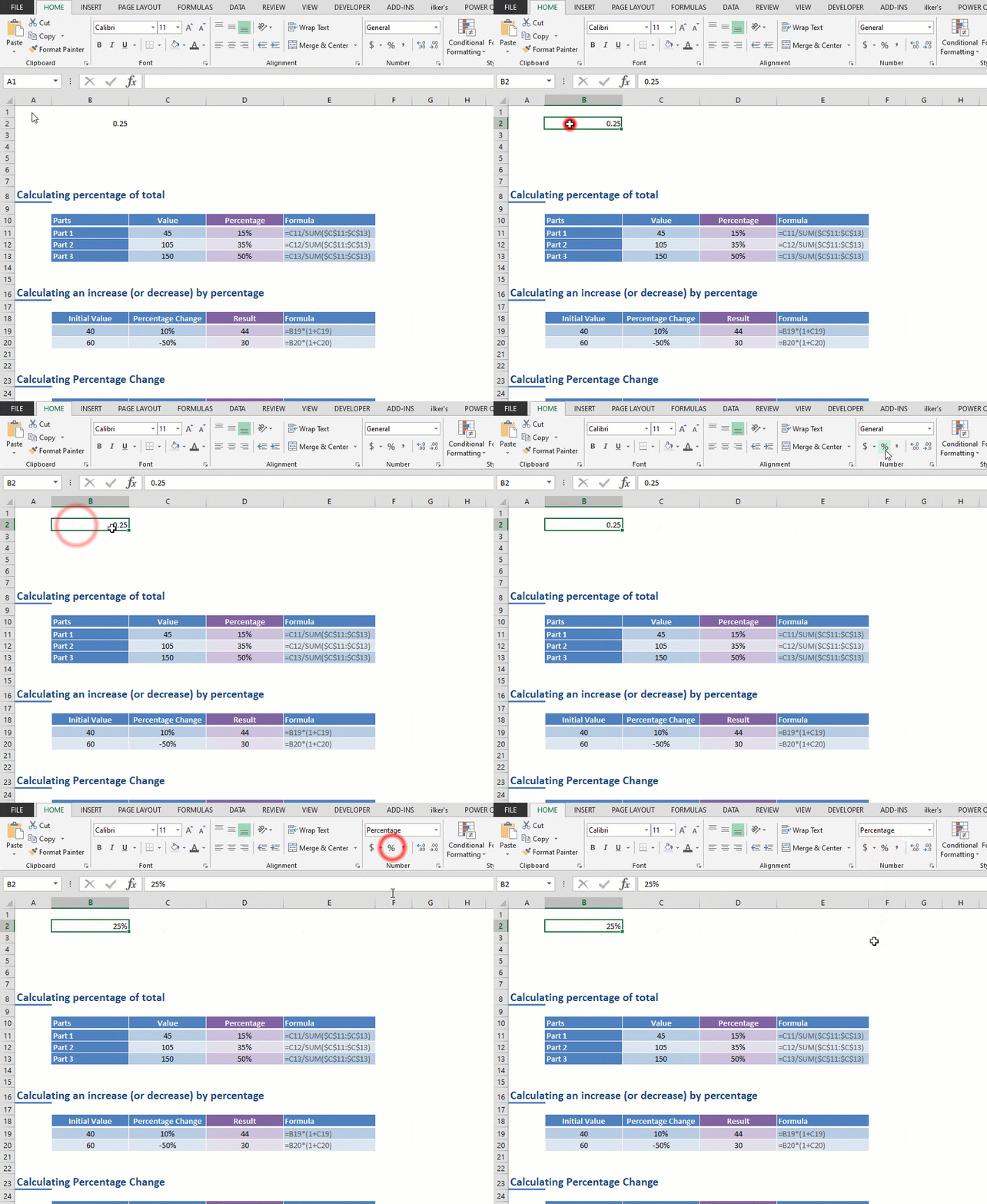
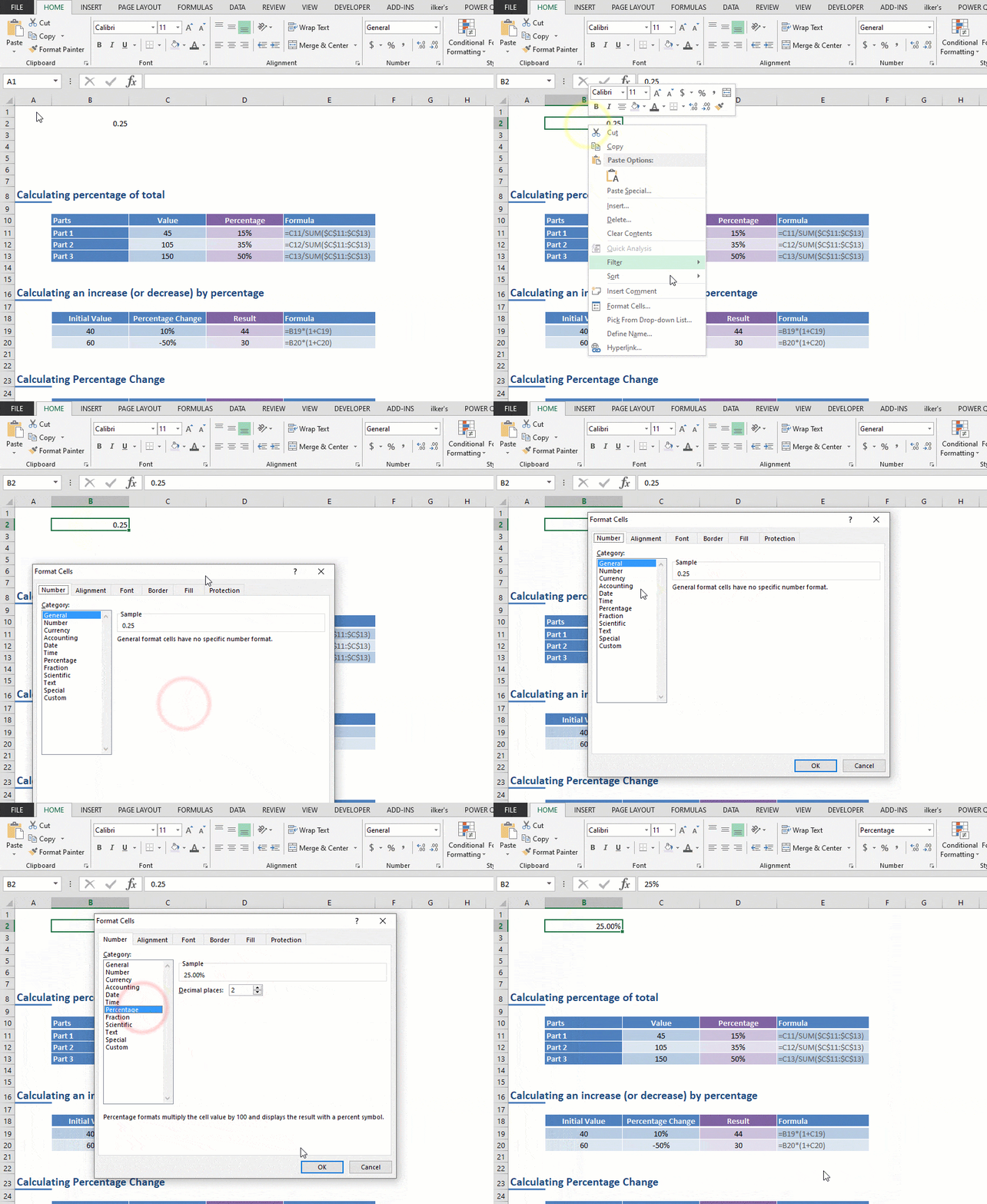
In mathematics, you need to multiply a ratio by 100, and add percent sign (%) to express that ratio as a percentage. In Excel, you do not need this extra equation. Excel can show numbers as percentages with a simple number formatting change. All you need to do is to set the cell's number formatting to Percentage. You can set a formatting to a cell or range from the Ribbon or the Format Cells dialog.
Ribbon
- Select the cell or the range
- Click the % icon in the Number section of Home tab
Format Cells
- Select the cell or the range
- Open the Format Cells dialog by pressing the Ctrl + 1 key combination or using the context (right-click) menu
After expressing how you can show a number as a percentage, let's continue with percentage calculations in Excel.
Calculating the percentage of an item in the total
Percentage ratios are frequently used to indicate how much each category contributes to the total of a data set. All you need to is to divide the each category value by the total value. This operation returns a decimal number that you can format as percentage.
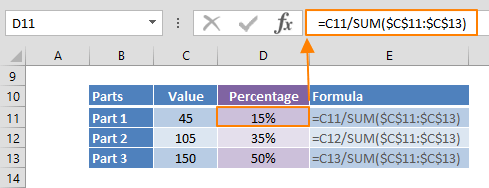
In our example, we divided each value (45, 105, 150) by the sum of all values (300). Please note that we've used the divisor as an absolute reference ($C$11:$C$13) to lock the range to the same location, while populating the formula by using Auto-Fill feature of Excel.
Calculating an increase (or decrease) by percentage
Calculating an increase (or decrease) is another basic example of percentage calculations in Excel. To calculate how much an item has changed in percentages (or a ratio), you need to multiply the actual value by the total (the sum+1) and percentage value.
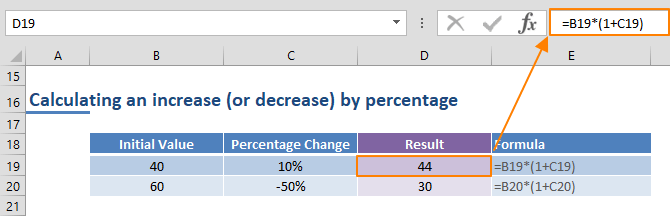
For example, to increase 40 by 10%, the formula here would be = 40 * ( 1 + 0.4 ) which is equal to 44. This operation works for negative percentage values as well. However, if your percentage value is positive and you still want to calculate a decrease, subtract the percentage value from 1. For example, = 60 * ( 1 – 0.5).
Calculating percentage change
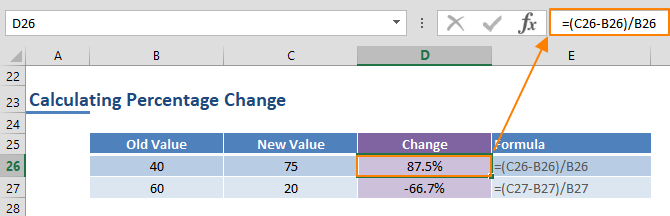
To calculate the percentage change between two numbers, you need to divide the difference by the previous value.
For example, if a value is changed from 40 to 75, the formula her would be = ( 75 – 40 ) / 40 which is equal to 87.5%.