
You may think that making an online calculator can be quite complicated but you will be surprised that it can be done in a few minutes with the right tools. It is often claimed that the business logic layer is one of the most challenging tasks when it comes to calculator development, but in fact, most of the people already use Excel for this purpose and build their calculations there.
In this guide, we will explain the process of turning your current Excel calculator into an online tool using SpreadsheetWeb.
Step 1: Preparing the Excel file
This document will use a sample Excel file designed to calculate premiums for a life insurance product. The file includes user input cells, output cells, lookup tables, and formulas. While the underlying logic may vary across calculators, most Excel-based calculators share a common structure consisting of inputs, outputs, data tables, and formulas.
To convert the Excel file into an online calculator using SpreadsheetWeb, you have two options: utilizing SpreadsheetWeb’s automated app creation feature for a quick and easy setup, or opting for the manual process, which offers more control over the calculator's appearance. Given that this is a relatively simple calculator, the automated app creation option is the preferred choice. However, some minor preparation is required in the Excel file before proceeding to ensure a smooth transition:

- Name Your Input and Output Fields: Make sure all the input and all the output fields you need to be displayed in the web app are named correctly.
- Hide Unnecessary Data: Any rows, columns or worksheets that consist of data and formulas which do not need to be seen by the web user should be hidden.
- Keep Only Relevant Fields: Make sure that all the inputs, outputs and labels that are necessary for the user interface are visible on the screen.
Once you have created your Excel file, you can proceed with creating an online calculator out of it.
Step 2: Upload Your Excel File to SpreadsheetWeb
You must first have an account on SpreadsheetWeb. Please note you can sign-up for a free subscription.
- Open your browser and go to the platform, enter your login information and once inside click the “Create New Application” option.
- Upload your Excel file.
- Choose the automatic application creation option by clicking Try It.
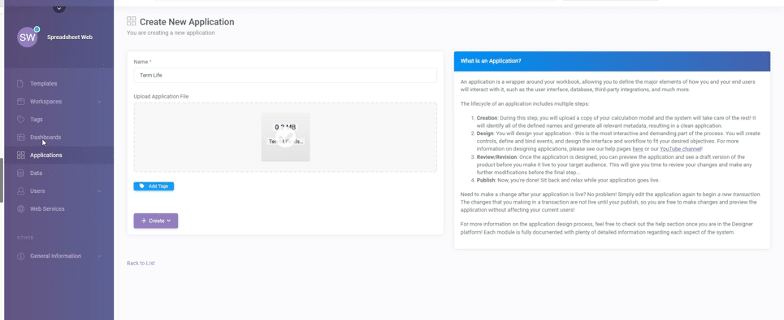
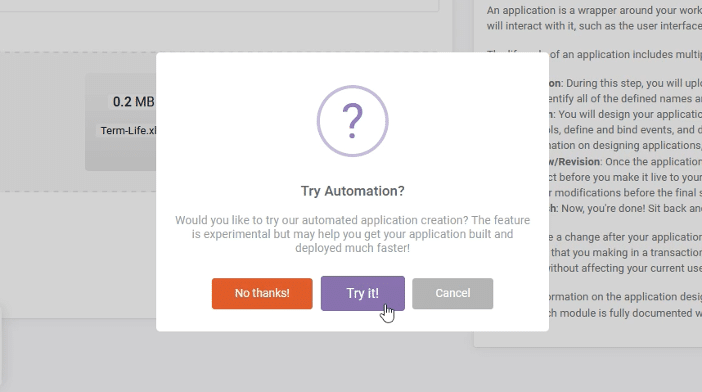
If you require more customization in design and functionality, select “No thanks!” to proceed with manual application creation. However, for the purposes of this article, we will use the automated application creation process, as it is faster and more straightforward.
Step 3: Choose from the Suggested User Interface Options Provided
Once you have uploaded your file you will be taken straight to the Edit User Interface; SpreadsheetWeb will then suggest some default layout options depending on your actual Excel file.
1. Take time to go over the various interface options that was provided.
2. Select the one that is most appropriate to your case.
3. Click Publish.

Step 4: Publish Your Calculator
There are several additional features you can automatically add to your calculator. The system will prompt you to either enable or skip these options.
The first option allows you to enable a database to store data from each user session. The second option lets you choose from a selection of prebuilt styling themes.
Congrats! We have officially transformed your calculator created in Excel into an online application.
Step 5: Final Testing of Your Online Calculator & Sharing It
Your newly created online calculator functions exactly as the Excel file, maintaining full consistency in calculating the formulas. You can test both the web interface and the Excel file side by side to compare the results.

To share your calculator with others, you can either provide a direct link to a specific group of users or, for a more seamless experience, integrate the calculator into your website using an iframe.
Updating Your Calculator: If you need to update your calculator in the future, simply update the Excel file and republish it through SpreadsheetWeb. Your original data and formulas, along with any changes you make, will remain unchanged, and the new version of your calculator will be published seamlessly.