
In today's academic environment, career opportunities and academic excellence are closely linked to GPA (Grade Point Average). Students need an online GPA calculator to help monitor their academic performance. Online GPA calculators have become popular due to their convenience and accessibility.
In this article, we will discuss the benefits of using an online GPA calculator and introduce SpreadsheetWeb, a tool that simplifies converting Excel-based calculators into web applications. We will guide you through creating an Excel GPA calculator and transforming it into an accessible online tool. This guide is valuable for students aiming to maintain their grades and teachers seeking a useful resource for their students.
What are GPA Calculators?
GPA Calculators are digital tools that allow students to accurately calculate their GPA depending on the grades they achieve throughout their courses. Normally, this involves inserting the course marks and their credit hours. It will follow a standardized GPA calculation formula to produce a realistic value of the GPA a candidate has scored. Types of GPA calculators include simple GPA calculators, which only require grades and credit hours, weighted GPA calculators for taking AP or Honors courses, and cumulative GPA calculators for your overall GPA covering multiple semesters or academic years.
Advantages of an Online GPA Calculator An online GPA calculator provides several pros:
- Easy Access: Students can use the calculator from any of their devices when they are connected to the internet, therefore making it accessible at any time and any place.
- User-Friendly: Online calculators have user-friendly interfaces that streamline the grading process, making it easier to submit grades and calculate the GPA.
- Precise Figures: These calculators utilize standardized formulas, ensuring accurate computations.
- Saves Time: A GPA can be obtained quickly by students without having to perform the calculations by themselves manually, saving time and energy.
What is SpreadsheetWeb?
SpreadsheetWeb is an application designed to convert Excel spreadsheets into web applications in the cloud without needing to know how to code. It is the ideal choice for developing tools and online calculators since it retains the advantages of Excel while being more accessible and user-friendly than an Excel file.
- No-Code Platform: Become a pro at converting challenging Excel spreadsheets into web applications without the hassle of writing code.
- Data Security: Protect data with strong encryption and access controls.
- Customizable Interface: Design the application interface to suit your needs.
- Scalability: Scale applications with an increase in the number of users and data.
Over the next few sections, we will walk you through building an Excel GPA calculator and turning it into an online GPA calculator with SpreadsheetWeb. Start by creating the user interface in your Excel-made GPA calculator.
Structure the GPA Calculator in Excel Setting up a GPA calculator in Excel is a relatively simple task. You need to design a user-friendly interface, apply the formula for calculating GPA, and test those calculated amounts for accuracy. This section explains each step in detail.
Design the User Interface
Simplicity is of the essence. The UI of a GPA calculator should be clean and easy to operate. To set up an MS Excel workbook for tracking course information, calculating grade points, and determining GPA for semesters, start by opening a new workbook. In the first row, set up headers for each semester section with the titles: "Course," "Grade," "Credit," and "Points."
Starting from the second row, label your inputs for each semester, allowing users to input grades in the second column and credit hours in the third column. Use a formula to convert grades to points and calculate the total points for each course in the fourth column. Add rows at the bottom of each semester section to calculate the total credit hours and total grade points. Finally, calculate the GPA by dividing the total grade points by the total credit hours. This setup will organize data for up to ten semesters, enabling the input of course information, the calculation of grade points, and the determination of GPA for each semester.

- Points Calculation converts grades to points using a lookup table and multiplies them by the credit hours.
- Total Credits: Sums the credits for all courses in the semester.
- Total Points: Sums the points for all courses in the semester.
- GPA Calculation: Divide the total points by the total credits to determine the GPA.
This setup automatically calculates the GPA for each semester based on the grades and credits entered. Click here for some insights into Excel functions and formulas.
Testing Your Excel GPA Calculator Proper testing is absolutely essential to make sure that your GPA calculator is functioning as expected.
How To Test: Manual Testing
To begin, input sample course names, grades, and credit hours into the respective cells as sample data. Then, ensure that match scores are accurately converted to numerical values. Next, confirm the accuracy of grade points calculation by ensuring that credit hours and numeric grade values are accurately reflected. Afterward, double-check the totals of credit hours and grade points to ensure they are correctly summed, and confirm the accuracy of GPA calculation by dividing the total grade points by the total credit hours.
By this point, you have a fully functioning GPA calculator in Excel, all set to convert it into a web application by using SpreadsheetWeb.
Quick Note: SpreadsheetWeb integrates Excel files with the SpreadsheetWeb Hub no-code platform using named ranges. These are unique names assigned to specific cell ranges within an Excel spreadsheet. Named ranges simplify data reference and manipulation within the spreadsheet. Remember to include named ranges in relevant cells before saving your Excel file to ensure smooth integration with SpreadsheetWeb.

SpreadsheetWEB
SpreadsheetWeb is a no-code development platform designed to fill the gap between complicated Excel spreadsheets and interactive web applications. It allows users to leverage the powerful features of Excel with the ubiquity and ease of a web interface. From simple calculators to data entry forms and even complex data models, SpreadsheetWeb can make your Excel files accessible to anyone on any device with an internet connection.

Key Features and Advantages for Students
- No-Code: Simply transform your Excel model into a web application with SpreadsheetWeb without writing any code. This is especially useful for people who do not necessarily have programming skills but must still make interactive tools and apps.
- Data Security: Using robust encryption and access controls, the platform makes sure that your data remains secure. This is very important for people wanting to keep their data safe, especially if it has sensitive information.
- Customizable Interface: SpreadsheetWeb provides a fully customizable interface, enabling users to design the web applications as per their requirements. This will enable people to develop applications that are not only useful but also have excellent presentation and ease of use.
- Scalability: Made to handle many users and data, your applications built by SpreadsheetWeb can scale elegantly. This is beneficial to a lot of projects that could initially be small but will need to grow to support more users or data downstream.
- Collaboration and Sharing: SpreadsheetWeb makes it simple for those who share and collaborate on projects by sharing their applications with peers, teachers, or other users who need to access them as well.
- Accessibility: SpreadsheetWeb converts Excel spreadsheets into web applications, allowing students to access their tools from any device with an internet connection. This makes their apps more flexible and easier to use on the go.
- Better Functionality: A SpreadsheetWeb web-enabled Excel spreadsheet has fully integrated web features, including user authentication, workflow automation, and integration with other web services.
- Instant Data Processing: With real-time data processing, users can view how their inputs and changes immediately impact the system. This can be quite handy for an app like a GPA calculator, as students know exactly how their GPA will change when they fill in new grades.
The power of SpreadsheetWeb gives the opportunity to convert Excel spreadsheets into interactive web applications instead of relying on flat Excel applications that are full of restrictions.
Converting Your Excel File to a Web Application
Converting your Excel file to a web application is easy if you use SpreadsheetWeb. This section will walk you through the steps to upload your Excel file, configure data connections, customize the web interface, and test the entire web application.
Sign Up or Log In: Visit the SpreadsheetWeb Hub (if you do not have an account, sign up as usual).

Browse Your Excel File: Go to the Applications. Click "New Application" -> "Upload Spreadsheet."


Select your GPA calculator file on your computer. Name your application and click "Next" to proceed. Review the file details on the screen to check that your Excel file has been uploaded. Press "Create Application" to complete the uploading.

Design: Then, go to the "Designer" tab and define the input and output cells using the earlier named ranges.


Define Input and Output Cells: Input cells are the cells where users will put their data (grades and credit hours). Output cells are where the calculated results (cumulative hours, points, and GPA) will be displayed.

Creating a Custom Web Interface: Utilize the 'Interface Designer' within SpreadsheetWeb to design a user-friendly interface for your web-based application. Drag and drop elements like text fields to enter grades and credit hours.
Arrange output fields to display the total credit hours, total grade points, and overall GPA.
Labels and Instructions: Add labels to the input fields to indicate what data users need to enter.
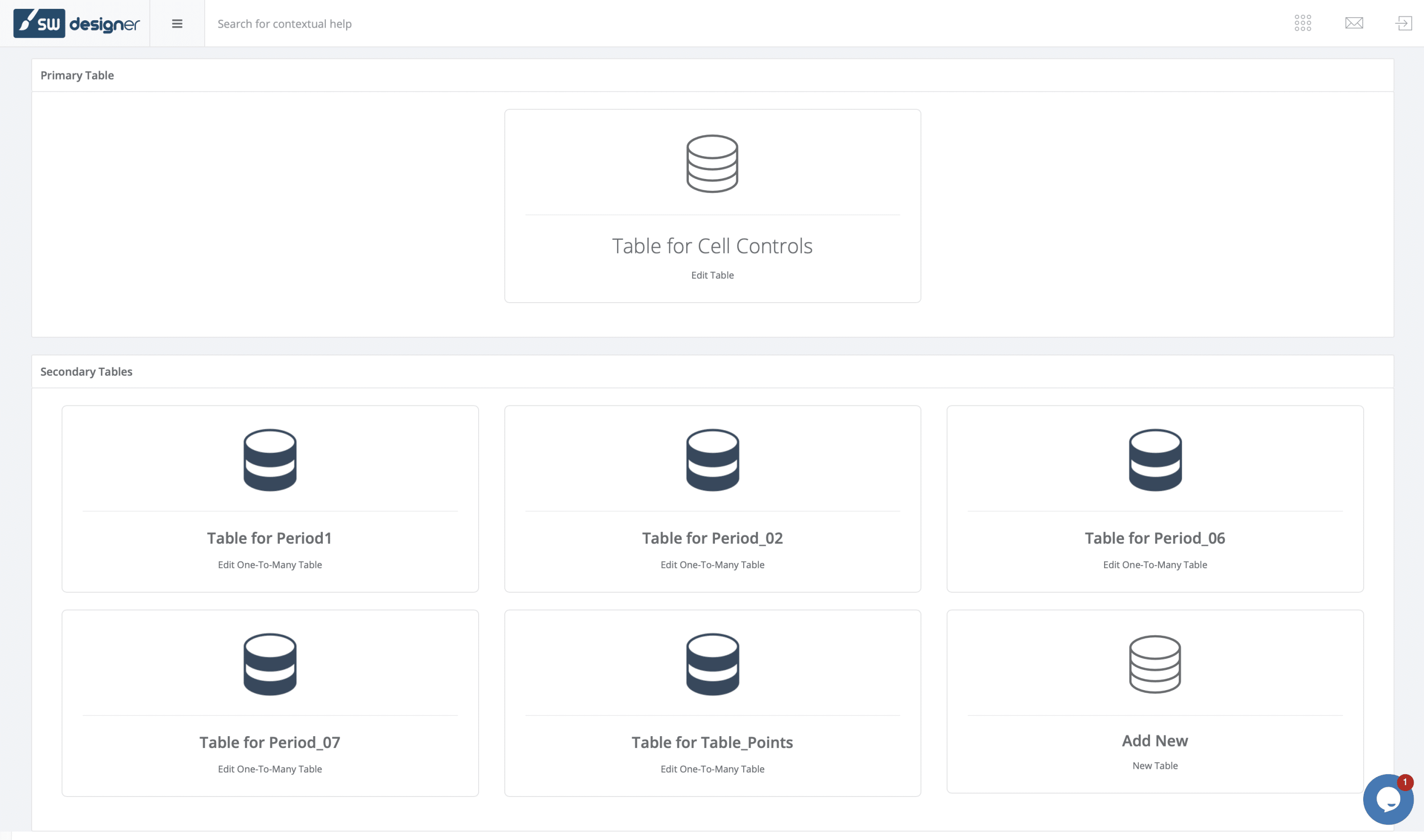
Database: Remember to create databases in the interface. You will need to manage, update, and organize the grades regularly.
Custom Styling: Apply themes, colors, and fonts to match your web app's branding using Stylesheets feature. Customize the look and feel of your web application to match your preferences or your institution’s branding.
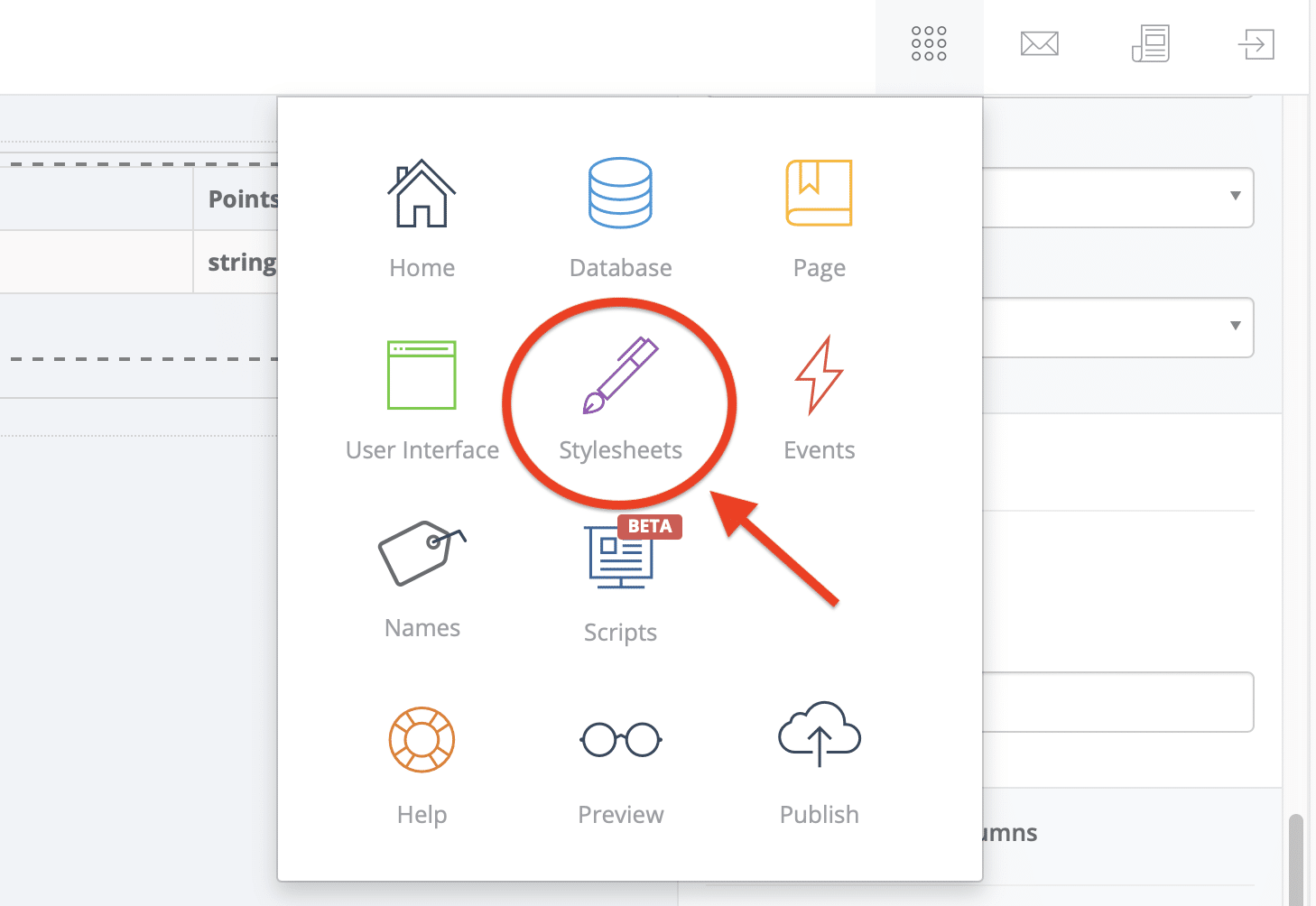

Printing Options: Along with Stylesheets, SpreadsheetWEB enhances your web applications by offering convenient printing options, including PDF and DOC exports. This feature allows users to easily generate and download professional-grade documents directly from the web app, making sharing or submitting their data simple. Click here to read more about it.
Testing the Web Application: To convert your Excel-based GPA calculator into a web application using SpreadsheetWeb, begin by inputting sample data to ensure accurate functionality. Test various scenarios, including incomplete inputs or zero credit hours, to identify potential errors. Once verified, conduct user testing with a small group to gather feedback on usability and functionality. Adjust the application based on the feedback you receive. After finalizing the design and settings, publish the web application and share the link for easy access. Following these steps will result in a fully functional online GPA calculator, providing users with a convenient tool for calculating their GPA.
Using the Online GPA Calculator
Once your Excel-based GPA calculator is transformed into a web application using SpreadsheetWeb, you want to keep your users effectively engaged. This part will show how to do it and go through the steps of inputting data, understanding the results, and publishing the calculator by creating an embed code to insert on your website.
To input data into the GPA calculator, begin by accessing the provided link, which can be shared via email or embedded in a website. Within the calculator interface, you'll find input fields labeled Course Name, Grade, and Credit Hours. In the Course Name fields, enter the name of each course. Next, input the letter grades you received for each course into the Grade column, adhering to the defined grade conversion table (e.g., A, B, C, etc.). Then, in the Credit Hours column, input the credit hours for each course, representing the weight of each class. Once all data is entered, the GPA calculator will automatically compute the grade points for each course and calculate the total GPA. If a submit button is present, click on it to process the data.
In order to ensure that the GPA calculator will be accessible and maintained long term, it needs to be created in a way where it can be supported going forward and be able to be updated when necessary. This section will teach you how to update grade data and further improve the interface.
Updating Grade Data
Using the application's database, you can always manage your data records with the help of several options such as Edit, View, Copy, and Delete. In addition, it is quite easy to assign tags, customize the data table, and show the record history changes just by clicking a button. Click here for further readings on the database feature.

Improving the User Interface
You can always collect user feedback on the GPA calculator's usability and appearance. Use this feedback to make design modifications in the Interface Designer of SpreadsheetWeb, addressing common issues and suggestions. Consider adding features such as Grade History and visualizations like charts. Enhance accessibility with keyboard navigation and screen reader support. Test the updated interface thoroughly and deploy it to the live web application, informing users of the improvements.
By regularly updating the grade data and continuously enhancing the user interface, you can maintain a GPA calculator that remains accurate, user-friendly, and valuable to its users.
Understanding the Results
Grade Points Calculation: The calculator will translate your letter grade into a corresponding number. The grade points for each course = credit hours x numeric grade value
Total Credit Hours and Grades Received: The above credit hours and grade points are displayed in the respective fields.
GPA Calculation: GPA Calculation: Total grade points divided by total credit hours. the GPA field will show this result. To verify that the GPA showing up is as you expect based on the input data.
Review Results: Check out the GPA that you calculated to know how well the student is doing academically. Double-check the input fields and make sure everything is correct; if not, you have to fill in the details again.
Embed the Calculator on Your Website: You can use iFrame to embed the application in your website. See the related article here.
Wrapping Up and Further Resources
In this article, we have discussed how to develop a GPA calculator, host it as a web application using SpreadsheetWeb, and ensure its functionality and user-friendliness. We began by highlighting the benefits of GPA calculators and introducing SpreadsheetWeb as a powerful tool for transforming Excel files into web applications.
We demonstrated how users could seamlessly input data, understand their entries, and incorporate the calculator into a webpage. To maintain ongoing relevance, we discussed methods for updating the GPA calculator with new grade data and UI enhancements. Additionally, we suggested ways to enhance functionality by allowing users to save their information through database storage and automating GPA updates with scheduled refreshes.
To further improve user experience, we proposed enabling PDF generation for downloadable GPA results, which is particularly useful for academic or professional submissions. We recommended leveraging PDF generation libraries or native SpreadsheetWeb support. We also advised optimizing the web app for mobile devices to ensure a seamless user experience across platforms. Finally, we suggested incorporating advanced analytics, such as trend analysis and predictive modeling, to help users gain deeper insights into their academic progress and forecast future performance.
By following these steps and recommendations, users can benefit from a robust, user-friendly GPA calculator that not only meets their immediate needs but also adapts to future requirements and technological advancements.