
SpreadsheetWeb blog
Function: EXACT
In this guide, we’re going to show you how to use Excel EXACT function to compare strings and also go over some tips and error handling methods.

Excel EXACT function compares two strings and returns TRUE for a perfect match, and FALSE if not. Note that this comparison is case-sensitive. In this guide, we’re going to show you how to use Excel EXACT function to compare strings and also go over some tips and error handling methods.
Supported versions
- All Excel versions
Excel EXACT Function Syntax
EXACT(text1, text2)
Arguments
| text1 | The first text string to be compared. |
| text2 | The second text string to be compared. |
Examples
Example 1
=IF(EXACT("Pikachu","Pikachu"),"A match!","No match.")

Example 2
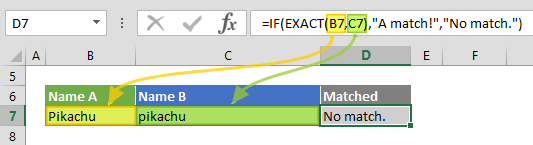
=IF(EXACT("Pikachu","pikachu"),"A match!","No match.")
Tips
- The equal operator (=) does a similar comparison, and returns a Boolean value similar to the EXACT function. However, this comparison is not case-sensitive.
- Excel EXACT function ignores cell formatting - dates and numbers can be compared as well.