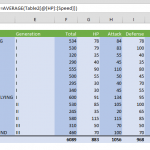
Microsoft Excel has long been the go-to tool for data management and analysis, and one standout feature that facilitates these tasks is the Excel Table. Creating a table transforms your data into a structured, organized format, providing not only a clean presentation but also enhanced functionality. In this guide, we'll delve into the process of creating an Excel Table, offering step-by-step insights and valuable tips to make the most of this powerful Microsoft Excel feature.
1. Select a cell inside your data range
Begin by selecting a cell inside the range you want to convert into a table. Excel will automatically detect the table area and structure once you transform it.

Alternatively, you can simply select the entire range if Excel didn't pick up all the fields you want.

2. Insert Table
You can convert your range into an Excel Table in two ways:
- Press the Ctrl + T shortcut combination.
- Go to Insert from the Ribbon, and then select the Table option.

3. My table has headers
When you are in the Create Table dialog, you will see the range of your table, as well as the My table has headers option. When My table has headers option is enabled, Excel will consider the first row of the data range as the header row. Otherwise, Excel will automatically insert a new row into your table that contains default header titles like Column1, Column2, etc.

4. Click OK
When you're done, click OK to convert your data range into a table. Excel will also add some styling and header filters by default. Your table is ready!

5. Customization
As an optional final step, you can customize the style and layout of your table using the Design tab. For more information please see, Tips for Excel Tables.

Mastering the creation of tables opens up a realm of possibilities for efficient data handling. Microsoft Excel empowers users to organize, analyze, and present data seamlessly. By following the step-by-step guide provided here, you can harness the full potential of Excel Tables and elevate your spreadsheet proficiency. Explore the customization options available to tailor your tables to specific needs, and unlock the true power of data organization within the familiar environment of Microsoft Excel.