In Excel, the ability to efficiently count characters within cells is a valuable skill. Whether you're identifying data types or setting up validation rules, understanding how to utilize the LEN function can streamline your workflow. In this guide, we'll walk through the simple steps to count characters in Excel.
To count the characters in a cell, you can employ the LEN function, a straightforward tool that proves especially handy in various Excel tasks. Let's break down the steps:
Syntax
Begin by typing "=LEN(" in the formula bar.
Select or Type Range
Choose or input the range reference containing the text you want to analyze (e.g., C3).
Complete the Formula
Enter ")" to close the function, and press Enter to finalize the formula.
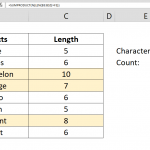
The LEN function seamlessly returns the character count within the specified cell or range. It's worth noting that all characters, including spaces, new line characters, minus signs in negative numbers, and decimal separators, contribute to the count.
Examples
- To count characters in cell B3, use the formula: =LEN(B3).
- If you want to count characters in the numeric value 1.26: =LEN(1.26).
- For a string like "abcde," determine the character count with: =LEN("abcde").
Ensure that the LEN function evaluates the raw cell value, disregarding formatting details such as currency signs, placeholder decimal zeroes, or full month names. For instance, if the formatted value of C7 is $1,500.00, and its raw value is 1500, the LEN function will accurately return 4 for the four characters in 1500.
In the dynamic world of Excel and spreadsheet management, mastering the art of character counting is a valuable skill. The LEN function serves as a reliable ally in this endeavor, offering a straightforward approach to efficiently count characters within cells. By incorporating these techniques into your Excel toolkit, you empower yourself to navigate and analyze data with precision and ease.