
SpreadsheetWeb blog
Automatically Populate SpreadsheetWeb Inputs from a PDF Using JavaScript
Build a reusable PDF import interface that extracts customer data in the browser and maps it to SpreadsheetWeb Textbox controls.

Manually transferring information from documents into web forms is one of those repetitive tasks that seems simple until it has to be done hundreds—or thousands—of times.
Customer onboarding forms, purchase confirmations, insurance documents, application forms, shipping documents, quotations, and order records often contain information that eventually needs to be entered into another application.
What if a SpreadsheetWeb application could read that information directly from a PDF?
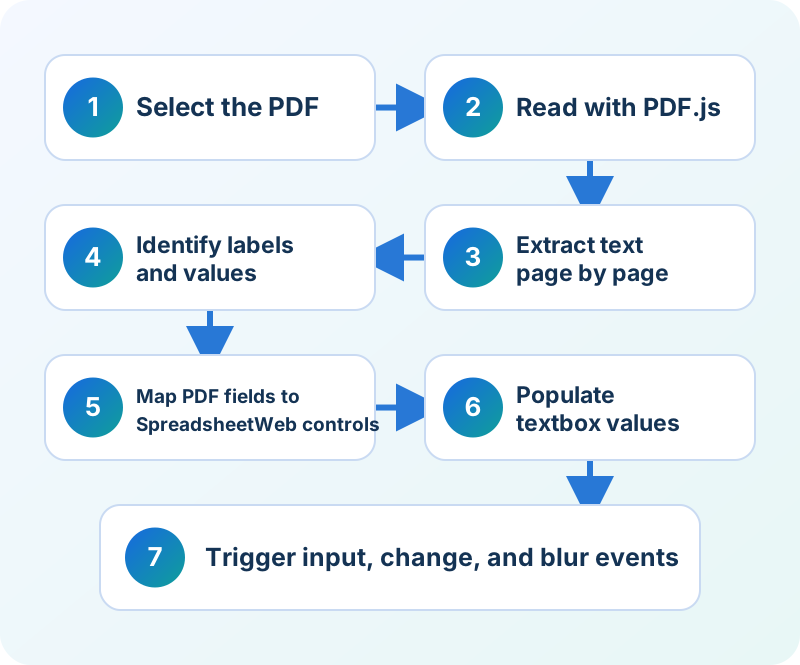
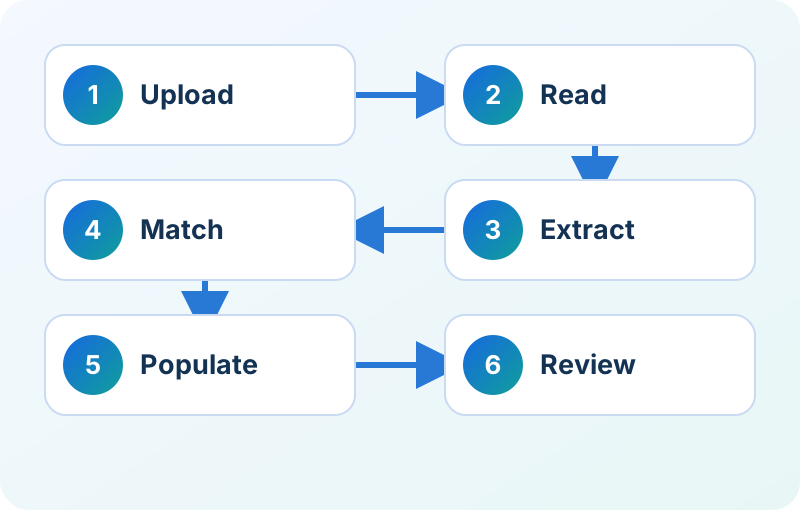
In this example, we built a lightweight PDF import interface inside a SpreadsheetWeb application. A user can upload a PDF containing customer information, and JavaScript automatically:
- Reads the PDF in the browser with PDF.js.
- Extracts its text.
- Identifies predefined fields such as name, email, phone number, and address.
- Matches those fields to SpreadsheetWeb Textbox controls.
- Populates the corresponding inputs automatically.
- Triggers the necessary input events so the application can recognize the new values.
The entire implementation is built using standard SpreadsheetWeb customization features: an Advanced Label for the HTML placeholder, Styles for the user interface, and Scripts for the PDF processing and field-mapping logic.
No separate upload page is required.
In this article, we will walk through the architecture, the full implementation, and the parts of the script that need to be changed when adapting it to another SpreadsheetWeb application.
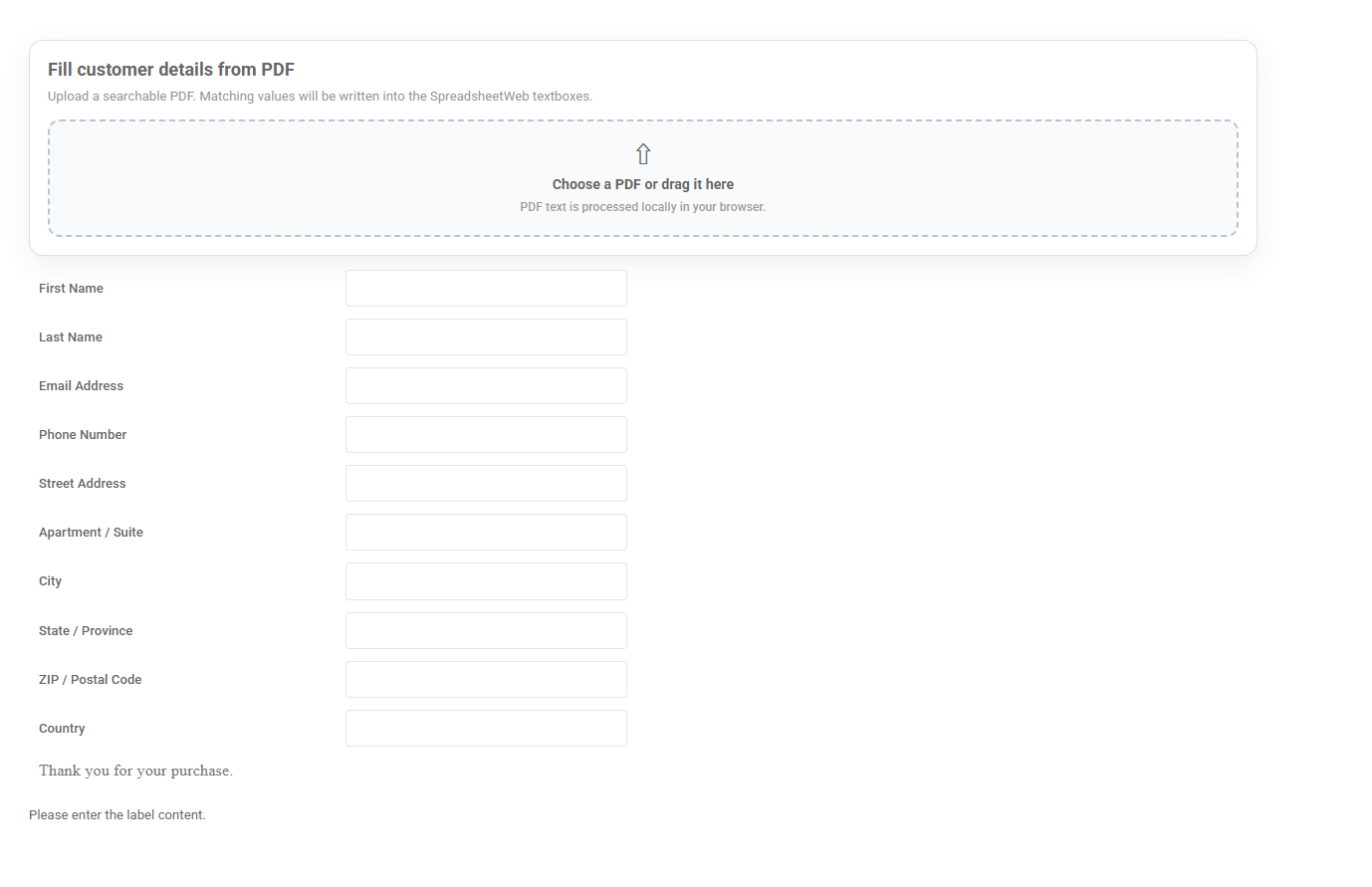
The Example Application
For this example, imagine a simple post-purchase customer information form.
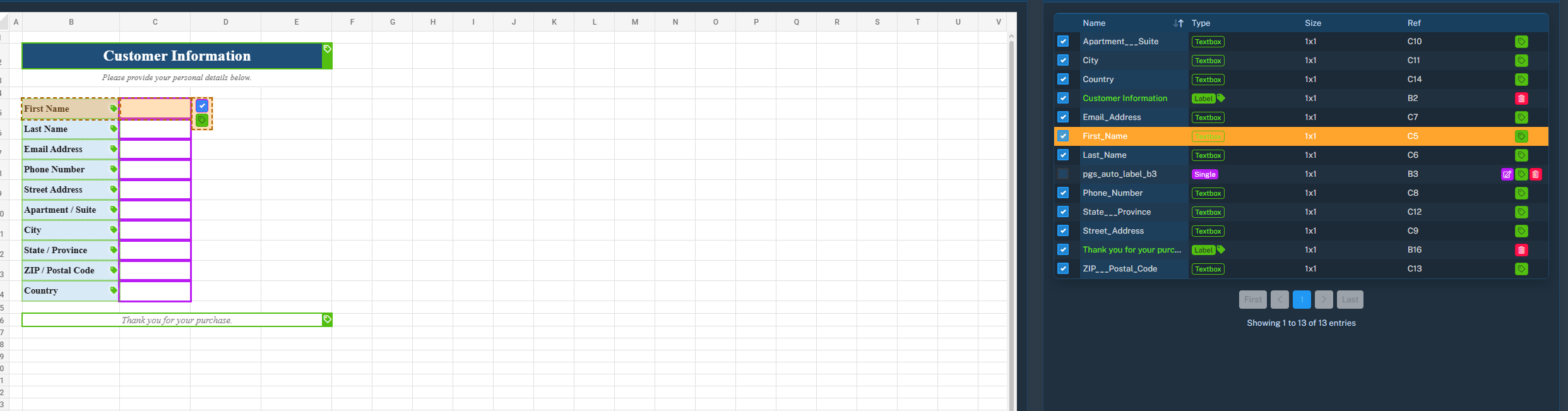
The application contains the following Textbox controls:
First_Name
Last_Name
Email_Address
Phone_Number
Street_Address
Apartment__Suite
City
State__Province
ZIP__Postal_Code
Country
These names correspond to the controls that JavaScript will attempt to locate after extracting information from the uploaded PDF.
A sample PDF may contain data like this:
CUSTOMER INFORMATION

First Name: Emma
Last Name: Johnson
Email Address: emma.johnson@example.com
Phone Number: +1 415 555 0136

Street Address: 123 Market Street
Apartment / Suite: Apt 4B
City: San Francisco
State / Province: California
ZIP / Postal Code: 94105
Country: United States
After the PDF is uploaded, the application should automatically populate the corresponding controls.
For example:
| PDF Field | SpreadsheetWeb Control | Imported Value |
|---|---|---|
| First Name | First_Name | Emma |
| Last Name | Last_Name | Johnson |
| Email Address | Email_Address | emma.johnson@example.com |
| Phone Number | Phone_Number | +1 415 555 0136 |
| Street Address | Street_Address | 123 Market Street |
| Apartment / Suite | Apartment__Suite | Apt 4B |
| City | City | San Francisco |
| State / Province | State__Province | California |
| ZIP / Postal Code | ZIP__Postal_Code | 94105 |
| Country | Country | United States |
The goal is therefore not simply to display the contents of the PDF. The script needs to understand which extracted value belongs to which application input.
How the Solution Works
The workflow moves from document selection to a fully updated SpreadsheetWeb form:
There are three parts to the implementation:
- HTML
- CSS
- JavaScript
The HTML portion is intentionally very small.
Instead of placing the entire upload interface inside the Advanced Label, we only create a container. JavaScript generates the actual interface inside this container when the page loads.
This keeps the HTML configuration clean and makes the component easier to maintain.
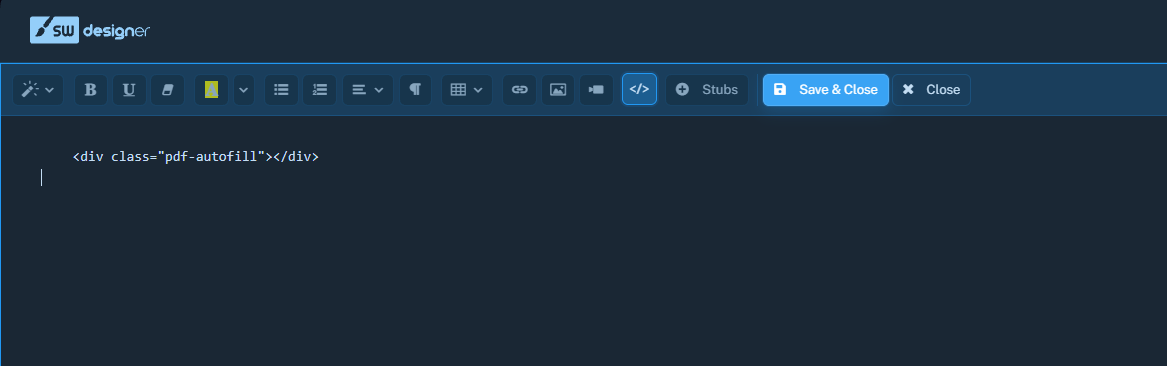
Step 1: Add the HTML Placeholder Using an Advanced Label
Add an Advanced Label to the SpreadsheetWeb application.
Open its HTML/code editing mode and enter only:
<div class="pdf-autofill"></div>That is the entire HTML configuration required in the Designer.
The JavaScript will locate .pdf-autofill and generate the upload interface dynamically.
This approach also provides a useful separation of responsibilities:
Advanced Label → component location
Styles         → appearance
Scripts        → behavior and PDF processing
The Advanced Label therefore acts as a mounting point for our custom component rather than containing all the markup itself.
Step 2: Add the Upload Interface Styles
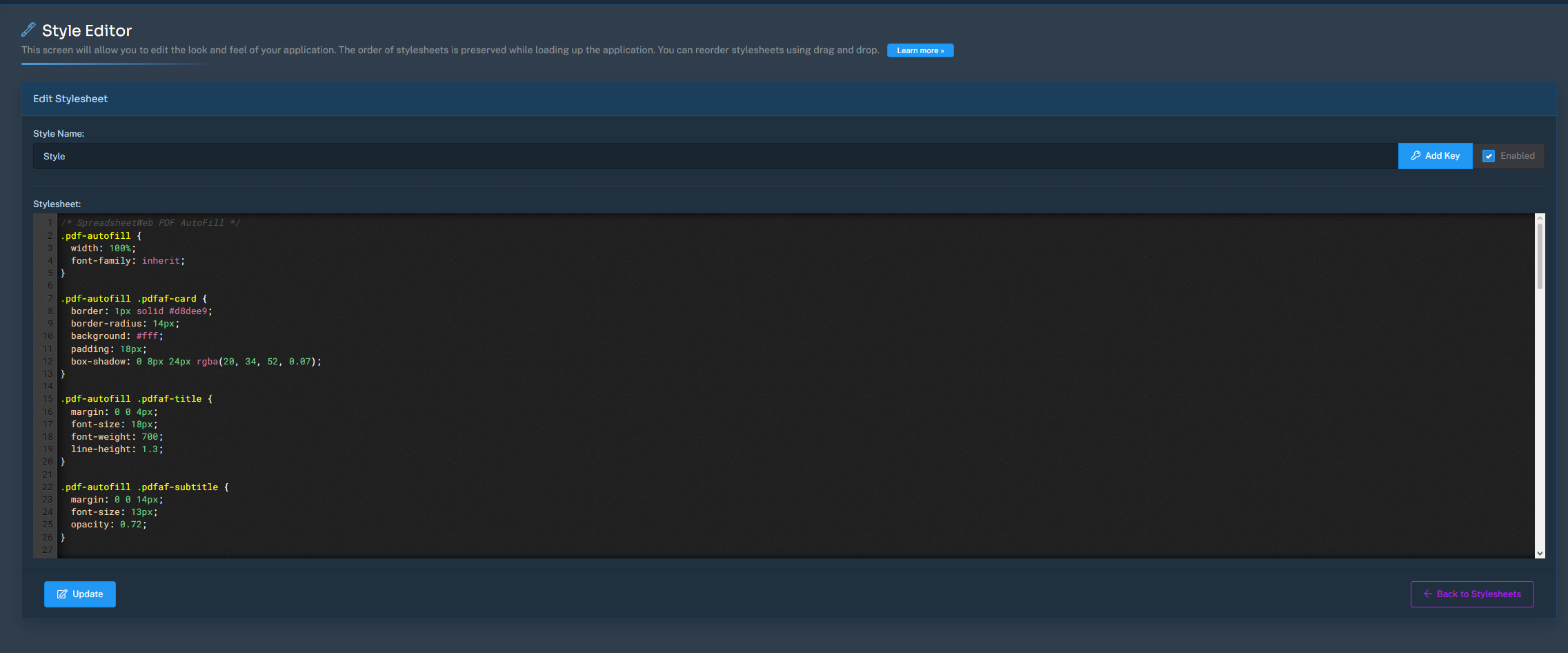
The next step is to add the CSS through the application’s Styles feature.
The CSS creates a card-based upload area, drag-and-drop behavior, status messages, and a list showing which PDF values were detected.
/* SpreadsheetWeb PDF AutoFill */
.pdf-autofill {
  width: 100%;
  font-family: inherit;
}

.pdf-autofill .pdfaf-card {
  border: 1px solid #d8dee9;
  border-radius: 14px;
  background: #fff;
  padding: 18px;
  box-shadow: 0 8px 24px rgba(20, 34, 52, 0.07);
}

.pdf-autofill .pdfaf-title {
  margin: 0 0 4px;
  font-size: 18px;
  font-weight: 700;
  line-height: 1.3;
}

.pdf-autofill .pdfaf-subtitle {
  margin: 0 0 14px;
  font-size: 13px;
  opacity: 0.72;
}

.pdf-autofill .pdfaf-dropzone {
  position: relative;
  display: flex;
  align-items: center;
  justify-content: center;
  min-height: 116px;
  padding: 18px;
  border: 2px dashed #b9c4d3;
  border-radius: 12px;
  background: #f8fafc;
  cursor: pointer;
  text-align: center;
  transition: border-color .18s ease, background .18s ease, transform .18s ease;
}

.pdf-autofill .pdfaf-dropzone:hover,
.pdf-autofill .pdfaf-dropzone.is-dragging {
  border-color: #4677f5;
  background: #f2f6ff;
  transform: translateY(-1px);
}

.pdf-autofill .pdfaf-file-input {
  position: absolute;
  inset: 0;
  width: 100%;
  height: 100%;
  opacity: 0;
  cursor: pointer;
}

.pdf-autofill .pdfaf-upload-icon {
  display: block;
  font-size: 28px;
  line-height: 1;
  margin-bottom: 8px;
}

.pdf-autofill .pdfaf-upload-main {
  display: block;
  font-weight: 700;
  font-size: 14px;
}

.pdf-autofill .pdfaf-upload-help {
  display: block;
  margin-top: 4px;
  font-size: 12px;
  opacity: 0.65;
}

.pdf-autofill .pdfaf-status {
  display: none;
  margin-top: 12px;
  padding: 10px 12px;
  border-radius: 9px;
  background: #f5f7fa;
  font-size: 13px;
  line-height: 1.4;
}

.pdf-autofill .pdfaf-status.is-visible {
  display: block;
}

.pdf-autofill .pdfaf-status.is-success {
  background: #eef9f1;
}

.pdf-autofill .pdfaf-status.is-error {
  background: #fff1f1;
}

.pdf-autofill .pdfaf-result-list {
  display: none;
  margin-top: 12px;
  border-top: 1px solid #edf0f4;
  padding-top: 10px;
}

.pdf-autofill .pdfaf-result-list.is-visible {
  display: block;
}

.pdf-autofill .pdfaf-result-row {
  display: grid;
  grid-template-columns: minmax(135px, .8fr) minmax(0, 1.2fr);
  gap: 10px;
  padding: 6px 0;
  font-size: 12px;
}

.pdf-autofill .pdfaf-result-key {
  font-weight: 700;
  overflow-wrap: anywhere;
}

.pdf-autofill .pdfaf-result-value {
  opacity: 0.78;
  overflow-wrap: anywhere;
}

@media (max-width: 560px) {
  .pdf-autofill .pdfaf-result-row {
    grid-template-columns: 1fr;
    gap: 2px;
  }
}
This styling is entirely optional from a functional standpoint. The PDF reader would still work without it.
However, separating the interface styling into the Styles section makes the implementation much easier to customize.
For example, the upload component can easily be adapted to match the application’s branding by modifying:
.pdfaf-cardfor the overall container,
.pdfaf-dropzonefor the upload area, and
.pdfaf-statusfor feedback messages.
Step 3: Add the JavaScript
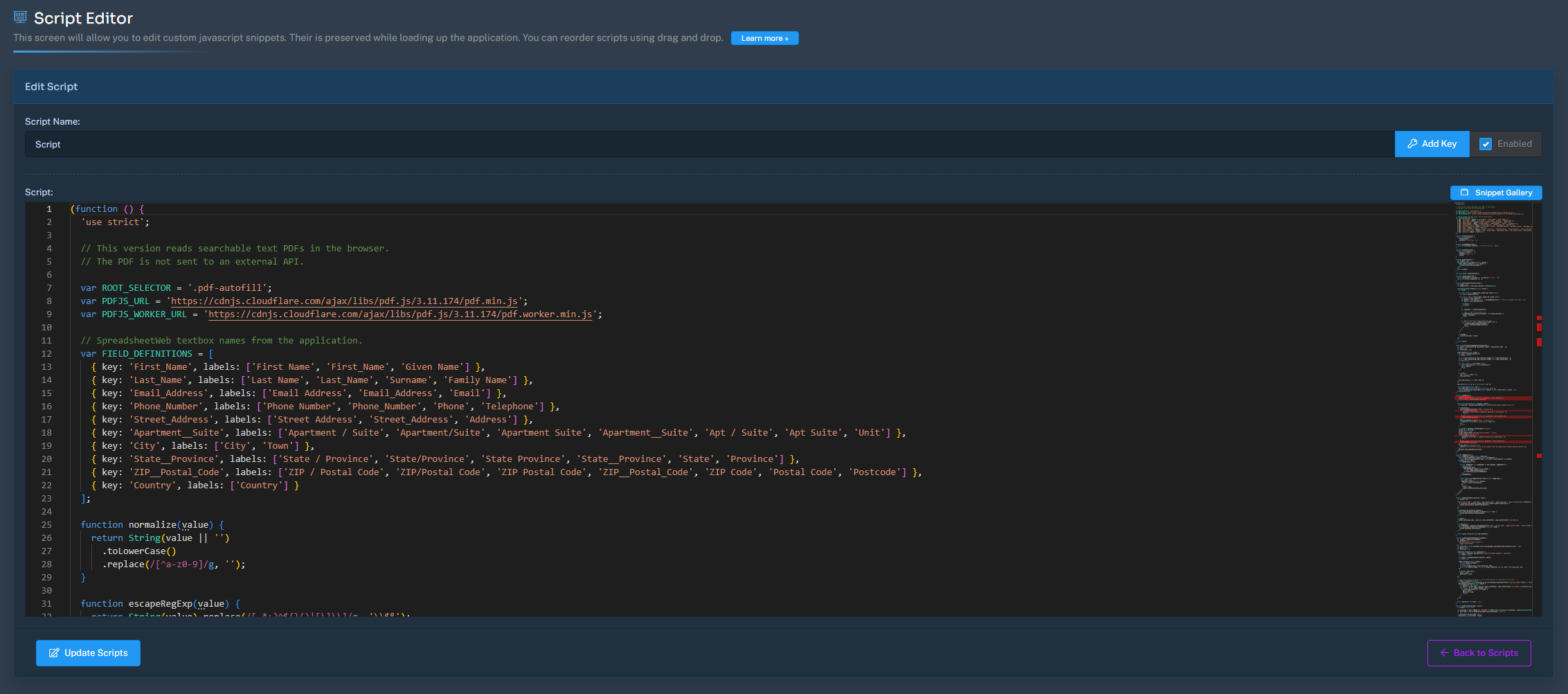
The JavaScript performs the actual work.
It:
- Creates the upload component.
- Loads PDF.js.
- Reads the PDF.
- Reconstructs text lines.
- Identifies configured labels.
- Maps the values to SpreadsheetWeb controls.
- Updates those controls.
- Sends input events.
- Displays the import result to the user.
Add the following script to the application’s Scripts section.
(function () {
'use strict';
// This version reads searchable text PDFs in the browser.
// The PDF is not sent to an external API.
var ROOT_SELECTOR = '.pdf-autofill';
var PDFJS_URL = 'https://cdnjs.cloudflare.com/ajax/libs/pdf.js/3.11.174/pdf.min.js';
var PDFJS_WORKER_URL = 'https://cdnjs.cloudflare.com/ajax/libs/pdf.js/3.11.174/pdf.worker.min.js';
// SpreadsheetWeb textbox names from the application.
var FIELD_DEFINITIONS = [
{ key: 'First_Name', labels: ['First Name', 'First_Name', 'Given Name'] },
{ key: 'Last_Name', labels: ['Last Name', 'Last_Name', 'Surname', 'Family Name'] },
{ key: 'Email_Address', labels: ['Email Address', 'Email_Address', 'Email'] },
{ key: 'Phone_Number', labels: ['Phone Number', 'Phone_Number', 'Phone', 'Telephone'] },
{ key: 'Street_Address', labels: ['Street Address', 'Street_Address', 'Address'] },
{ key: 'Apartment__Suite', labels: ['Apartment / Suite', 'Apartment/Suite', 'Apartment Suite', 'Apartment__Suite', 'Apt / Suite', 'Apt Suite', 'Unit'] },
{ key: 'City', labels: ['City', 'Town'] },
{ key: 'State__Province', labels: ['State / Province', 'State/Province', 'State Province', 'State__Province', 'State', 'Province'] },
{ key: 'ZIP__Postal_Code', labels: ['ZIP / Postal Code', 'ZIP/Postal Code', 'ZIP Postal Code', 'ZIP__Postal_Code', 'ZIP Code', 'Postal Code', 'Postcode'] },
{ key: 'Country', labels: ['Country'] }
];
function normalize(value) {
return String(value || '')
.toLowerCase()
.replace(/[^a-z0-9]/g, '');
}
function escapeRegExp(value) {
return String(value).replace(/[.*+?^${}()|[\]\\]/g, '\\$&');
}
function cleanText(value) {
return String(value || '')
.replace(/\u00a0/g, ' ')
.replace(/\s+/g, ' ')
.trim();
}
function getAllAliases() {
var aliases = [];
FIELD_DEFINITIONS.forEach(function (field) {
field.labels.forEach(function (label) {
aliases.push(normalize(label));
});
});
return aliases;
}
var ALL_ALIASES = getAllAliases();
function isKnownLabel(line) {
var n = normalize(String(line || '').replace(/[:\-]+$/, ''));
return ALL_ALIASES.indexOf(n) !== -1;
}
function parseFieldsFromLines(lines) {
var result = {};
var compactLines = lines.map(cleanText).filter(Boolean);
FIELD_DEFINITIONS.forEach(function (field) {
var found = '';
for (var i = 0; i < compactLines.length && !found; i++) {
var line = compactLines[i];
for (var j = 0; j < field.labels.length && !found; j++) {
var alias = field.labels[j];
var pattern = new RegExp(
'^\\s*' +
escapeRegExp(alias) +
'\\s*(?::|\\-|–|—)?\\s*(.*)$',
'i'
);
var match = line.match(pattern);
if (!match) {
continue;
}
var remainder = cleanText(match[1]);
// "Label: Value" on the same line.
if (remainder && normalize(remainder) !== normalize(alias)) {
found = remainder;
break;
}
// Label on one line, value on the next line.
for (var k = i + 1; k < compactLines.length; k++) {
if (!isKnownLabel(compactLines[k])) {
found = cleanText(compactLines[k]);
break;
}
}
}
}
if (found) {
result[field.key] = found;
}
});
return result;
}
function extractLinesFromPageText(textContent) {
var items = (textContent && textContent.items)
? textContent.items
: [];
var rows = [];
var yTolerance = 2.5;
items.forEach(function (item) {
var text = cleanText(item.str);
if (!text) return;
var x = item.transform && item.transform.length > 4
? item.transform[4]
: 0;
var y = item.transform && item.transform.length > 5
? item.transform[5]
: 0;
var row = null;
for (var i = 0; i < rows.length; i++) {
if (Math.abs(rows[i].y - y) <= yTolerance) {
row = rows[i];
break;
}
}
if (!row) {
row = {
y: y,
items: []
};
rows.push(row);
}
row.items.push({
x: x,
text: text
});
});
rows.sort(function (a, b) {
return b.y - a.y;
});
return rows.map(function (row) {
row.items.sort(function (a, b) {
return a.x - b.x;
});
return cleanText(
row.items.map(function (entry) {
return entry.text;
}).join(' ')
);
}).filter(Boolean);
}
function loadPdfJs() {
if (window.pdfjsLib) {
window.pdfjsLib.GlobalWorkerOptions.workerSrc =
PDFJS_WORKER_URL;
return Promise.resolve(window.pdfjsLib);
}
return new Promise(function (resolve, reject) {
var existing = document.querySelector(
'script[data-pdf-autofill-pdfjs="true"]'
);
if (existing) {
existing.addEventListener('load', function () {
if (!window.pdfjsLib) {
reject(
new Error(
'PDF.js loaded but pdfjsLib is unavailable.'
)
);
return;
}
window.pdfjsLib.GlobalWorkerOptions.workerSrc =
PDFJS_WORKER_URL;
resolve(window.pdfjsLib);
});
existing.addEventListener('error', function () {
reject(
new Error('PDF.js could not be loaded.')
);
});
return;
}
var script = document.createElement('script');
script.src = PDFJS_URL;
script.async = true;
script.setAttribute(
'data-pdf-autofill-pdfjs',
'true'
);
script.onload = function () {
if (!window.pdfjsLib) {
reject(
new Error(
'PDF.js loaded but pdfjsLib is unavailable.'
)
);
return;
}
window.pdfjsLib.GlobalWorkerOptions.workerSrc =
PDFJS_WORKER_URL;
resolve(window.pdfjsLib);
};
script.onerror = function () {
reject(
new Error(
'PDF.js could not be loaded. Check the application Content Security Policy.'
)
);
};
document.head.appendChild(script);
});
}
function readPdf(file) {
return loadPdfJs()
.then(function (pdfjsLib) {
return file.arrayBuffer()
.then(function (arrayBuffer) {
return pdfjsLib.getDocument({
data: new Uint8Array(arrayBuffer)
}).promise;
});
})
.then(function (pdf) {
var pagePromises = [];
for (
var pageNumber = 1;
pageNumber <= pdf.numPages;
pageNumber++
) {
(function (n) {
pagePromises.push(
pdf.getPage(n)
.then(function (page) {
return page.getTextContent();
})
.then(extractLinesFromPageText)
);
})(pageNumber);
}
return Promise.all(pagePromises)
.then(function (pageLines) {
var lines = [];
pageLines.forEach(function (group) {
lines = lines.concat(group);
});
return {
lines: lines,
fields: parseFieldsFromLines(lines)
};
});
});
}
function candidateTokens(container, input) {
var values = [];
[
'data-control-name',
'data-name',
'data-named-range',
'data-range-name',
'data-friendly-name'
].forEach(function (attr) {
if (
container &&
container.getAttribute &&
container.getAttribute(attr)
) {
values.push(
container.getAttribute(attr)
);
}
});
if (container && container.dataset) {
Object.keys(container.dataset)
.forEach(function (key) {
values.push(
container.dataset[key]
);
});
}
if (input) {
values.push(
input.name,
input.id,
input.placeholder,
input.getAttribute('aria-label')
);
}
if (container) {
var labelNodes =
container.querySelectorAll(
'label, .control-label, .pagos-control-label, [class*="label"]'
);
Array.prototype.forEach.call(
labelNodes,
function (node) {
values.push(node.textContent);
}
);
}
return values
.filter(Boolean)
.map(cleanText);
}
function findSpreadsheetWebInput(fieldName) {
var target = normalize(fieldName);
var selectors = [
"div[data-control-type='Textbox']",
'.pagos-control-base'
];
var containers =
Array.prototype.slice.call(
document.querySelectorAll(
selectors.join(',')
)
);
var best = null;
var bestScore = -1;
containers.forEach(function (container) {
var input =
container.querySelector(
'input:not([type="hidden"]), textarea'
);
if (!input) return;
var tokens =
candidateTokens(container, input);
var score = 0;
tokens.forEach(function (token) {
var n = normalize(token);
if (!n) return;
if (n === target) {
score = Math.max(score, 100);
} else if (
n.indexOf(target) !== -1 ||
target.indexOf(n) !== -1
) {
score = Math.max(score, 50);
}
});
if (score > bestScore) {
best = input;
bestScore = score;
}
});
// Last-resort direct selectors if the runtime exposes
// the range/name on the input.
if (!best || bestScore <= 0) {
var directInputs =
Array.prototype.slice.call(
document.querySelectorAll(
'input:not([type="hidden"]), textarea'
)
);
directInputs.forEach(function (input) {
if (bestScore > 0) return;
var tokens = [
input.name,
input.id,
input.placeholder,
input.getAttribute('aria-label')
].filter(Boolean);
for (
var i = 0;
i < tokens.length;
i++
) {
if (
normalize(tokens[i]) === target
) {
best = input;
bestScore = 100;
break;
}
}
});
}
return bestScore > 0
? best
: null;
}
function setNativeValue(input, value) {
if (!input) return false;
var prototype =
input.tagName === 'TEXTAREA'
? window.HTMLTextAreaElement.prototype
: window.HTMLInputElement.prototype;
var descriptor =
Object.getOwnPropertyDescriptor(
prototype,
'value'
);
if (
descriptor &&
descriptor.set
) {
descriptor.set.call(
input,
value
);
} else {
input.value = value;
}
// These events are intentionally bubbled so
// SpreadsheetWeb's runtime can receive the update.
[
'input',
'change',
'blur'
].forEach(function (eventName) {
input.dispatchEvent(
new Event(
eventName,
{
bubbles: true
}
)
);
});
if (window.jQuery) {
window.jQuery(input)
.trigger('input')
.trigger('change')
.trigger('blur');
}
return true;
}
function fillSpreadsheetWeb(fields) {
var report = [];
FIELD_DEFINITIONS.forEach(
function (definition) {
if (
!Object.prototype
.hasOwnProperty.call(
fields,
definition.key
)
) {
return;
}
var input =
findSpreadsheetWebInput(
definition.key
);
var success =
setNativeValue(
input,
fields[definition.key]
);
report.push({
key: definition.key,
value: fields[definition.key],
filled: success
});
}
);
return report;
}
function renderResults(root, report) {
var list =
root.querySelector(
'.pdfaf-result-list'
);
if (!list) return;
list.innerHTML = '';
report.forEach(function (item) {
var row =
document.createElement('div');
row.className =
'pdfaf-result-row';
var key =
document.createElement('div');
key.className =
'pdfaf-result-key';
key.textContent =
(item.filled ? '✓ ' : '⚠ ') +
item.key;
var value =
document.createElement('div');
value.className =
'pdfaf-result-value';
value.textContent =
item.value;
row.appendChild(key);
row.appendChild(value);
list.appendChild(row);
});
list.classList.toggle(
'is-visible',
report.length > 0
);
}
function setStatus(
root,
message,
type
) {
var status =
root.querySelector(
'.pdfaf-status'
);
if (!status) return;
status.textContent = message;
status.className =
'pdfaf-status is-visible' +
(type ? ' is-' + type : '');
}
function processFile(root, file) {
if (!file) return;
if (
file.type !== 'application/pdf' &&
!/\.pdf$/i.test(
file.name || ''
)
) {
setStatus(
root,
'Please select a PDF file.',
'error'
);
return;
}
setStatus(
root,
'Reading PDF and matching customer fields...',
''
);
renderResults(root, []);
readPdf(file)
.then(function (data) {
var fieldCount =
Object.keys(
data.fields
).length;
if (!fieldCount) {
setStatus(
root,
'No matching text fields were found. This PDF may be scanned/image-only or use different labels.',
'error'
);
return;
}
var report =
fillSpreadsheetWeb(
data.fields
);
var filledCount =
report.filter(
function (item) {
return item.filled;
}
).length;
var missingControls =
report.filter(
function (item) {
return !item.filled;
}
).map(
function (item) {
return item.key;
}
);
renderResults(
root,
report
);
if (
filledCount ===
report.length
) {
setStatus(
root,
'Done. ' +
filledCount +
' textbox' +
(
filledCount === 1
? ''
: 'es'
) +
' filled from ' +
file.name +
'.',
'success'
);
} else {
setStatus(
root,
'PDF data found, but ' +
missingControls.length +
' SpreadsheetWeb textbox' +
(
missingControls.length === 1
? ''
: 'es'
) +
' could not be located: ' +
missingControls.join(', '),
'error'
);
}
})
.catch(function (error) {
console.error(
'[PDF AutoFill]',
error
);
setStatus(
root,
'PDF could not be processed: ' +
(
error &&
error.message
? error.message
: error
),
'error'
);
});
}
function initialize(root) {
if (
!root ||
root.getAttribute(
'data-pdfaf-ready'
) === 'true'
) {
return;
}
root.setAttribute(
'data-pdfaf-ready',
'true'
);
root.innerHTML = [
'<div class="pdfaf-card">',
' <div class="pdfaf-title">Fill customer details from PDF</div>',
' <div class="pdfaf-subtitle">Upload a searchable PDF. Matching values will be written into the SpreadsheetWeb textboxes.</div>',
' <label class="pdfaf-dropzone">',
' <input class="pdfaf-file-input" type="file" accept="application/pdf,.pdf">',
' <span>',
' <span class="pdfaf-upload-icon">⇧</span>',
' <span class="pdfaf-upload-main">Choose a PDF or drag it here</span>',
' <span class="pdfaf-upload-help">PDF text is processed locally in your browser.</span>',
' </span>',
' </label>',
' <div class="pdfaf-status"></div>',
' <div class="pdfaf-result-list"></div>',
'</div>'
].join('');
var input =
root.querySelector(
'.pdfaf-file-input'
);
var dropzone =
root.querySelector(
'.pdfaf-dropzone'
);
input.addEventListener(
'change',
function () {
processFile(
root,
input.files &&
input.files[0]
);
}
);
[
'dragenter',
'dragover'
].forEach(
function (eventName) {
dropzone.addEventListener(
eventName,
function (event) {
event.preventDefault();
dropzone.classList.add(
'is-dragging'
);
}
);
}
);
[
'dragleave',
'drop'
].forEach(
function (eventName) {
dropzone.addEventListener(
eventName,
function (event) {
event.preventDefault();
dropzone.classList.remove(
'is-dragging'
);
}
);
}
);
dropzone.addEventListener(
'drop',
function (event) {
var file =
event.dataTransfer &&
event.dataTransfer.files &&
event.dataTransfer.files[0];
processFile(
root,
file
);
}
);
}
function initializeAll() {
Array.prototype.forEach.call(
document.querySelectorAll(
ROOT_SELECTOR
),
initialize
);
}
// Initialize now and again after SPA/page DOM updates.
if (
document.readyState === 'loading'
) {
document.addEventListener(
'DOMContentLoaded',
initializeAll
);
} else {
initializeAll();
}
var observer =
new MutationObserver(
function () {
initializeAll();
}
);
observer.observe(
document.documentElement,
{
childList: true,
subtree: true
}
);
})();
Understanding the JavaScript
Although the complete script is relatively long, most users only need to modify a very small portion of it.
The most important configuration is this array:
var FIELD_DEFINITIONS = [
  { key: 'First_Name', labels: ['First Name', 'First_Name', 'Given Name'] },
  { key: 'Last_Name', labels: ['Last Name', 'Last_Name', 'Surname', 'Family Name'] },
  { key: 'Email_Address', labels: ['Email Address', 'Email_Address', 'Email'] },
  { key: 'Phone_Number', labels: ['Phone Number', 'Phone_Number', 'Phone', 'Telephone'] },
  { key: 'Street_Address', labels: ['Street Address', 'Street_Address', 'Address'] },
  { key: 'Apartment__Suite', labels: ['Apartment / Suite', 'Apartment/Suite', 'Apartment Suite', 'Apartment__Suite', 'Apt / Suite', 'Apt Suite', 'Unit'] },
  { key: 'City', labels: ['City', 'Town'] },
  { key: 'State__Province', labels: ['State / Province', 'State/Province', 'State Province', 'State__Province', 'State', 'Province'] },
  { key: 'ZIP__Postal_Code', labels: ['ZIP / Postal Code', 'ZIP/Postal Code', 'ZIP Postal Code', 'ZIP__Postal_Code', 'ZIP Code', 'Postal Code', 'Postcode'] },
  { key: 'Country', labels: ['Country'] }
];
This is effectively the configuration layer of the solution.
Each object has two parts:
{
  key: 'First_Name',
  labels: ['First Name', 'First_Name', 'Given Name']
}
key
The key identifies the SpreadsheetWeb Textbox that should receive the value.
For example:
key: 'First_Name'means:
Find the SpreadsheetWeb input corresponding to First_Name and place the extracted value there.
labels
The labels array defines the text that may appear in the PDF.
For example:
labels: [
  'First Name',
  'First_Name',
  'Given Name'
]
means that all of these PDF formats can potentially map to the same SpreadsheetWeb control:
First Name: EmmaFirst_Name: EmmaGiven Name: EmmaAll three produce:
First_Name → EmmaThis alias system makes the parser significantly more flexible than relying on one exact document label.
How to Configure the Script for Your Own Application
This is the most important section if you want to reuse the implementation.
You generally do not need to rewrite the PDF reader or textbox update functions.
Instead, customize FIELD_DEFINITIONS.
Suppose another SpreadsheetWeb application contains these Textbox controls:
Customer_Name
Company_Name
Invoice_Number
Order_Date
Total_Amount
and a PDF contains:
Customer: John Smith
Company: Contoso Inc.
Invoice No: INV-2026-01482
Invoice Date: August 31, 2026
Amount Due: $4,250.00
The configuration could be changed to:
var FIELD_DEFINITIONS = [
  {
    key: 'Customer_Name',
    labels: [
      'Customer',
      'Customer Name',
      'Client',
      'Client Name'
    ]
  },
  {
    key: 'Company_Name',
    labels: [
      'Company',
      'Company Name',
      'Organization'
    ]
  },
  {
    key: 'Invoice_Number',
    labels: [
      'Invoice Number',
      'Invoice No',
      'Invoice #'
    ]
  },
  {
    key: 'Order_Date',
    labels: [
      'Invoice Date',
      'Order Date',
      'Date'
    ]
  },
  {
    key: 'Total_Amount',
    labels: [
      'Total',
      'Total Amount',
      'Amount Due'
    ]
  }
];
The rest of the script can remain unchanged.
This makes the approach useful beyond customer information forms.
The same architecture can be used for:
- Purchase orders
- Invoices
- Customer onboarding
- Insurance forms
- Loan applications
- Shipping documents
- Employee forms
- Inspection reports
- Quotations
- Technical calculation sheets
- Registration forms
- Application forms
The important requirement is that there is enough predictable text in the PDF to identify the values.
Extending the Idea
The customer information example is intentionally straightforward, but the underlying concept is much broader.
Once an external document can populate SpreadsheetWeb inputs, many interesting workflows become possible.
Invoice Processing
A PDF invoice could provide:
Invoice Number
Customer
Invoice Date
Subtotal
Tax
Total
Those values could populate an Excel-based financial model converted into a SpreadsheetWeb application.
The application could then calculate:
- Payment terms
- Discount eligibility
- Tax adjustments
- Margin calculations
- Approval status
without manually re-entering invoice information.
Quotation Applications
A supplier quotation could contain:
Material
Quantity
Unit Price
Freight
Currency
After import, a SpreadsheetWeb application could calculate a normalized project cost, apply internal margins, and produce a pricing recommendation.
Engineering Reports
A technical PDF might contain measurements such as:
Flow Rate
Pressure
Temperature
Pipe Diameter
Density
Those values could immediately feed an engineering calculation model implemented in Excel and deployed using SpreadsheetWeb.
Application and Registration Forms
Customer or employee documents may contain:
Name
Address
Phone
Date
Reference Number
Department
Importing these fields can reduce repetitive data entry while still allowing the user to review and edit the imported information before continuing.
This is an important distinction.
Document extraction does not necessarily need to fully automate the business process.
Often, the most practical workflow is:
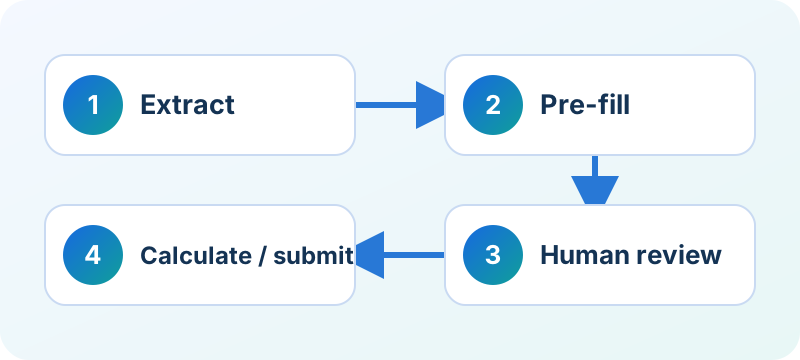
The user retains control while the repetitive part of the work is eliminated.
A Reusable Pattern for SpreadsheetWeb Applications
Although this example focuses on PDF documents, the larger lesson is that SpreadsheetWeb’s front-end customization capabilities can be used to create interfaces that go beyond traditional spreadsheet inputs.
Using:
- Advanced Labels
- Custom HTML
- Styles
- JavaScript
- Existing application controls
developers can use SpreadsheetWeb application features to create custom interaction layers around spreadsheet models.
The architecture used here is particularly reusable:
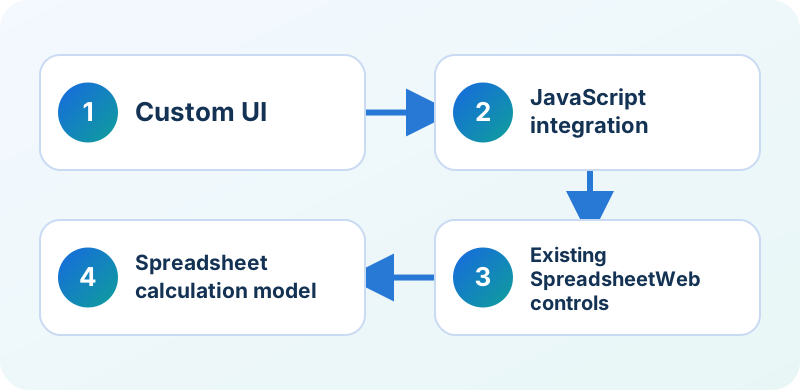
The custom component does not replace the SpreadsheetWeb application.
Instead, it enhances how users interact with it.
Limitations and Production Considerations
The example is deliberately designed to be understandable and customizable rather than attempting to solve every possible document-processing problem.
Before implementing a similar approach in a production application, consider the following.
Document consistency
Rule-based extraction works best when documents have recognizable labels and relatively consistent layouts.
Scanned documents
Image-only PDFs require OCR.
Data validation
Imported information should be validated where appropriate, especially when it affects financial, engineering, compliance, or other important calculations.
User review
For many workflows, imported values should be treated as pre-filled information that users can verify rather than unquestioned authoritative data.
Security
If external libraries or APIs are added, evaluate them according to the organization’s security and data-handling requirements.
Browser compatibility
Test the browser File API, PDF.js, and application behavior in the browsers supported by your deployment.
Application updates
Because this technique interacts with the rendered application controls, integrations that depend on DOM characteristics should be retested after substantial front-end changes.
Final Result
With one Advanced Label, custom CSS, and JavaScript, we transformed a standard SpreadsheetWeb form into a document-assisted data-entry workflow.
Instead of manually copying:
Emma
Johnson
emma.johnson@example.com
+1 415 555 0136
123 Market Street
...
from a PDF into individual fields, the user can simply upload the document.
The application then performs the repetitive work automatically:
And because the implementation feeds values into the existing SpreadsheetWeb Textbox controls, the uploaded document can become the starting point for the same spreadsheet calculations, business logic, and outputs already defined by the application.
This is a relatively small customization, but it demonstrates a much broader idea: the spreadsheet-powered web applications in our Gallery do not have to be limited to traditional form entry.
By combining an existing Excel model with custom front-end components and browser-side JavaScript, developers can create more streamlined input experiences around document-heavy business processes.
For applications where users frequently copy information from PDFs into calculation models, even a lightweight integration like this can remove a significant amount of repetitive data entry—and provide a foundation for more advanced document automation in the future.