In the dynamic realm of spreadsheet management, understanding the intricacies of Excel functions is paramount. Among these, the SUM function stands out as a powerful tool for aggregating data. This article delves into the nuanced application of the SUM function in Excel, specifically focusing on to calculate SUM with intersecting tables. By harnessing the potential of the intersect operator – the space character (" ") – users can unlock a wealth of possibilities when manipulating data across various ranges within an Excel workbook.
Syntax
The syntax for utilizing the SUM function in this context is straightforward:
=SUM(first range second range)
Steps
- Type =SUM( function
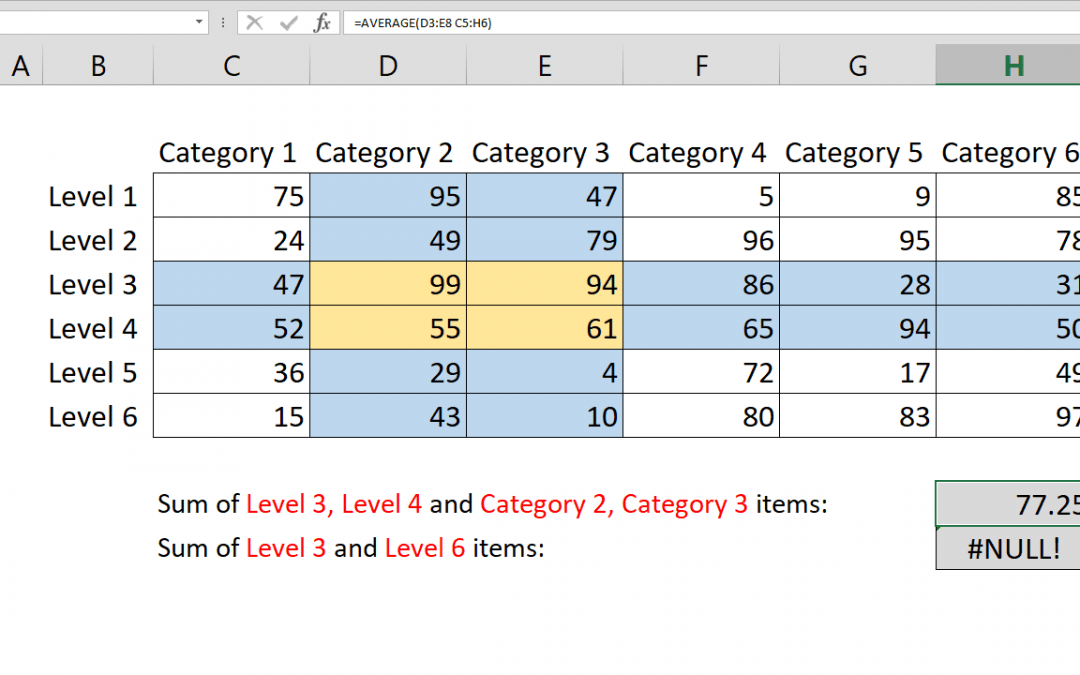
- Select or type the first range reference that includes data C5:H6
- Press Space key to add a space character
- Select or type the second range reference that includes data D3:E8
- Type ) to close function and finish the formula
How
The space character (" ") is the intersect operator in Excel. Putting a space between two ranges returns the intersection cell or range that two ranges shares. You can see how it works even by itself, if both intersecting ranges are single dimensional as well. For example;
=C5:H5 D3:D8 formula points D5 cell and returns the value of D5, 99.
If the intersection is a range of cells and places outside a function, it will return #VALUE! error. However, it will operate as a range if you it inside a function that accepts ranges.
=SUM(C5:H6 D3:E8) returns 309 that is sum of numbers in D5:E6 range.
If you try to intersect two not-intersecting ranges, e.g. C4:H4 C6:H6, the formula will return a #NULL! error.
Also see related articles how to calculate average with intersecting tables.
In conclusion, mastering the art of calculating sums in Excel, particularly with intersecting tables, adds a valuable skill set to your spreadsheet repertoire. The SUM function, complemented by the space character as an intersect operator, facilitates seamless data manipulation. As demonstrated in the provided syntax and steps, users can effortlessly navigate through Excel workbooks, efficiently extracting sums from specific ranges. Remember, the space character bridges the gap between ranges, allowing for precise calculations. This newfound proficiency not only streamlines your spreadsheet endeavors but also opens doors to exploring other Excel functions for optimal data analysis. As you delve into the world of Excel, consider exploring related articles on calculating averages with intersecting tables to enhance your spreadsheet prowess further.