This article explains how to use the INDIRECT and ISREF functions in Excel to better organize large spreadsheets. These functions help you manage multiple sheets effectively and ensure they work correctly. You'll learn the basics of INDIRECT, see examples, and discover how it improves data management.
Syntax of ISREF and INDIRECT Excel Functions
In Excel, the combination of the ISREF and INDIRECT functions is a tool for verifying the existence of a worksheet. The syntax for this combination is quite straightforward yet functional.
INDIRECT Function: The `INDIRECT` function is a dynamic function in Excel that converts a text string into a valid cell reference. When you use `INDIRECT` in Excel, especially in this context, it generates a reference to a specific cell in another worksheet. In our formula, `INDIRECT("name of the sheet that you want to check & "!A1")` creates a reference to cell A1 of the specified worksheet. The 'name of the sheet that you want to check' should be replaced with the actual name of your target sheet. Understanding how to use INDIRECT in Excel is important, as this function forms the core of our worksheet verification method.
Concatenation for Sheet Reference: The `& "!A1"` part of the `INDIRECT` function is where you concatenate the worksheet name with a cell reference. In this case, we're checking cell A1, which can be any reference. This concatenation is critical in constructing the complete cell reference for the `INDIRECT` function.
ISREF Function: Excel's `ISREF` function checks if a value is a valid reference. It returns TRUE if the supplied value is a reference and FALSE otherwise. In our formula, `ISREF` checks whether the reference created by the `INDIRECT` function is valid. This effectively tells us if the specified worksheet exists.
This method is especially useful when dealing with large workbooks with multiple sheets, ensuring you avoid errors related to non-existent references.
Steps to Utilize ISREF and INDIRECT Excel Functions
When working with complex Excel workbooks, particularly those utilizing the INDIRECT and ISREF functions, verifying a sheet's existence is essential. This process can be seamlessly achieved by following these structured steps, which utilize the INDIRECT function in Excel and the ISREF function:
- Initiate the ISREF Function: Begin by activating the cell where you want the verification result to appear. Type `=ISREF(`. This is the starting point of our formula, where the ISREF function in Excel is used to check if a specified reference is valid.
- Incorporate the INDIRECT Function: Immediately after `=ISREF(, `continue with the INDIRECT function by typing `INDIRECT(. ` This formula portion is crucial, as the INDIRECT Excel function dynamically converts text into a cell reference. Understanding how to use INDIRECT in Excel is pivotal, as this function allows for a flexible reference to your desired sheet.
- Specify the Sheet Reference: It's time to input the sheet reference. For this, select or type in the range reference that contains the sheet name, for example, `B3`. This should look like `INDIRECT(B3`. Here, B3 ideally contains the name of the sheet you wish to check. Using INDIRECT to reference another sheet is a powerful feature of Excel.
- Concatenate with Cell Reference: Continue the formula by adding `&"!A1"`. This concatenates the sheet name in B3 with a specific cell reference (A1 in this case), making a complete reference for the INDIRECT function.
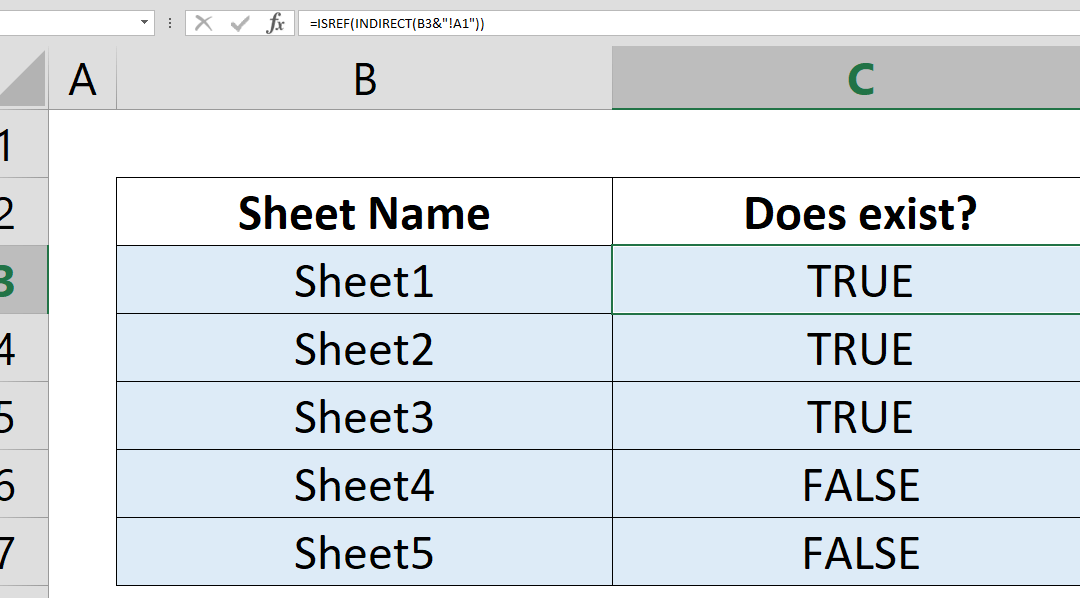
- After completing your formula with double parentheses )), press Enter. Your final formula should look like `=ISREF(INDIRECT(B3&"!A1"))`. This will return TRUE if the specified sheet exists and the cell A1 is a valid reference or FALSE if not.
ISREF Function: Excel's Reference Verifier
In Excel, the ISREF function plays n important role in verifying references. It returns a Boolean value (TRUE or FALSE) indicating whether its argument is a valid reference. This capability is particularly useful for confirming the existence of worksheets in your Excel workbook. Directing ISREF to a cell reference in a specified worksheet, such as 'A1' in 'Sheet1' or 'New Sheet' can determine if that worksheet exists.
Example Usage for ISREF Function
However, manually typing references for each sheet can be cumbersome and inefficient. This is where combining ISREF with another powerful function, INDIRECT, becomes advantageous.
INDIRECT Function: Excel's Dynamic Reference Creator
The INDIRECT function in Excel is designed to convert text strings into valid references. It's invaluable for scenarios where you must alter cell references within a formula without modifying it. For instance:
INDIRECT('New Sheet'!A1)
Dynamic Worksheet Verification with ISREF and INDIRECT
When combined, ISREF and INDIRECT provide a dynamic solution to verify the existence of worksheets in Excel. ISREF checks if a reference exists, while INDIRECT converts text strings into those references. To construct a valid reference string, it’s essential to append a cell reference (like 'A1') to the worksheet name. Remember, an exclamation mark is crucial for separating the worksheet name from the cell reference.
Example of Combined Use
Standard Reference Check:
=ISREF(INDIRECT(B3&"!A1"))
Special-Character-Safe Version:
=ISREF(INDIRECT("'"&B3&"'!A1"))
In this version, wrapping the sheet name in single quotes within the INDIRECT function ensures that the formula remains effective even if the worksheet name contains special characters or spaces.