Adding a new line within a cell in Excel can be somewhat different from what you might be accustomed to in a standard text editor. Typically, when you press Enter in Excel, it shifts the selection to the cell below, rather than creating a new line within the same cell. So, the question arises: How can you effectively insert a new line within the same cell in Excel?
Fortunately, there are two simple methods to achieve this:
Pressing Alt+Enter:
To create a new line within the same cell, you can use the keyboard shortcut Alt+Enter. This key combination instructs Excel to move to the next line within the cell, allowing you to input text or data without changing the active cell. It's a handy and quick way to format your cell content neatly.
Using the CHAR(10) Formula (CHAR(13) on Mac):
Another method involves utilizing the CHAR function. Specifically, you can use CHAR(10) in your text to insert a line break. On Mac, you can achieve the same result using CHAR(13). By incorporating this formula within your cell content, you can effectively create new lines within the same cell, enhancing the readability and organization of your data.
By employing these straightforward techniques, you can effortlessly insert new lines within a cell in Excel, ensuring that your data is well-structured and presented with clarity, even within the confines of a single cell.
Press "Alt + Enter" to Add a New Line to the Cell
To enter a new line within a cell in Microsoft Excel using the Alt + Enter keyboard shortcut, follow these steps:
- Select the Cell: Click on the cell where you want to add the new line. You can either start with a blank cell or a cell that already contains text.
- Enter Edit Mode: If the cell is blank, simply start typing your text. If the cell already contains text, double-click inside the cell to enter edit mode, or press F2 to edit the cell content.
- Insert New Line: Place your cursor at the point in the text where you want to insert a new line. Press Alt + Enter (on Windows) or Option + Return (on Mac). This will create a line break, and your cursor will move to the next line within the same cell.
- Continue Typing or Finish: Continue typing if you need to add more text after the line break. Once you are done, press Enter to exit the cell, or click outside the cell.
- Adjust Row Height if Necessary: Excel usually adjusts the row height automatically to accommodate the new line. If it doesn't, you can manually adjust the row height to make sure all the text is visible.
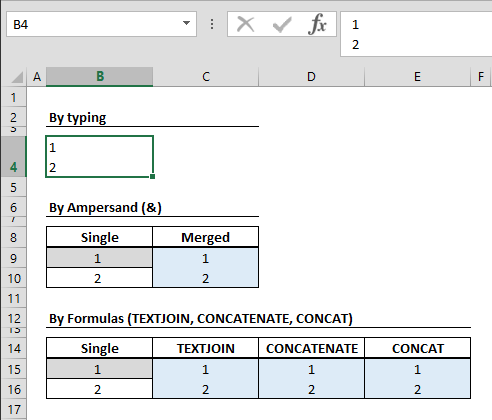
How to Add a New Line Using Formula CHAR(10)
However, there are scenarios where you may encounter more complex requirements, such as incorporating formulas or merging strings while ensuring each string appears on its own line within the same cell. The CHAR(10) and CHAR(13) functions are valuable tools in Excel that enable you to control and manipulate text within cells. These functions are based on character codes and play a crucial role in formatting and structuring your data.
The CHAR function essentially returns a string character from a specified character code. In the context of CHAR(10) and CHAR(13), the number parameter (10 or 13) represents the character code associated with line breaks. However, it's essential to be aware of a key consideration—character codes can vary between different operating systems, and this variance can impact the results of the CHAR function.
For instance, when you use CHAR(10) in Windows, it generates a new line character, facilitating text separation within the same cell. However, Mac users should note that the character code for a new line on their operating system is CHAR(13). This distinction highlights the importance of adapting your Excel formulas to your specific operating environment to ensure consistent and accurate results.
Understanding how to use CHAR(10) and CHAR(13) effectively is crucial for maintaining data integrity and consistency when working on Excel documents across different platforms. For a more comprehensive exploration of the CHAR function and its various applications, you can explore further details in our guide, which delves into its versatile use cases.
While Alt + Enter is ideal for straightforward text input, the CHAR(10) formula offers a more versatile solution. This formula allows you to introduce line breaks within your cell content, enabling you to manipulate and format your data in a more structured manner. For instance, if you need to combine multiple strings or incorporate formulas into a cell, CHAR(10) permits you to separate each string or formula result onto its own line, making your data presentation cleaner and more organized. This is particularly useful when dealing with data sets that require a clear visual separation or when you want to maintain a neat layout within a single cell.