Welcome to our comprehensive guide on how to group worksheets in Excel! Grouping worksheets in Excel is a valuable technique for managing and organizing your workbook efficiently. In this tutorial, we'll explore various methods and best practices for grouping worksheets, allowing you to streamline your workflow and improve productivity. Whether you're a beginner looking to learn the basics or an experienced user seeking advanced techniques, this guide will provide you with practical insights into effectively managing and grouping worksheets in Excel. Join us as we delve into the world of worksheet management and discover how to leverage grouping for enhanced organization and productivity in Excel.

 How to Group Worksheets and How to Manage in Excel: See all sheets and navigate

To see the list of all visible (not hidden) worksheets and quickly move to another, right click on the two arrows (◄►) next to the sheet tabs. Once the list is open, double-click on the sheet you want to go.

How to manage worksheets in Excel 01

Navigate to the first or last sheet

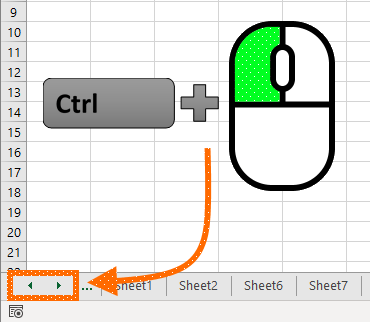
You can directly go to the first or the last sheet using a keyboard - mouse click combination:

  • Hold Ctrl and left click on the left arrow (◄) to go to the first sheet
  • Hold Ctrl and left click on the right arrow (►) to go to the last sheet
Move between worksheets

When working with grouped worksheets in Excel, this trick becomes especially valuable for manually checking each sheet. Utilize the following shortcuts to navigate between sheets one-by-one, enhancing your efficiency when managing grouped worksheets in Excel.

  • Next worksheet: Ctrl + Page Down
  • Previous worksheet: Ctrl + Page Up

Commands to manage worksheets

In the context, an essential tip for effective management is configuring them efficiently. By right-clicking on a worksheet name, you can access a menu containing all available commands specific to the selected worksheet. This feature allows for seamless customization and organization when grouping worksheets in Excel.

How to manage worksheets in Excel

Move or copy a sheet

From the context menu, you can copy your worksheet using the Move or Copy command. However, there is an easier way to do this: drag & drop.

You can click, hold, and move a sheet with your mouse. You can copy the sheet using the same method by holding down the Ctrl button before clicking.

How to Manage and How to Group Worksheets in Excel: Insert a new worksheet

Another command in the context menu which you can apply with a single shortcut is for creating new worksheets. Just press Shift + F11 keys to insert a new sheet.

Shift + F11

Please note that, if you click Ctrl + F11, you will see that a worksheet is added under the name Macro1. Although it looks like a worksheet, it is not. Macro sheets are from the outdated Excel 4.0 macros, and are still kept for backward compatibility. If you want to use macros, try Visual Basic for Applications (VBA).
 

In conclusion, mastering how to manage worksheets in Excel is crucial for efficient workbook management. By effectively organizing your worksheets, you can streamline your workflow and improve productivity. Whether you're handling complex data or collaborating with others, the ability to group worksheets is a valuable skill that can enhance your Excel experience. We hope this guide has provided you with practical insights and techniques for effectively managing and grouping worksheets in Excel, empowering you to optimize your workbook organization and productivity.