In today's digital age, PDF files have become a ubiquitous format for sharing documents seamlessly. However, there are instances where converting Excel workbooks to PDF is not only beneficial but also essential for efficient communication. Fortunately, Excel provides a variety of tools and methods to streamline this conversion process. In this article, we will explore four methods to convert Excel files into PDF effortlessly. From the straightforward "Save as PDF" option to hidden features like "Publish as PDF or XPS" and "Email as PDF Attachment," we'll guide you through each approach, empowering you with the versatility to choose the method that best suits your needs.
Save as PDF
Simple as it sounds. You can save your Excel spreadsheet as a PDF file. Instead of the Save option, you need to use Save as PDF. Here are the exact steps:
- Open the File tab
- Click Save As
- Select the folder you want to save the file
- Select PDF as the file type
- Press Save button

Usually, these steps will be enough for most circumstances. To see extra options for saving as PDF, click the Options button unser Save As.
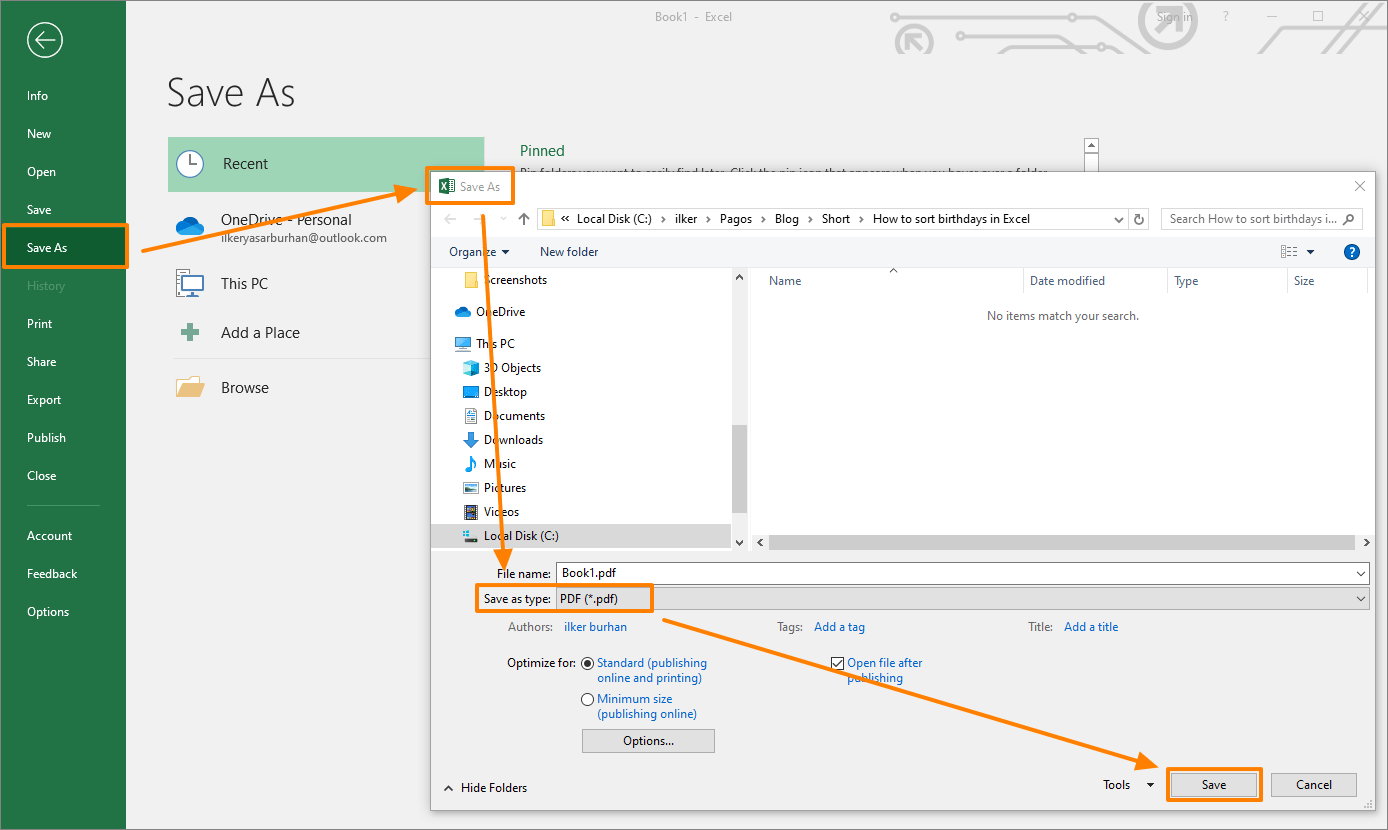
Also, you can choose an optimization type and whether you want to open file after creating.
Export As PDF
Another way you can open the Save As dialog using the steps below:
- Open the File tab
- Activate Export
- Click Create PDF/XPS Document

You will see the same Save As dialog, the file type is already set as PDF.
Publish as PDF
Excel also has some hidden features for converting Excel Files to PDF. One such feature is is Publish as PDF or XPS. This is a hidden command which you can add to your Excel (actually Excel’s Ribbon or Quick Access Toolbar).
Follow the steps to add Publish as PDF or XPS to the Quick Access Toolbar:
- Right-click on Ribbon or Quick Access Toolbar
- Select Customize Quick Access Toolbar (Alternatively, you can open via Options window)

- While left pane displays available commands, the right one shows the active commands. Make sure select All Commands for the commands in the left panel
- Scroll until you find Publish as PDF or XPS
- Select it and click the Add button to add the command into the right panel

- Click OK to apply the settings. After this step you should be able to see the command in Quick Access Toolbar


Clicking the PDF or XPS buttons displays the Save As dialog with PDF file type selected.
Email as PDF Attachment
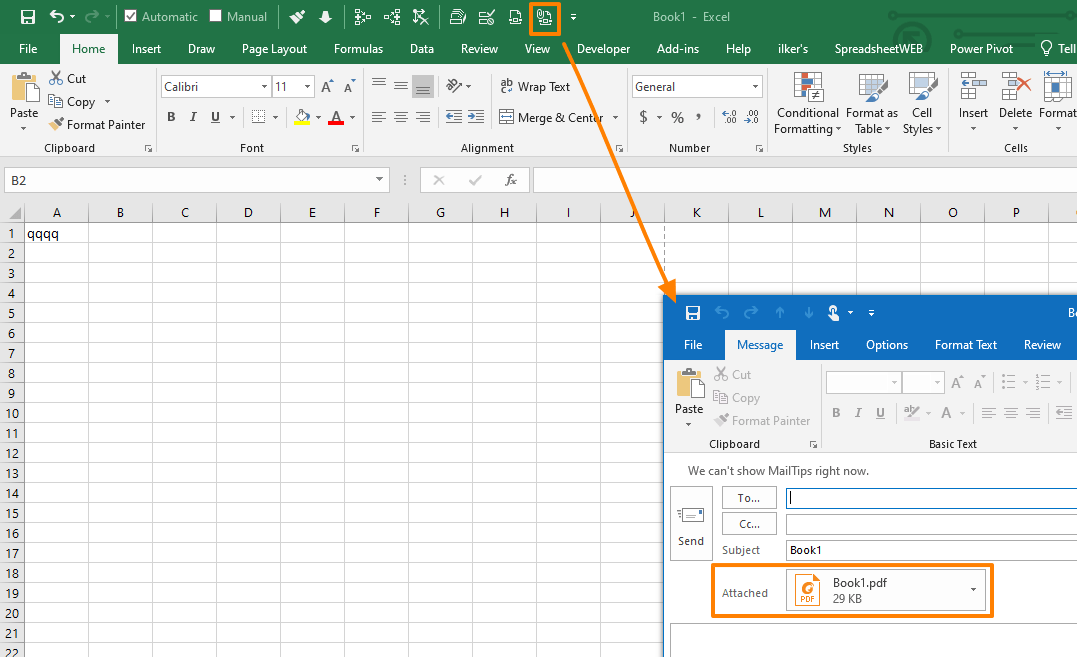
The last approach we are going to take a look at is another hidden command - Email as PDF Attachment. This command is very useful if you send your Excel-PDF files via emails frequently. Once this command is triggered, Excel automatically saves the file as PDF and attaches it to a new blank email.
You can find Email as PDF Attachment command by following same steps in the previous topic.

Click Email as PDF Attachment icon send your file with an email.
In conclusion, mastering the art of converting Excel files to PDF can significantly enhance your document-sharing capabilities. Whether you prefer the simplicity of "Save as PDF," the accessibility of "Export As PDF," the efficiency of "Publish as PDF or XPS," or the convenience of "Email as PDF Attachment," Excel offers a spectrum of options catering to diverse user preferences. By following the outlined steps for each method, you can seamlessly transform your Excel workbooks into PDF files, ensuring that your data remains accessible and shareable across various platforms. Embrace these Excel features, and empower your document management with a newfound efficiency and simplicity.