
In Excel, the IFERROR function is used to handle errors that may occur in a formula. When formulas in Excel encounter issues that lead to errors — such as #DIV/0! when a number is divided by zero, #VALUE! when the data type is mismatched, #REF! for invalid cell references, #N/A for unavailable data, #NAME? for unrecognized function names, or #NUM! for invalid numerical results — the IFERROR function can be a lifesaver. It works by allowing you to define a custom response or value to be displayed in place of these errors. For instance, you can set IFERROR to display a zero, a blank cell, or a custom message like "Error in Calculation" whenever an error is detected in a formula. This not only makes your spreadsheets more robust and user-friendly but also helps in avoiding misleading results caused by unhandled errors.
In this guide, we’re going to show you how to use the IFERROR function and also go over some tips and error handling methods.
Supported Excel Versions
- (Windows) Excel 2007 and above
- (Mac) Excel for Mac 2011 and above
- Web and mobile versions
Syntax
The basic syntax of the IFERROR function is as follows:
value: This is the expression or formula that you want to evaluate.
value_if_error: This is the value or action that should be returned if the expression or formula in the "value" parameter results in an error.
IFERROR Examples
In this example we've used named ranges to make the formulas easier to read. This is not required.
Example 1
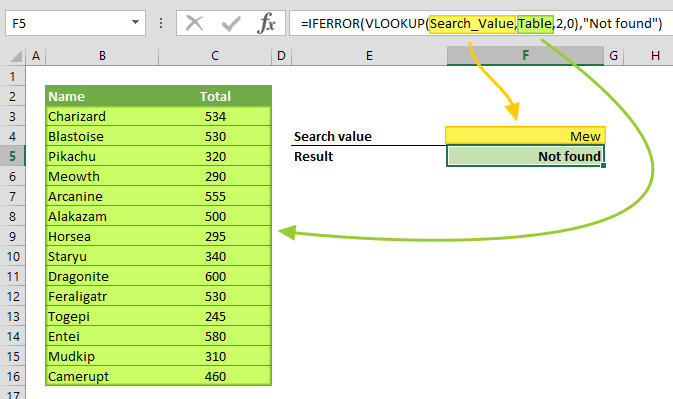
Example 2

Example 3

Tips for Using IFERROR Function
Error Types Checked by IFERROR:
#N/A: This stands for 'Not Available' and appears when Excel cannot find a value that it's been instructed to look for. This is often seen in functions like VLOOKUP or HLOOKUP when the lookup value is not found in the source data.
#VALUE!: This error shows up when the wrong type of argument or operand is used. For example, using text in a formula that requires a number, or if an expected date format is incorrect.
#REF!: This is a reference error that appears when a formula refers to a cell that is not valid. This often occurs after cells or ranges referenced in the formula are deleted or moved.
#DIV/0!: This error occurs when a formula attempts to divide a number by zero, which is mathematically undefined. It's one of the most common errors in Excel, especially in financial and statistical models where division operations are frequent.
#NUM!: This indicates a problem with a number in the formula, such as when a function's input parameters are outside of its acceptable range, or if a formula produces a number too large or too small to be represented in Excel.
#NAME?: This error signifies that Excel doesn't recognize a text entry as a formula or function. It usually happens due to misspellings in function names, forgotten equal signs before formulas, or unrecognized text within formulas.
#NULL!: This error is less common and occurs when you specify an intersection of two areas that do not actually intersect.
Handling Empty Cells with IFERROR
The IFERROR function in Excel exhibits a particularly useful behavior when dealing with empty reference cells within formulas. If the cell that a formula reference is empty, IFERROR treats this cell as an empty string (""). This characteristic is extremely beneficial in scenarios where your spreadsheet may contain blank cells by design or due to incomplete data entry.
In typical situations, formulas that reference empty cells might result in errors or undesired outputs. For instance, a formula that performs a division operation where the denominator is an empty cell would normally return a #DIV/0! error. However, when such a formula is wrapped within an IFERROR function, instead of showing an error, Excel treats the empty cell as an empty string. This allows you to define a more meaningful or user-friendly output for such scenarios, like displaying a zero, a specific text like "Data Not Available," or simply leaving the cell blank.
This approach is particularly advantageous in user-facing spreadsheets, such as reports or dashboards, where displaying raw error messages can be confusing or unprofessional. By using IFERROR to handle empty cells, you can maintain a clean and understandable presentation of data. This functionality is also helpful in dynamic spreadsheets where the presence of data in cells can vary over time. By preemptively addressing potential empty cells with IFERROR, you can build a more robust and error-resistant spreadsheet, ensuring that it remains functional and user-friendly, regardless of changes in the underlying data.
Using IFNA for #N/A Errors
In addition to IFERROR, Excel provides the IFNA function, which handles one specific type of error: the #N/A error. The #N/A error typically appears when a formula cannot find a value that it's looking for, often occurring in lookup functions like VLOOKUP or HLOOKUP when the search key is not present in the source range. The IFNA function is particularly useful when you want to target only the #N/A errors while leaving other types of errors unaffected. This selective approach can be important in data analysis and management, where different types of errors may require different handling strategies. For example, while a #N/A error in a lookup operation might be expected and could be replaced with a custom message like "Not Found" or a default value, other errors such as #DIV/0! or #VALUE! might indicate a more significant problem in your data or formula that needs direct attention.

Detecting Excel Errors without Replacing Them
Detecting errors in Excel without immediately replacing them is important for maintaining data integrity and accuracy. Errors in a spreadsheet often signal underlying issues with the data or the formulas being used. By identifying these errors, rather than automatically substituting them, you're able to accurately diagnose and correct any underlying problems. Furthermore, errors serve as indicators in troubleshooting and debugging processes. When building or refining complex spreadsheets, understanding the nature of these errors can provide valuable insights into issues within your formulas. Automatically replacing these errors, without comprehending their root causes, might lead to incorrect analyses or further inaccuracies in your data.
Additionally, the presence of an error can sometimes be more informative than a replaced value. For instance, a #DIV/0! error in a financial report could highlight missing data or an unforeseen scenario in the model, prompting a necessary review or adjustment of inputs. This aspect of error detection is particularly vital for informed decision-making. Moreover, different types of errors might require varied handling strategies.
ISERROR and ISERR functions are designed to evaluate a cell or an expression and return a logical value (TRUE or FALSE) based on the presence of an error. The ISERROR function detects any type of error, including #N/A, #VALUE!, #REF!, #DIV/0!, #NUM!, #NAME?, and #NULL!. This makes it ideal for a broad range of error-checking scenarios. On the other hand, the ISERR function is similar but slightly more specific; it detects all the aforementioned errors except for #N/A. This distinction can be particularly useful when you need to differentiate between 'Not Available' errors and other types of errors in your data. Using these functions, you can easily set up conditional checks, alerts, or even complex data validation rules in your spreadsheet.


